

Get around the Calendar
See who works on what, when, and how much time is left, with bookings, timesheets, availability and vacations on one timeline.
On this page
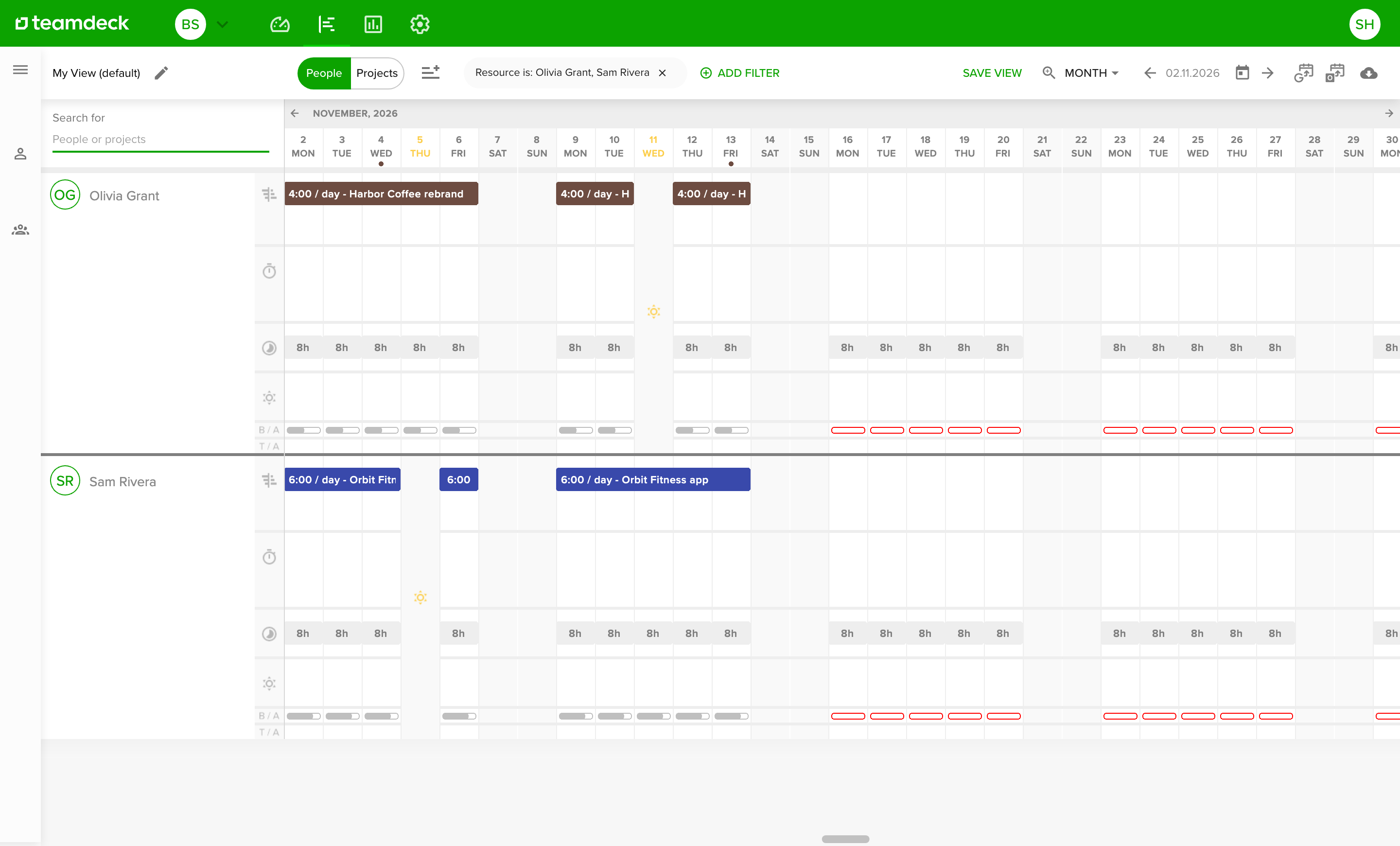
The Calendar is the planning grid of Teamdeck. Each row is a person or a project, each column is a day, and you see bookings, time entries, availability, vacations and milestones in one place. Owners see everyone; Managers see everyone in the organizational units they can access. Watch the video for a tour, then read on for the details.
Before you start
- Regular members see only their own row, unless an Owner turned on the extended calendar for them.
- Adding or changing bookings needs the Owner role, or the Manager role with the Can do resource planning setting on your profile. Without it, bookings are view-only.
Open the Calendar
- Select the Calendar icon in the top menu.
- Use People or Projects next to the filter bar to choose what the rows show.
- Use Search for above the rows to find a person or a project by name.
In the people view, each person has these rows:
- Bookings: planned hours on projects.

- Timesheets: time entries that people logged.
- Availability: the hours a person can work.
- Vacations: approved and pending time off.
- B / A (Bookings / Availability): a bar per day that compares booked time with availability.
- T / A (Timesheets / Availability): a bar per day that compares tracked time with availability.
- Capacity heatmap: a tile per day that shows how much of a person's availability is still free. It is off until you turn it on. See See free capacity with the heatmap.
Weekends are shaded. Bank holidays have a highlighted date and a sun icon. Hover a day to see booked and available hours, and the name of the holiday.
Hover over a bar in the B / A or T / A row to see how much time is booked or tracked and how much is left.
Switch to the project view
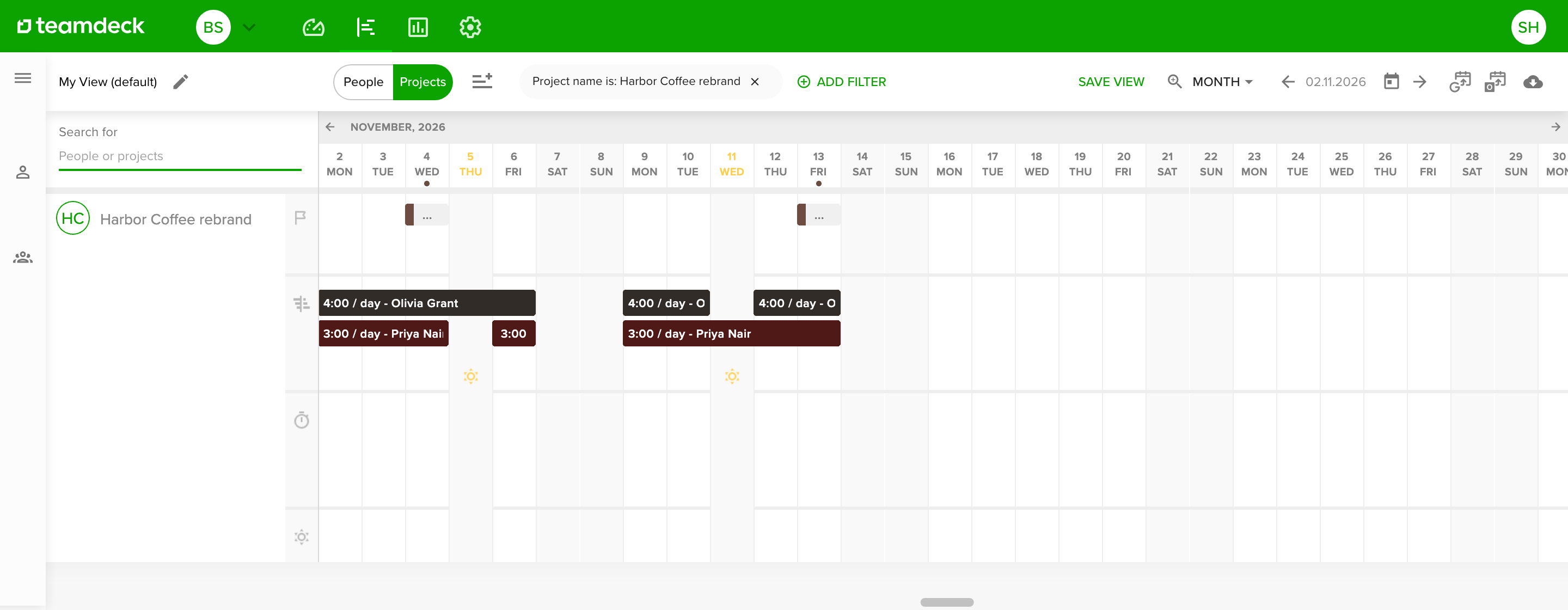
- Select Projects next to the filter bar.
- Each row is now a project. The top row shows its milestones, the next rows show who is booked on it.
The availability rows, the B / A and T / A bars and the capacity heatmap are not available in the project view, because they belong to people. Read more in Add milestones to your projects.
Sort the rows
- Select the Sort chip in the filter bar, right before People and Projects. It shows the sort in use, for example Sort: Name.
- Pick a sort under Sort by:
- In the people view: Name, Free capacity, Date added, Organization unit and your people custom fields.
- In the project view: Name, Latest activity (the last day booked on the project), Start date (the first day booked on the project), Date added, Organization unit and your project custom fields.
- To choose the direction, select the up or down arrow next to a sort. Selecting the sort's name uses its usual direction: A to Z for names, units and custom fields, newest first for dates, and most free time first for Free capacity. Select the name of the sort in use again to reverse its direction. Free capacity is the exception: selecting its name again updates its dates, as described below, and keeps the direction.
The Calendar reloads in the new order. The sort icon on the chip is green for any sort other than Name from A to Z. Rows with no value, such as a project with no bookings or a person with an empty custom field, come last in both directions. Rows with the same value are listed by name.
Free capacity puts the people with the most unbooked time on top: their availability minus approved time off and bookings, in the dates loaded when you pick the sort. When more than six months are loaded, for example in the Year zoom, only the first six months count. The order then stays the same while you move to other dates, so rows do not jump. To sort by the dates you see now, pick Free capacity again. Hover the Sort chip to see which dates the order uses.
Number custom fields sort by value, so 9 comes before 10. Text and list fields sort alphabetically. Organization unit is shown only when your organization has more than one unit.
The sort is part of the view. To keep it, save the view as described in Filter the Calendar and save views.
See free capacity with the heatmap
The Capacity heatmap row shows at a glance who has time left: the stronger the green, the more of a person's availability is still unbooked.
- Select Rows shown, the icon right after People and Projects.
- Under Presets, pick Resourcing (the heatmap, bookings and vacations) or Capacity overview (only the heatmap, one compact row per person). You can also tick Capacity heatmap under Show.
Each tile shows the free time for a day, or for a week or a month when you zoom out to Quarter or Year, for example 2h. When the free time is not a whole number of hours, a small tile shows it with one decimal, for example 4.6h for 4h 34min. A pale tile is almost fully booked. A red tile is overbooked and shows a negative value such as -1h, and the deeper the red, the more it is overbooked. A full vacation day shows 0h. A day with no availability and no bookings, such as a weekend or a bank holiday, has no tile.
Hover a tile to see the percentage of availability that is free, or how much the person is overbooked, with the available, booked and remaining hours.
To show free time as a percentage, hover the heatmap's row header and pick % under Show free time as. Pick Hours to switch back. The choice is saved with the view.
Move around and zoom
- Use the arrows next to the date to move back and forward, or open the date picker to jump to a day.
- Open the zoom menu (it shows Week, Month, Quarter or Year) to change how many days you see. Press 1 to 4 for quick zooming.
Add or change something on the Calendar
- Hover an empty day in a person's row. A plus icon appears.
- Select the plus icon, or drag across several days to set the length.
- Fill in the form that opens on the right and save it.
The other rows have their own forms. Step by step:
- Bookings: Plan your team's schedule
- Time entries: Manage time entries
- Time off: Manage time off requests and Manage your day-to-day availability
Filter and save views
- Select Add filter and pick what to filter by: projects, people, tags, custom fields, tentative bookings or availability.
- Select Save view to keep the result as a private view or an organization view.
Details are in Filter the Calendar and save views.
Export the data
Owners and Managers can select the cloud icon at the top right to export bookings, timesheets or milestones as a CSV file. See Export Calendar data to CSV.
Change how today and weekends look
An Owner can change how the Calendar marks today, for the whole organization.
- Go to Settings and open Advanced, then Calendar.
- Under Display, pick a Today column colour. Pick None to keep the column plain. Only today's date at the top stays green.
- Turn on Outline today's column to frame today's column with lines on both sides and across the top of its date.
- Turn on High-contrast calendar to make today's column, weekends and the lines between days stronger.
Everyone sees the change the next time they open the Calendar, in light and dark mode.
Use the Calendar on your phone
The Teamdeck mobile app shows the Calendar and bookings too. Read more in Teamdeck mobile.
Tips
- Filter to the people in one team before you plan a busy week, so the rows stay short.
- Save the filters you use every Monday as a view.
- Use the project view to check that milestones and bookings line up.
- To staff a new project, pick the Resourcing preset and sort by Free capacity. The people who can take the work come first.
Troubleshooting
- I do not see a row, such as bookings or vacations. An Owner can switch calendar data types on or off in the organization settings. Ask an Owner to check the working time options in Settings > Organization.
- I can see the Calendar but cannot add bookings. You need the Can do resource planning setting on your profile. Ask an Owner.
- I only see my own row. The extended calendar is off for the Regular role. Ask an Owner to turn it on.
- I cannot pick the Capacity heatmap, or the Resourcing and Capacity overview presets are greyed out. The heatmap belongs to people, so it is not available in the project view. It also needs bookings and availability switched on for your organization.
- Today looks the same as a weekend. Some monitors show pale colours as white. Ask an Owner to turn on High-contrast calendar or Outline today's column in Settings > Advanced > Calendar.
- The order did not change when I moved to another week. The Free capacity sort keeps the dates you had when you picked it. Pick Free capacity again to sort by the dates you see now.