

Manage time off and vacation requests
Add vacations for your team in the Calendar, and approve or reject the time off requests people send you.
On this page
Time off shows in the Calendar in its own row for each person. Managers and owners can add it there and answer the requests their team sends.
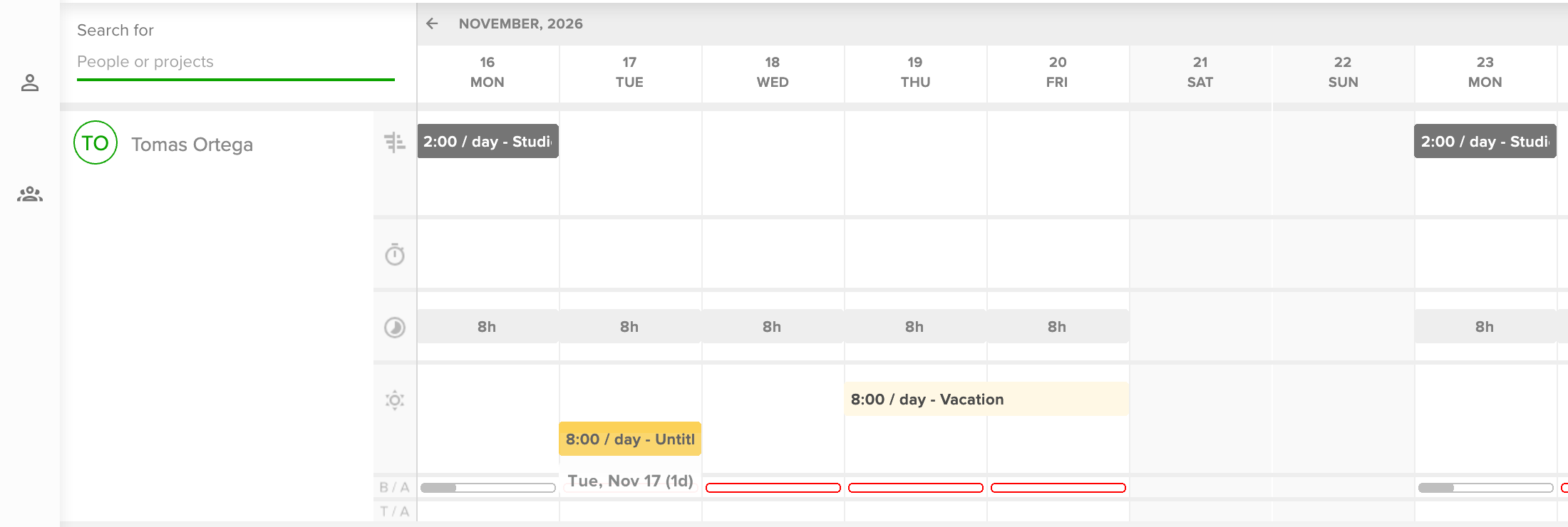
In every zoom, an approved day off also tints the person's other rows in a light shade of the reason's colour. You can see who is off, and why their availability is lower, even with the vacation row hidden. At the top of the person's row, a sun icon and the reason's name mark the start of each stretch of days off. Time off that spans a weekend gets them again after the weekend. Hover over them to see the time off's dates, length and status. On a full day off, the capacity heatmap shows 0h.
Before you start
- You need the Manager or Owner role to add vacations for other people and to answer requests.
- Reasons come from your organization's settings, and a reason can have an allowance set by a vacation policy. See Manage vacations and paid time off and Set up vacation policies and allowances.
Add a vacation in the Calendar
- Open the Calendar and scroll to the person.
- In their vacation row, the last row before the utilization bars, hover over the first day. A preview of the new vacation appears.
- Click, or click and drag to the last day.
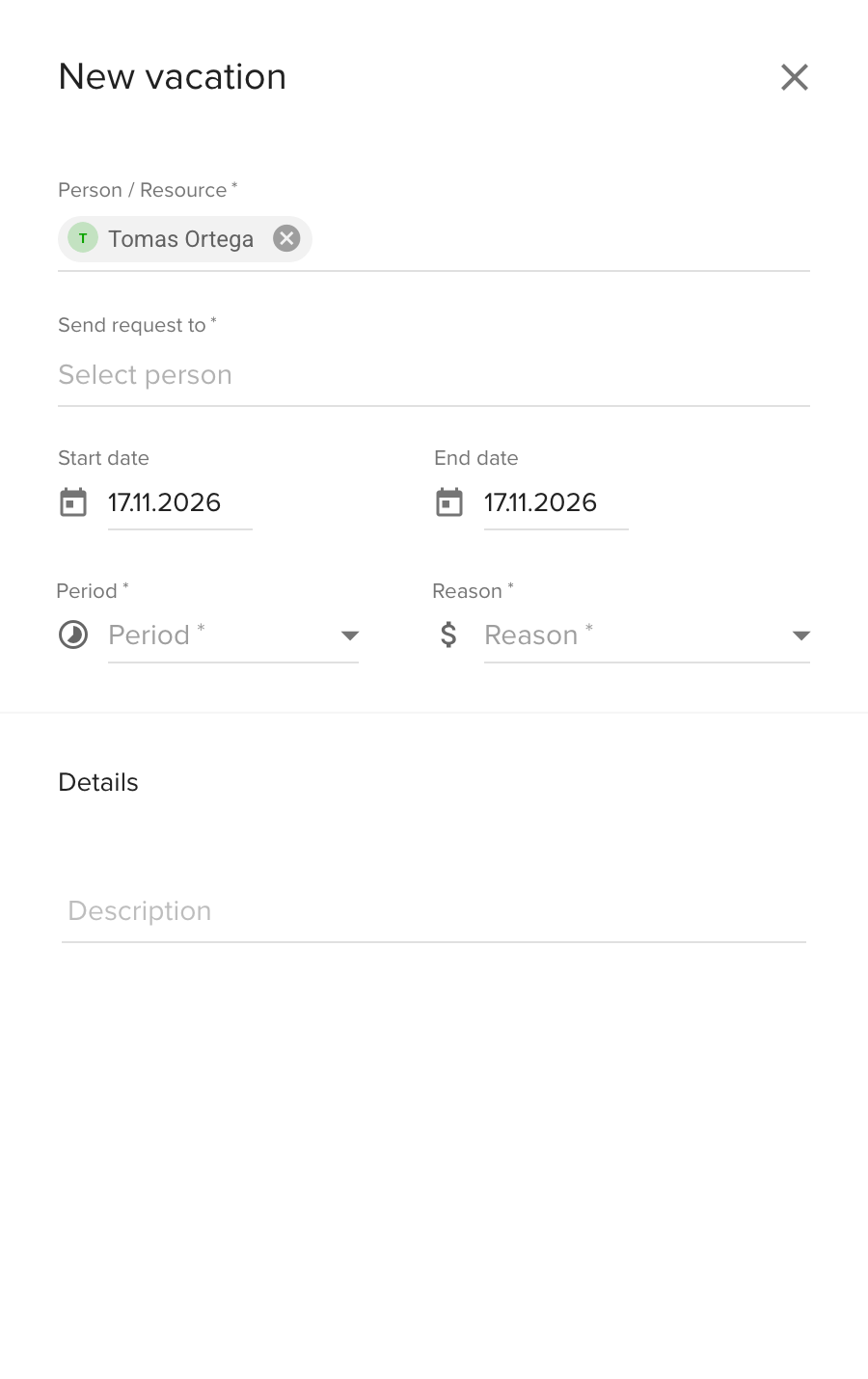
- In the New vacation drawer, check the person and dates. Change them if needed.
- Under Send request to, pick the approver.
- Choose a Reason. Then set the Time per day, or for a reason whose policy counts in days, a Full day or Half day under Period. When the reason has an allowance, the drawer shows how much of it the person has left.
- Optional: add a description.
- Click Save.
When you pick yourself as the approver, the vacation is accepted at once. Pending requests look different from accepted vacations in the Calendar.
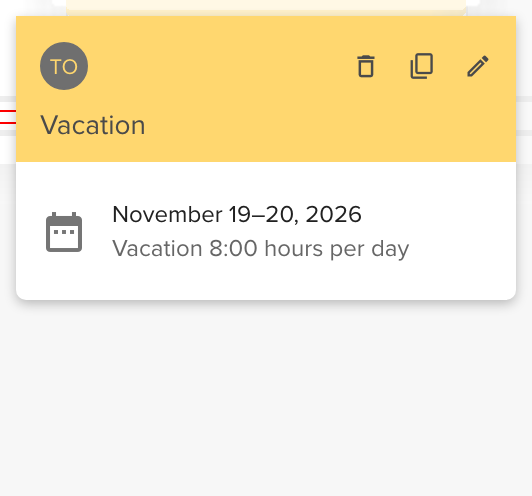
Hover over a vacation to see its dates and hours, and to remove, duplicate or edit it.
Respond to vacation requests
People with the Regular role can ask for a day off or a longer period. The approver they choose is notified of each request.
- Click the bell icon in the top right corner, or go to the Dashboard and scroll to Notifications.
- Click Approve or Reject on the request.
The person gets your decision as a notification. You can also open Settings > Vacations, pick the request and accept or reject it there.
When a request is accepted, the days leave the person's available hours. Bookings and time entries that are set to skip vacations lose those days, and reports subtract the vacation time. Pending requests do not change availability, but they already count against the allowance of a vacation policy.
Troubleshooting
- A person can't remove an approved vacation. Cancelling an approved vacation asks the approver to confirm it first.
- The vacation did not reduce booked hours. Only accepted vacations affect bookings, and only bookings and time entries set to skip vacations.
- The drawer says the selected dates exceed the vacation time left. The reason belongs to a vacation policy and the person's allowance is too small for those dates. Shorten the vacation, or an Owner can raise the person's balance.
- A vacation is greyed out and cannot be moved. It was saved in another unit than the current policy of its reason, as the note at the top of the drawer says. You can still accept, reject or remove it. To change it, remove it and add it again.
- The selected range is skipped automatically. The range falls only on weekends or bank holidays, which your organization's settings trim off.