

Set up vacation policies and allowances
Give your team a yearly allowance of vacation days or hours, let reasons share it, and adjust what each person has left.
On this page
A vacation policy sets how much time off people get: an allowance of days or hours per year, the vacation reasons that draw from it, how it builds up and what carries over. Teamdeck then checks every vacation against it, so nobody books more time off than they have, and everyone sees what they have left.
Before you start
- You need the Owner role. The Reasons, Policies and Balances tabs are only shown to Owners.
- Set up your vacation reasons first, in Settings and Vacations, on the Reasons tab. A policy counts one or more of them. See Manage vacations and paid time off.
- Decide whether the policy counts in Days or Hours. You cannot change the unit after the policy is saved.
Create a vacation policy
- Go to Settings and open Vacations.
- Open the Policies tab and click the green + button in the bottom right corner.
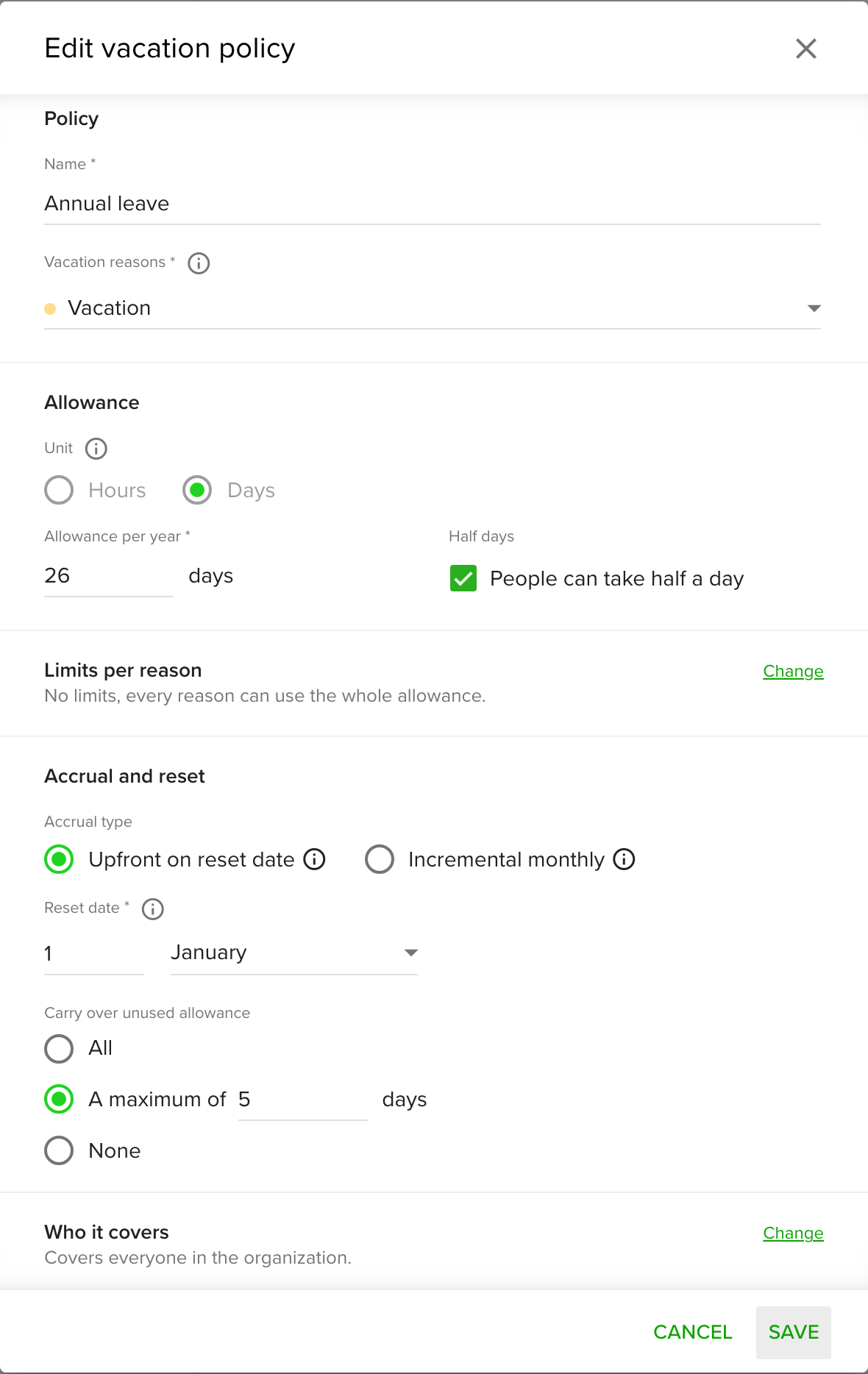
- Under Policy, enter a Name, for example
Annual leave. - Pick one or more Vacation reasons. Every reason you pick draws from the same allowance. A reason can belong to one policy only.
- Under Allowance, choose the Unit: Days or Hours.
- Enter the Allowance per year, for example
26days. - For a policy in days, tick People can take half a day if half days are allowed.
- Under Accrual and reset, choose the Accrual type:
- Upfront on reset date: the whole allowance is available from the reset date.
- Incremental monthly: a twelfth of the allowance is added at the start of every month, starting with the month of the reset date.
- Set the Reset date, the day the vacation year starts, for example 1 January.
- Under Carry over unused allowance, choose All, A maximum of (and enter the amount) or None.
- Optional: under Who it covers, click Change and pick Organization units, People or both. Leave both empty to cover everyone in the organization. Only the people a policy covers can choose its reasons, so a policy for one unit keeps its reasons out of the vacation forms of everyone else.
- Click Save.
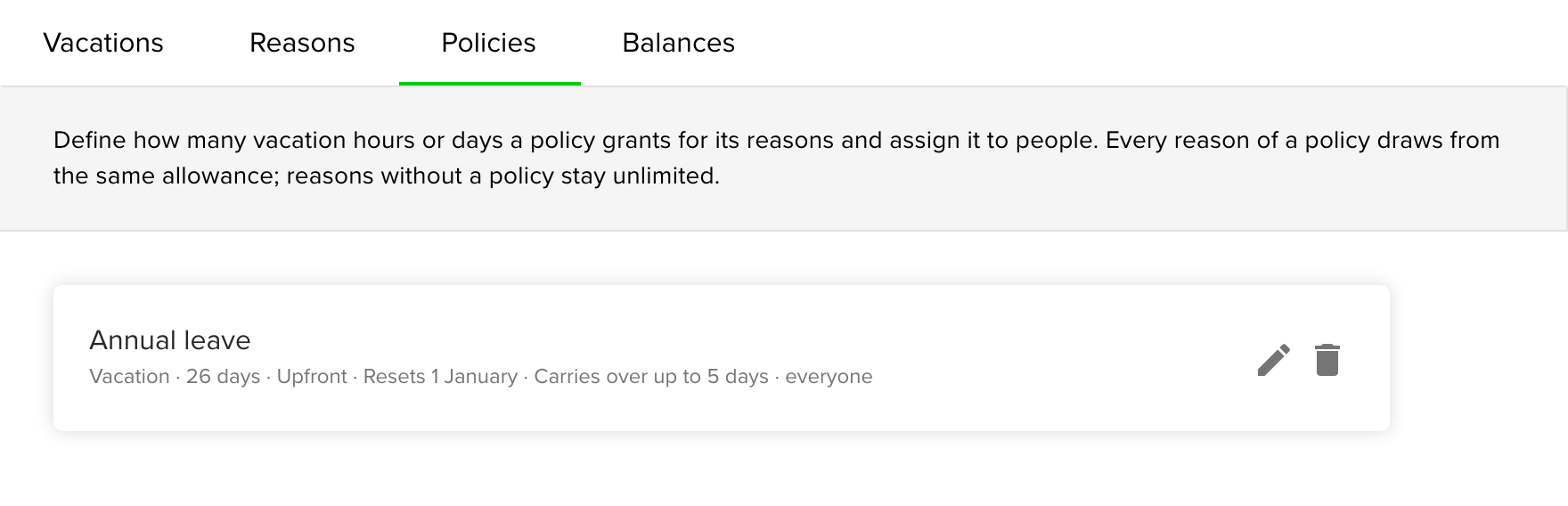
The policy appears on the Policies tab with a one-line summary, for example "Vacation · 26 days · Upfront · Resets 1 January · Carries over up to 5 days · everyone". From now on, a vacation under one of its reasons is counted against the allowance of the person who takes it.
Limit a reason within the allowance
Use a limit when one reason may use only part of the allowance, for example up to 4 days of on-demand leave out of 26 days of annual leave.
- Open the policy on the Policies tab.
- Next to Limits per reason, click Change.
- Enter a Limit for the reason. Leave it empty for no limit.
- Click Save.
A limited reason can take whichever runs out first: what is left of its limit, or what is left of the allowance. Pending requests count too. Limits never carry over: a limit of 4 days is 4 days again in the next year. If every reason has a limit and the limits add up to less than the allowance, the dialog tells you how much of the allowance can never be used.
Check and change balances
- Go to Settings and open Vacations.
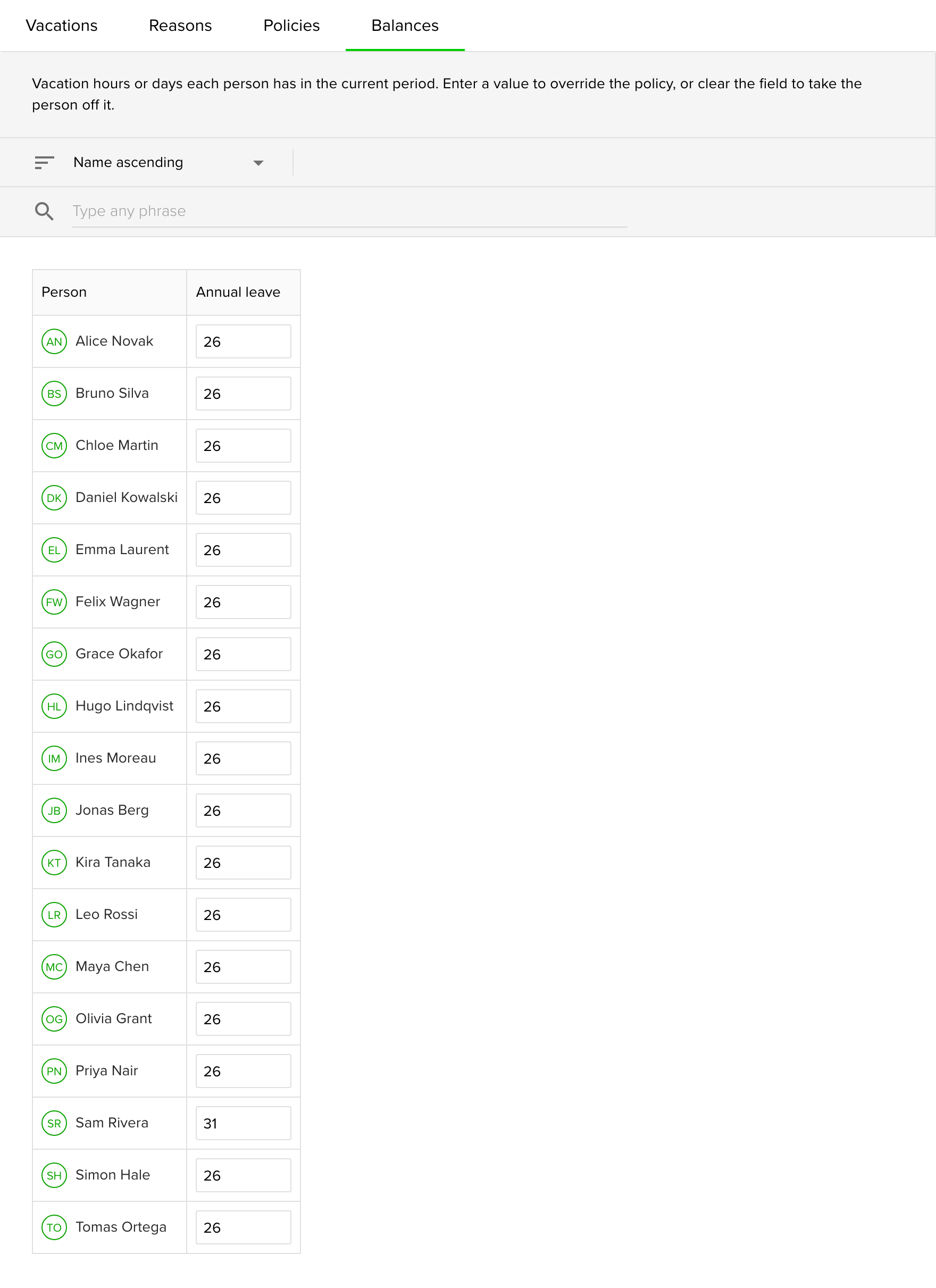
- Open the Balances tab. It shows one row per person and one column per policy, for the current period.
- To give someone a different allowance, for example after a carry over agreed outside Teamdeck, enter the new value in their field and click outside it.
- To take someone off a policy, clear their field. If you cleared the wrong one, click Undo in the message that appears.
The header of each column says whether the policy counts in days or in hours. Days take whole or half days, for example 26 or 26.5. Hours take values like 8, 8.5 or 8h 30m. An empty field means the policy does not cover that person. A person the policy covers through an organizational unit or the whole organization stays on it, and goes back to the policy's allowance.
See what a person has left
- Go to Settings and open Vacations.
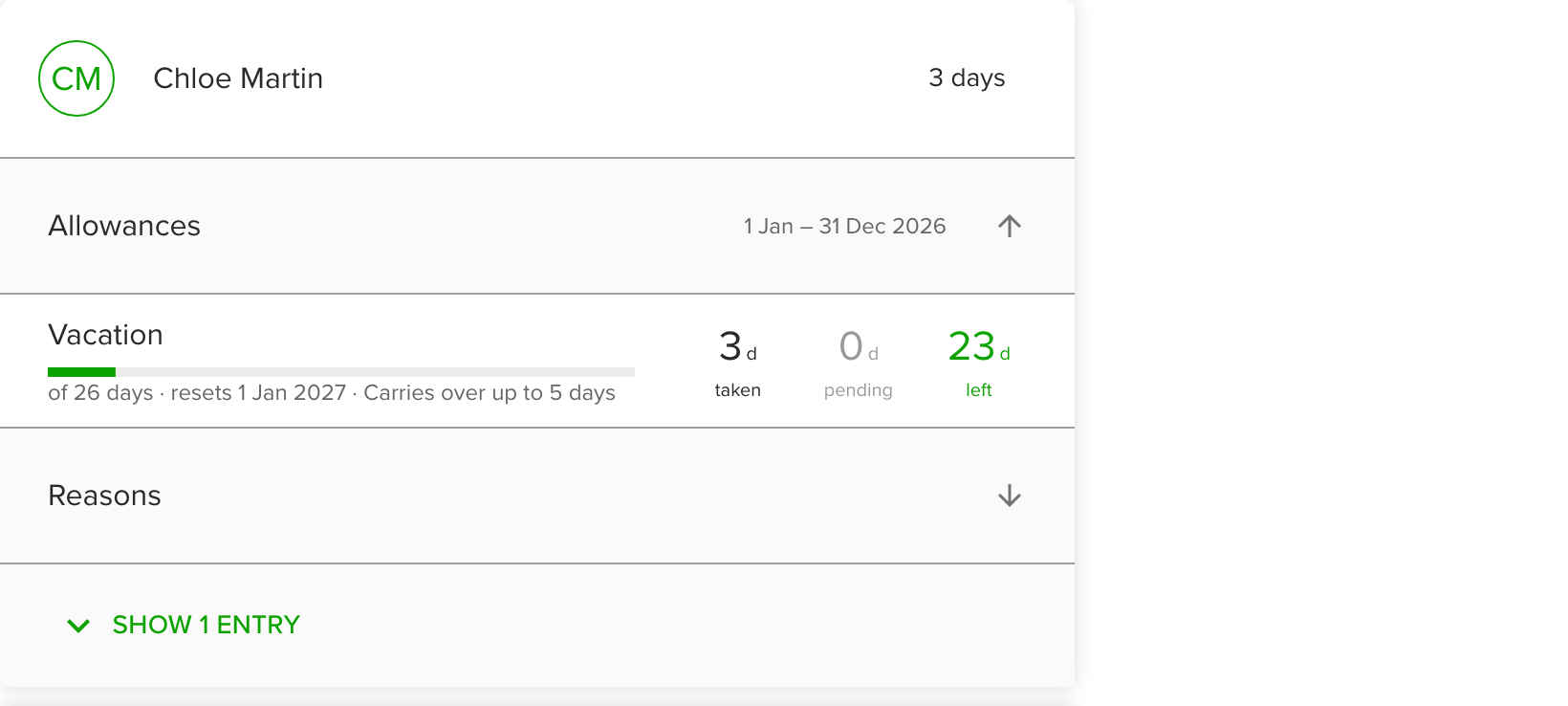
- Click a person, then open Allowances.
Each allowance shows what was taken, what is pending and what is left in the current period, with the next reset date. People see their own allowances the same way, and in the Time off card on their Dashboard.
How vacations count against a policy
- A reason in a days policy is taken as a Full day or a Half day (when the policy allows half days). A reason in an hours policy, or without a policy, is taken as Time per day.
- Only working days count. Weekends and bank holidays of the person's organizational unit are not taken from the allowance. For part-time people, a policy counts the days they work.
- Pending requests already count against the allowance when a new vacation is saved, so a new request only fits what is left after them.
- While someone fills in a new vacation, the form shows under the reason how much of the allowance is left, for example "21 days left of 26 days, resets 1 Jan 2027".
- A request that does not fit is refused with the amount left and how far the dates go past it.
- Reasons without a policy stay unlimited, and everyone can choose them.
- A reason that belongs to a policy is offered only to the people that policy covers. Vacations booked before someone left the policy stay as they are.
Change or remove a policy
- To change a policy, open it on the Policies tab and click the edit icon. Every setting except the Unit can change.
- To remove a policy, click the delete icon and confirm. Existing vacations stay as they are, and new requests are no longer limited by the policy.
Tips
- Give each kind of time off its own reason, and put the reasons that share one allowance into one policy, for example Vacation and an on-demand reason in Annual leave.
- Pick Days for leave that people take in whole days. Pick Hours when people often take part of a day.
- Leave sick leave and other unlimited reasons out of every policy.
Troubleshooting
- "Vacation reason already has vacations in hours and cannot be counted in days." The reason already has vacations stored in the other unit. Use a policy in that unit for the reason, or pick another reason.
- "You have 5 days of vacation time left. The selected dates exceed it by 2 days." The vacation does not fit the person's allowance. Shorten it, or give the person more on the Balances tab.
- "This vacation reason has 1 day left within its limit. The selected dates exceed it by 2 days." The reason reached its limit while the allowance still has room. Choose another reason of the policy, or raise the limit.
- A vacation opens greyed out and cannot be moved. It was saved in another unit than the current policy of its reason, for example in days before that policy was removed; the form says so at the top. You can still accept, reject or remove it. To change its dates, remove it and add it again. Removing a policy in days warns you about this first.
- A reason is missing from someone's vacation form, or "This vacation reason belongs to a vacation policy that does not cover this person." The reason belongs to a policy that does not cover that person. Add the person, or their organizational unit, under Who it covers, or let them choose another reason.
- You do not see the Policies or Balances tab. Only Owners see them. Ask an Owner of your organization.