

Request time off and vacations
Send a vacation request to your managers, follow its status and cancel it when your plans change.
On this page
Request vacations and other time off straight from Teamdeck, and see right away whether a manager approved them. Once approved, your days off reduce your availability, so nobody books you for work on those days.
Before you start
- You need a Full Member seat (you can sign in) in the workspace.
- Your organization defines the available reasons, and may set an allowance for some of them. If the reason you need is missing, ask an Owner.
Request a vacation
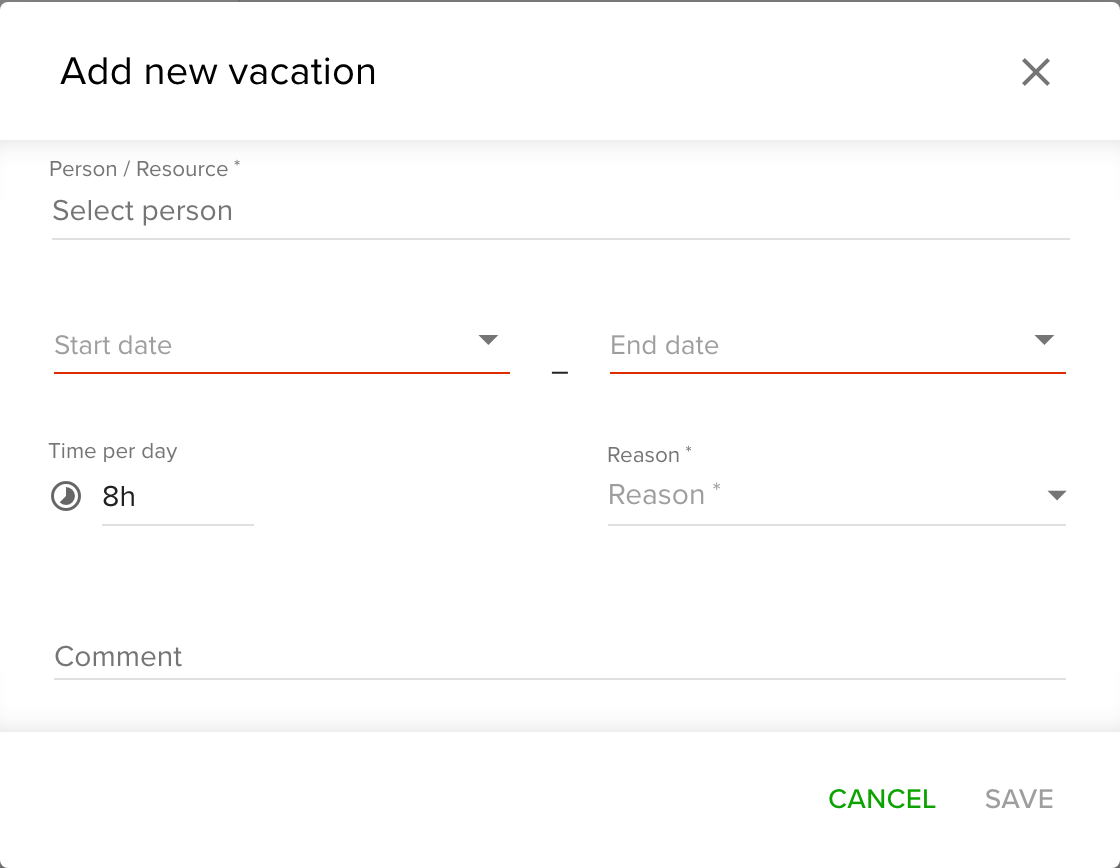
- Go to Settings and open Vacations.
- Click the plus button in the bottom right corner.
- Choose who receives the request in Send request to. By default it goes to all managers.
- Pick the Start date and End date.
- Choose a Reason, one of the vacation reasons set up for your organization.
- Set how much of each day you take: a Time per day, for example
8h, or under Period a Full day or Half day when your organization counts the reason in days. When the reason has an allowance, the form shows how much of it you have left. - Optional: add a Comment for your manager.
- Click Save.
Managers and Owners also see a Person / Resource field, because they can add time off for other people.
Your request shows as Pending until a manager decides. You can also request time off from the Calendar, with the vacation tool, using the same fields.
Check how much time off you have left
When a reason has an allowance, open Settings and Vacations, click your name and open Allowances. You see what you took, what is pending and what is left until the next reset date. Your Dashboard shows the same in its Time off card.
Check the status of a request
- Open Settings and Vacations to see your vacations. A request waiting for a decision is labeled Pending, an approved one Approved.
- Click the bell icon in the top right corner to see notifications about your requests.
- A rejected request is removed from the list.
Change or cancel a vacation
- Open the vacation in Settings and Vacations (or on the Calendar) to change its dates, length, reason or comment. After a change, the request goes back to Pending for a new decision.
- Cancel a request that is still pending, and it disappears at once.
- Cancel an approved vacation, and the approver has to confirm it before it is removed.
If your organization switched off vacation approval, requests are approved immediately.
Tips
- Send the request to the manager who plans your work, not to all managers, so the right person sees it first.
- Only approved vacations lower your availability. A pending request has no effect on bookings.
- If the dates you pick fall only on weekends or bank holidays, the form tells you the range is skipped automatically.
Troubleshooting
- The form says you already have a vacation in that range. Open your existing vacation and change it instead of adding a second one.
- The form says the selected dates exceed the vacation time left. You have less of the allowance left than the dates take. Shorten the request, or ask an Owner.
- You cannot find the reason you need. Reasons are set by an Owner in Settings and Vacations, on the Reasons tab. Ask them to add it.