

Set your daily availability (part-time schedules)
Tell your managers which hours you can work each day, once or on repeat, so bookings match your part-time schedule.
On this page
Availability is the number of hours you can be booked on a given day. If you work part time, set it yourself, and your managers see it when they plan your work.
Before you start
- Your manager marks you as part-time on your profile. People who work full time need no setup: they are available during the organization's working hours.
- Without defined availability, a part-time person has 0 available hours.
- Your organization may set a maximum daily availability. You cannot add more hours than that on one day.
Add your availability on the Calendar
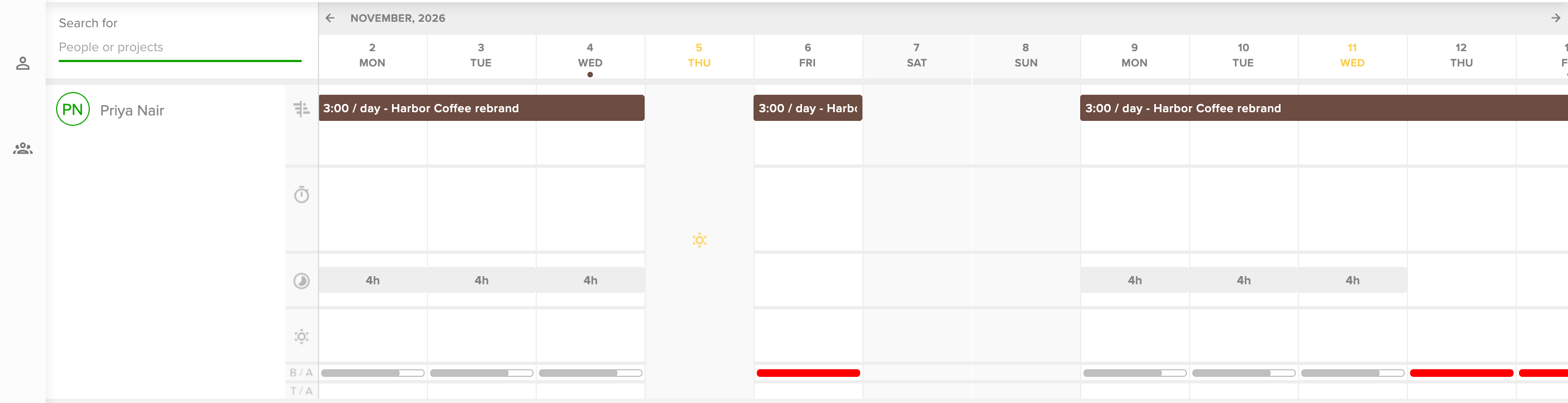
- Open Calendar in the top bar and find your row.
- In the Availability row (the clock icon), click the day you want to set. Days that already have hours show them, for example 4h.
- The Edit availability drawer opens. Check the Date.
- Set Check in and Check out, for example 9:00 and 13:00. The drawer starts with your organization's working hours, so change them to your own.
- To add a second range on the same day, fill in the next Check in and Check out and click the plus button. Use the minus button to remove a range.
- Click Save.
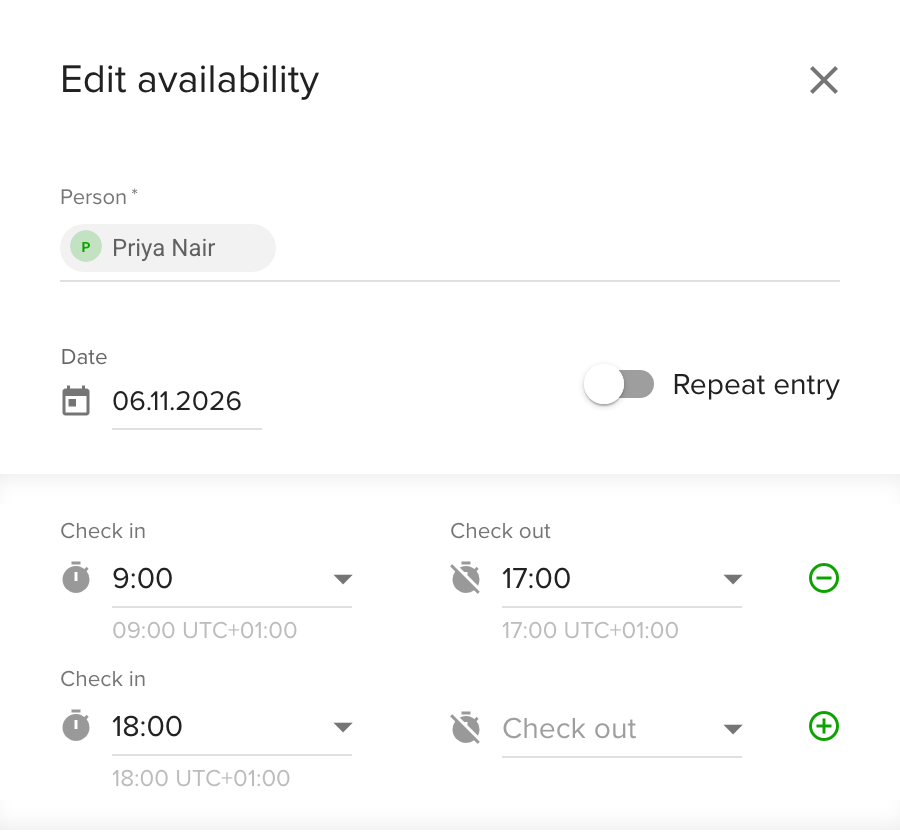
Ranges on one day cannot overlap, and a check in has to be before its check out. After you save, the hours show in the Availability row.
Repeat your availability
If you work the same hours every week, do not add them day by day.
- Open the Edit availability drawer as above.
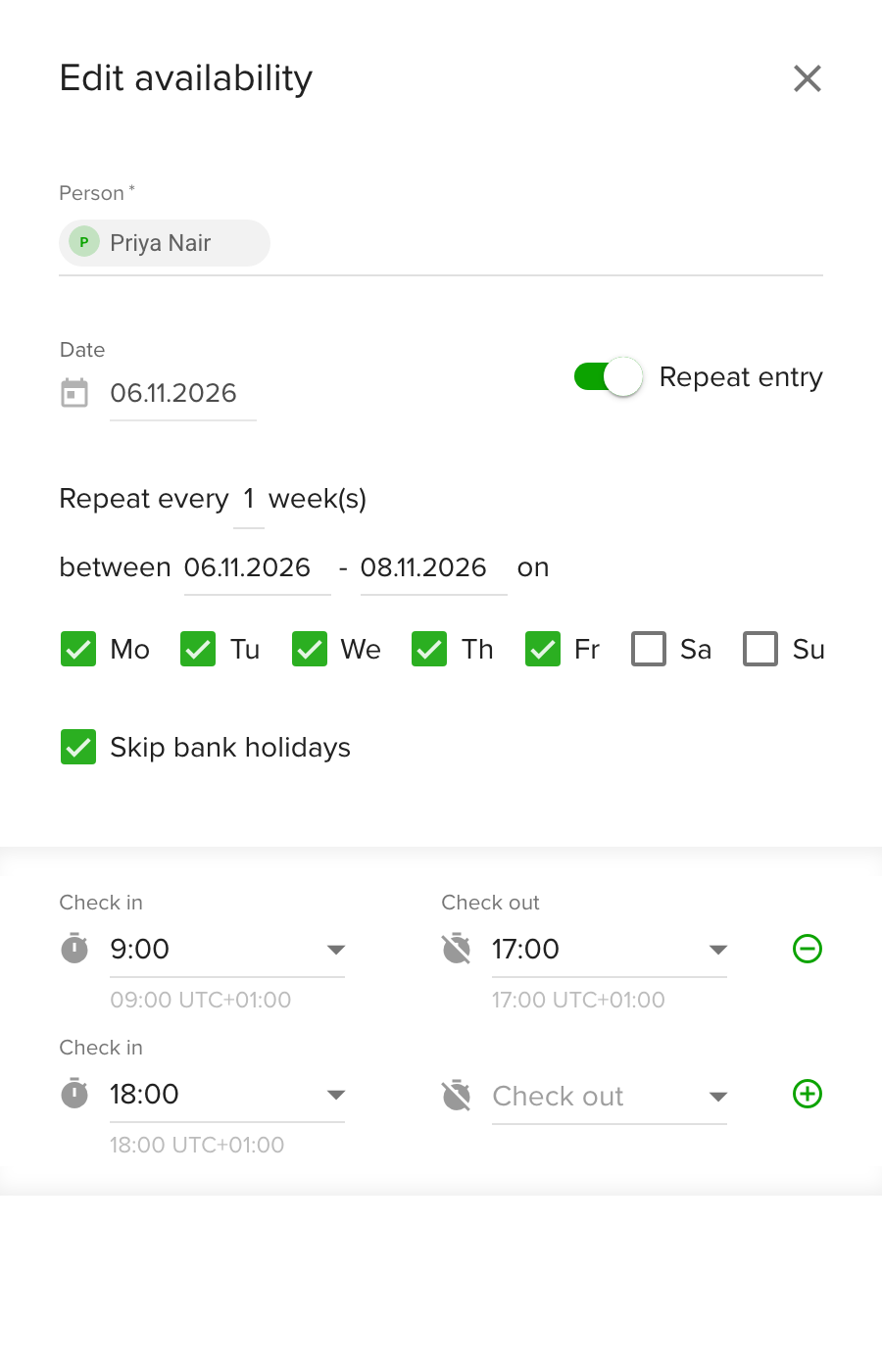
- Switch on Repeat entry.
- Under Repeat every, choose how many weeks apart the entry repeats.
- Under between, set the start and end date of the repeat.
- Tick the weekdays you work.
- Tick Skip bank holidays if you do not work on them.
- Set Check in and Check out, then click Save.
Tips
- Bank holidays and approved vacations reduce your availability automatically. You do not need to remove those hours yourself.
- Pending vacation requests do not reduce availability until they are approved.
- Saving an empty list for a day removes all your availability for it.
- Managers and Owners can set availability for anyone. You can set your own.
Troubleshooting
- You cannot save: the time ranges overlap. Change or remove one of the ranges.
- You cannot save: the range is outside your contract dates. Availability must fall between your contract start and end dates. Ask your manager to check them.
- You cannot save: you exceed the maximum daily availability. Shorten the ranges to fit the limit your organization set.