

Manage the availability of part-time employees
Set the hours a part-time person is available each day, so bookings and utilization reflect their real schedule.
On this page
Availability is the number of hours a person can be planned for on a given day. Full-time people follow your organization's working days and hours. For part-time people you define the hours yourself, so bookings and utilization match their real schedule.
Before you start
- Set your organization's working days and hours under Settings > Organization, in Working time. Days you leave unticked count as weekends.
- Mark the person as part-time: open their profile under Settings > People and switch on Custom availability. Optionally add contract start and end dates. Availability outside the contract range cannot be saved.

- Owners and managers can set anyone's availability. People with the Regular role can set their own.
Add availability
- Open the Calendar and scroll to the person.
- In the availability row, click the day. Hovering shows the date and the hours first.
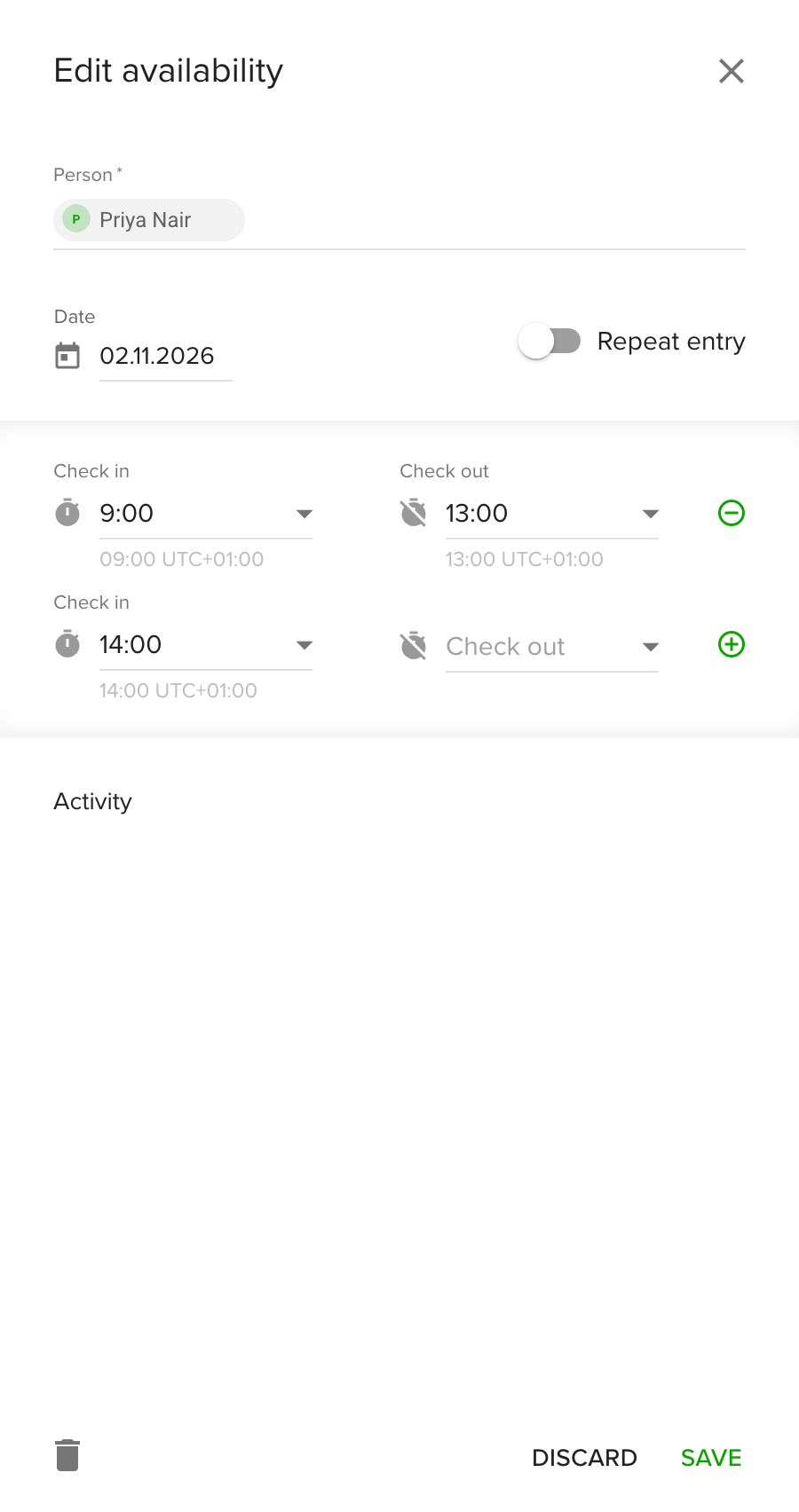
- In the Edit availability drawer, check the person and date.
- Enter a Check in and Check out time. Use the plus icon to add another range and the minus icon to remove one. Ranges must not overlap, and each must start before it ends.
- Optional: switch on Repeat entry to repeat the hours every few weeks on chosen weekdays between two dates, and tick Skip bank holidays.
- Click Save.
Availability shows as a row in the Calendar. A part-time person with no availability on a day has 0 hours that day.
Remove availability
- In the availability row, click the day to open the Edit availability drawer.
- Click the trash bin icon at the bottom of the drawer.
To remove availability over a period, open any entry, switch on Repeat entry, choose the date range and weekdays, and click the trash bin icon.
Tips
- The maximum daily availability, set next to the working time, caps the hours a person can have on one day.
- Bank holidays and accepted vacations reduce availability automatically. Weekends have none.
Troubleshooting
- Availability is out of contract range. The date falls outside the person's contract dates. Change the contract dates or the day.
- Two or more entries are overlapping. Adjust the time ranges so they do not overlap.
- The person has no hours on a day. Part-time people get hours only where availability is defined.