

Manage vacations and paid time off
Add vacations, answer time-off requests and set the reasons your team can choose from.
On this page
Vacations and any other time off are called vacations in Teamdeck. Managers and owners add them or approve requests from the team, and accepted vacations lower a person's available hours.
Before you start
- You need the Manager or Owner role. People with the Regular role can only send requests for themselves.
- To change vacation reasons, policies and balances you need the Owner role.
Add a vacation
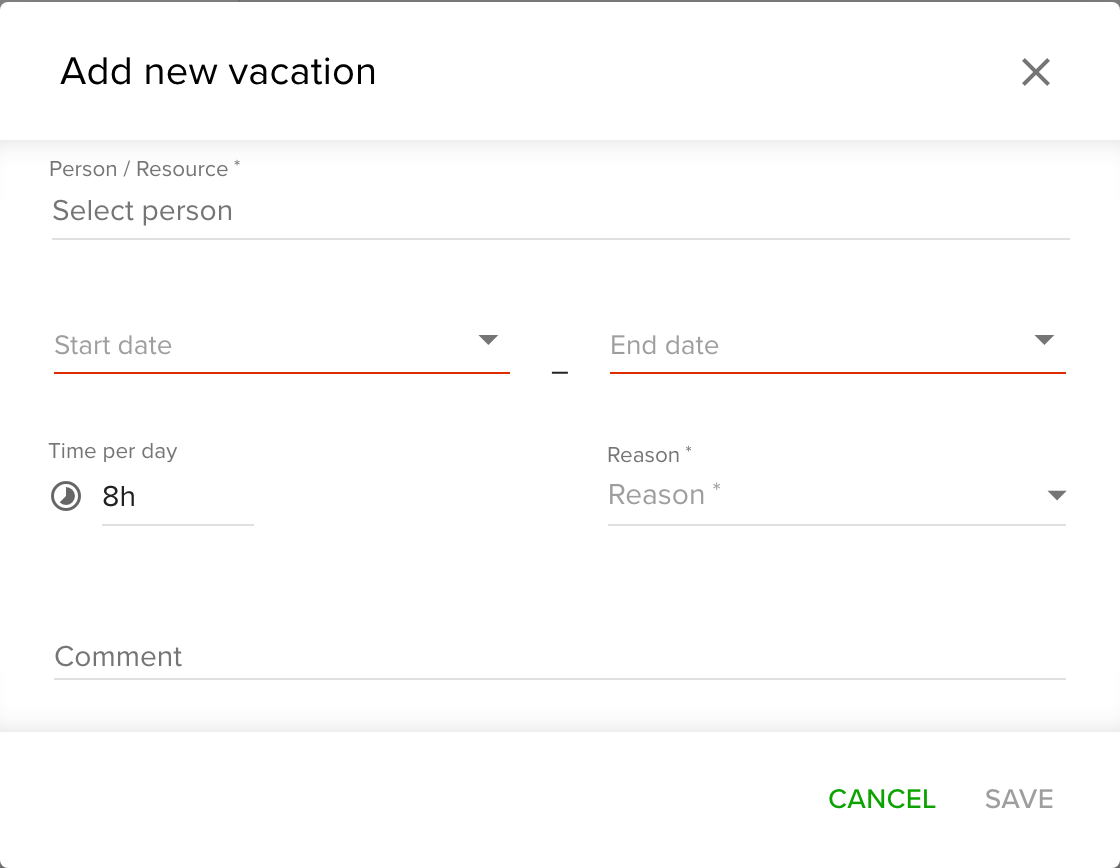
- Go to Settings and open Vacations.
- Click the green + button in the bottom right corner.
- Choose the person under Person / Resource.
- Pick the Start date and End date.
- Choose a Reason.
- Set how much of each day is taken: a Time per day, for example
8h, or under Period a Full day or Half day when the reason's policy counts in days. - Optional: add a Comment.
- Click Save.
A vacation you add is accepted right away when you are its approver. You can also add vacations from the Calendar, see Managing time off and vacation requests.
See who is off
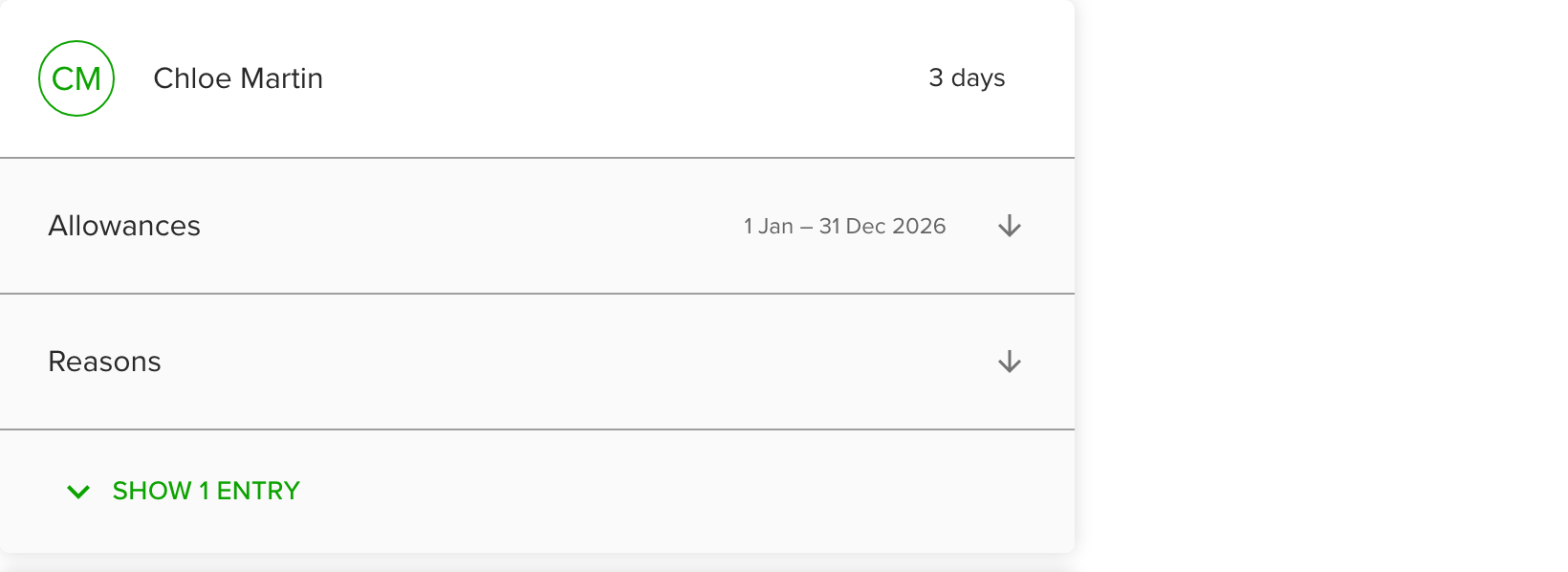
- Go to Settings and open Vacations.
- Use the date range, sort order and search to narrow the list.
- Tick Accepted requests only or Pending requests only to filter by status.
- Click a person to see their allowances, the time off they took by reason and the requests waiting for approval.
Respond to vacation requests
People with the Regular role send vacation requests. Managers and owners get a notification for each one.
- Click the bell icon in the top right corner, or scroll to Notifications on the Dashboard.
- Open the request and click Approve or Reject.
You can also answer requests in Settings > Vacations: click the person and use Accept or Reject under All requests waiting for approval, or Accept all for everything they asked for. This section lists every pending request of the person, whatever the dates picked at the top of the list.
The person who sent the request gets your decision as a notification. Pending requests do not change availability. Accepted vacations do.
Set vacation reasons
Reasons describe why someone is off, such as sick leave or parental leave. Each reason has a colour, which shows on the Calendar.
- Go to Settings and open Vacations.
- Open the Reasons tab.
- Under Add new, enter a name, pick a colour and click the plus icon.
- To rename a reason, click its name and type. To remove one, click the minus icon next to it.
You cannot remove the last reason. A reason that is already used on vacations, or that a policy counts, is archived instead: it stays on old vacations but can no longer be chosen.
A reason next to Counted in days or Counted in hours belongs to a vacation policy, which limits how much of it people can take. Reasons without a policy are unlimited. See Set up vacation policies and allowances.
Tips
- Owners can turn vacation approval off in the organization settings, so every vacation is accepted at once.
- Bank holidays and days without availability are not counted as vacation time. Set them up under Holidays.
Troubleshooting
- A request does not reduce someone's availability. Only accepted vacations do. Accept the request first.
- I can't delete a vacation reason. It is the last one, or it is already in use. Used reasons are archived when you remove them.
- I can't change reasons. Only owners can edit them.
- A vacation is refused because it exceeds the allowance. The reason belongs to a vacation policy and the person has too little left. See Set up vacation policies and allowances.