

Manage bank holidays and closed-for-business days
Add or import bank holidays per organizational unit so planning and availability reflect days your team is off.
On this page
Bank holidays and other closed-for-business days are called Holidays in Teamdeck. You keep them per organizational unit, so offices in different countries can follow different calendars.
On a holiday, people in that unit have no available hours, and bookings that skip holidays lose that day.
Before you start
- You need the Owner or Manager role. Managers can only change holidays of units they have access to. People with the Regular role see holidays in the Calendar but cannot edit them.
- Create your organizational units first if your offices follow different calendars.
Add a holiday
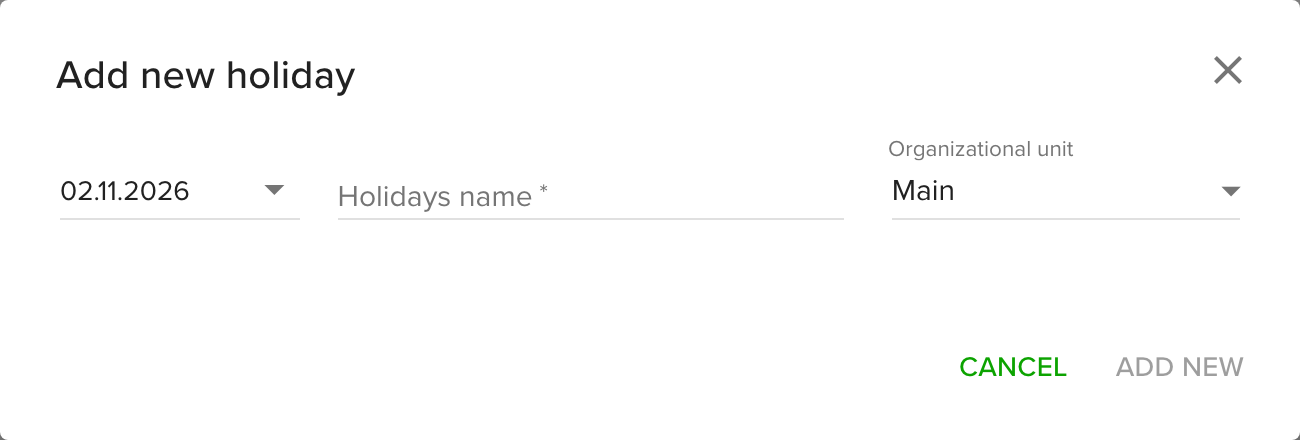
- Go to Settings and open Holidays.
- Click the green + button in the bottom right corner and choose Create holiday.
- Pick the date and type the holiday name.
- Choose the Organizational unit. Choose All Organizational units to add the holiday to every unit you can access. Units that already have a holiday on that date are skipped.
- Click Add new.
The holiday appears in the list, grouped by year and unit. Each unit can have one holiday per date.
Import public holidays
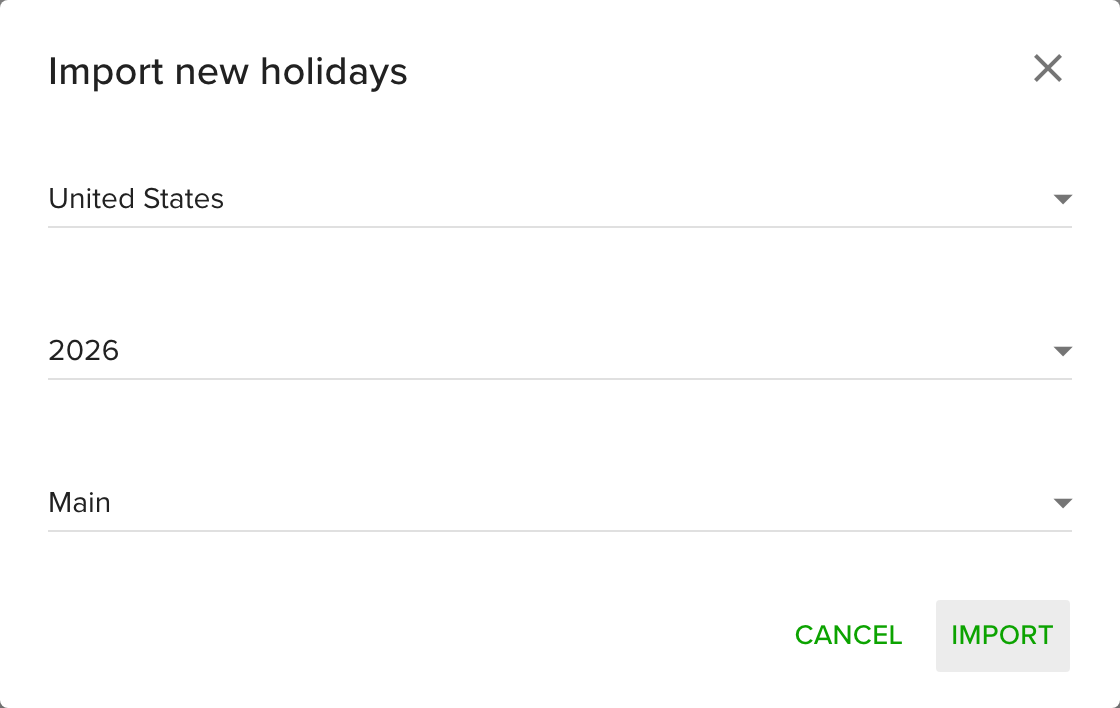
- Go to Settings and open Holidays.
- Click the green + button and choose Import holidays.
- Select your country, the year and the organizational unit.
- Click Import.
If a date is already taken, Teamdeck shows the duplicates so you can untick the holidays you do not want to import.
Review, edit and remove holidays
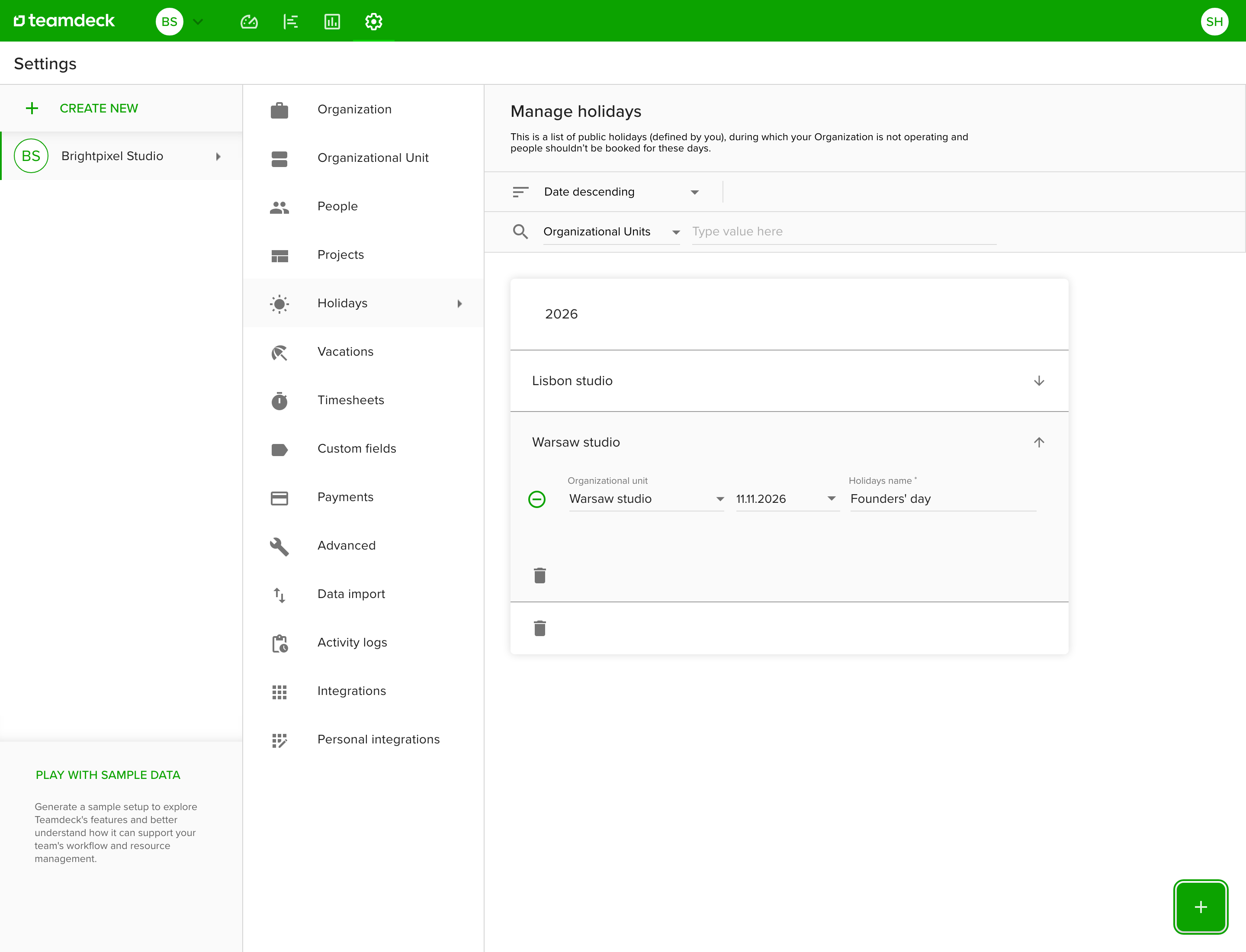
- Go to Settings and open Holidays.
- Click a year, then a unit, to see its holidays.
- To change a holiday, edit its date, name or unit directly in the row.
- To remove one holiday, click the minus icon at the start of its row.
- To remove a whole group, click the trash icon in the group. A confirmation explains that removal is permanent.
Changing or removing a holiday updates availability, booked hours and vacation days that fall on that date.
Tips
- People who belong to no unit follow the holidays of the default unit.
- A holiday on a non-working weekday has no effect.
- A booking or time entry can still run through a holiday if it is set to not skip holidays. The default for new ones is under Settings > Organization, in the omission rules.
Troubleshooting
- Date has already been taken. The unit already has a holiday on that date. Pick another date or edit the existing holiday.
- The import added nothing. The public holiday service did not respond. Try again later, or add the holidays one by one.
- I can't add a holiday for a unit. Managers can only change units they have access to. Ask an owner to grant access or add the holiday for you.