

Organizational units
Group people and projects into units such as countries or offices, so each gets its own bank holidays and the right visibility.
On this page
An organizational unit groups people and projects, for example by country, office or department. Each unit has its own bank holidays, so availability and utilization in reports are correct for global teams. Units also decide who can see which people and projects.
Before you start
- You need the Owner role to open Organizational Unit in Settings.
- Every workspace has a default unit, called Main at first. New people land in the default unit.
Add a unit
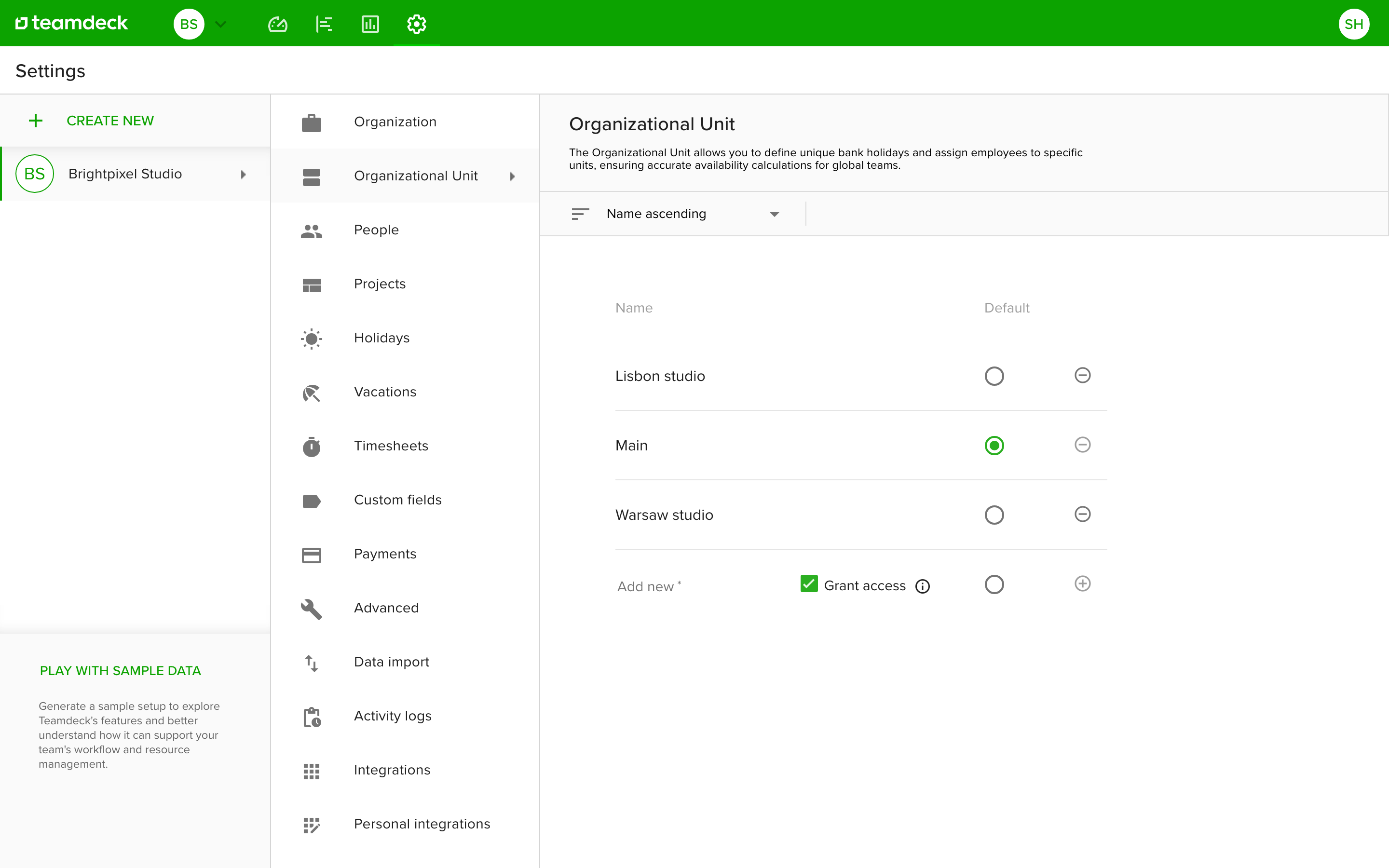
- Go to Settings and open Organizational Unit.
- In the last row (Add new), type the unit's name.
- Decide on Grant access:
- Tick it to give everyone in the workspace access to the new unit at once.
- Leave it off to add access person by person.
- Click the plus icon on the right to save.
Owners get access to every new unit automatically.
Rename a unit or change the default
- To rename a unit, edit its name in the list. It saves automatically.
- To change the default unit, select the radio button in the Default column.
- The default unit cannot be removed.
Add bank holidays to a unit
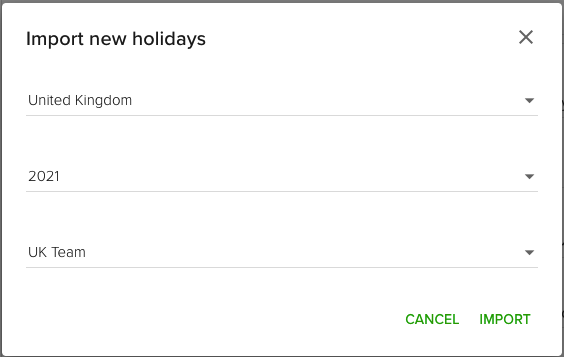
Each unit has its own bank holidays. They are set in Settings > Holidays. See Manage bank holidays.
Assign a unit to people
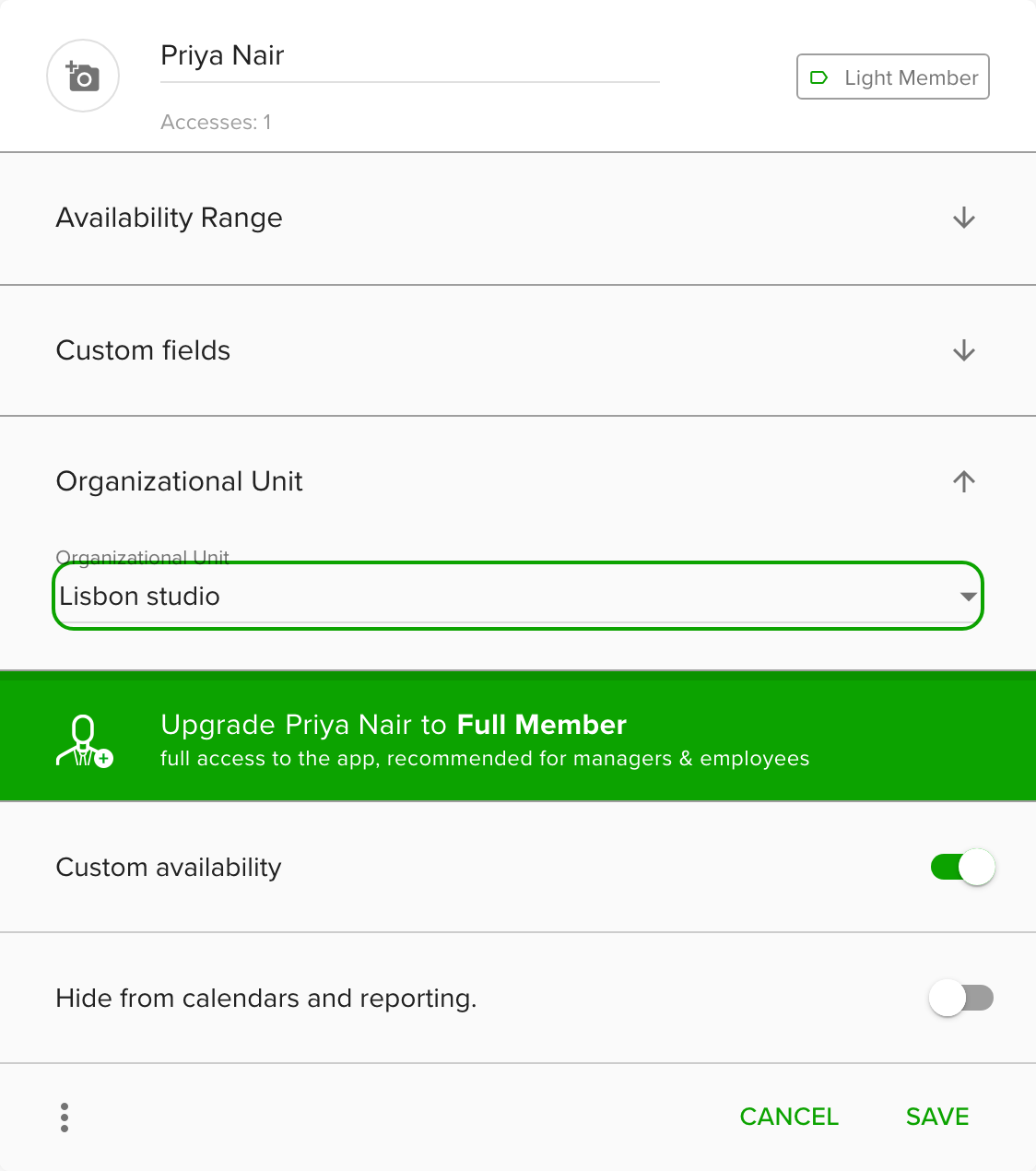
Open a person in Settings > People and expand Organizational Unit to choose their unit. The unit's bank holidays then apply to them. Under Full Member settings, Access controls which other units they can see. See Add people to your organization.
Assign a unit to a project
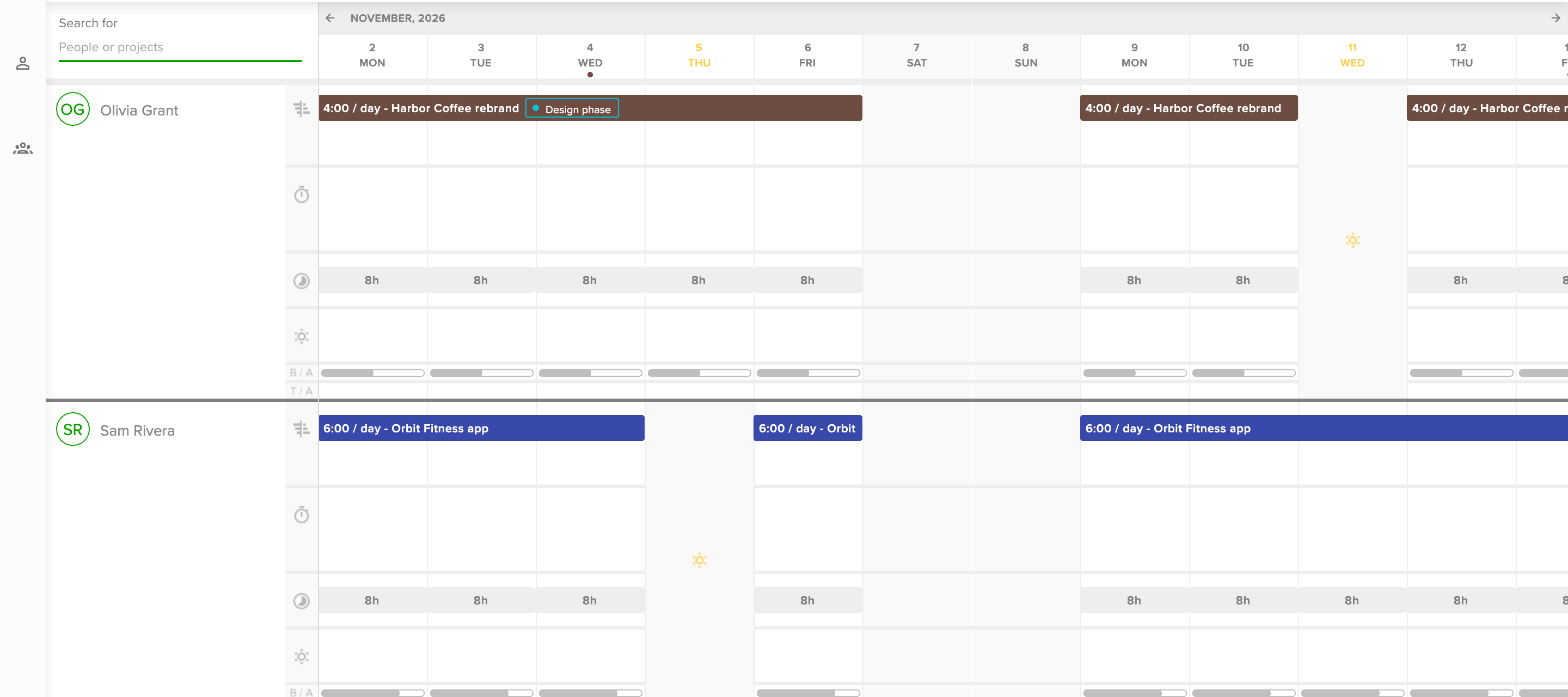
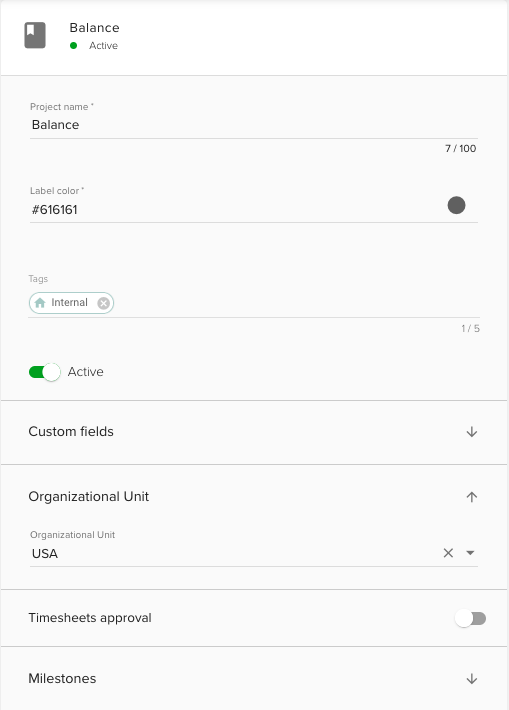
A project can belong to one unit. People who have access to that unit can see it. Choose the unit in the project's form under Organizational Unit, and clear it to make the project belong to no unit. See Set up projects.
What access means
- Managers and Owners see the people and projects of the units they have access to in the calendar and reports.
- A person always keeps access to their own unit.
- Owners see everything.
Read more in Access management.
Remove a unit
Click the minus icon next to the unit and confirm. Everyone in the unit moves to the default unit, and the unit's bank holidays are deleted.
Tips
- Create a unit per country if your team works in several countries and has different public holidays.
- Add people to the right unit before you set up holidays, so their calendars are right from the start.
Troubleshooting
- I cannot remove a unit. The default unit cannot be removed. Make another unit the default first.
- I do not see Organizational Unit in Settings. Only Owners see it.