

Control who sees which people and projects
Use organizational units, visible projects and permission switches to limit what each person sees in the calendar, reports and timesheets.
On this page
Access settings decide which people, projects, bookings and time entries each person can see. Use them to keep sensitive information inside the right team, for example one office or department.
Owners always see everything. For everyone else, a record shows only if the person's role, their organizational units and their visible projects all allow it.
Before you start
- You need the Owner or Manager role to change a person's access. Managers can pick only the units they have access to themselves.
- Create your organizational units first in Settings under Organizational Unit. See Organizational units.
Give a person access to units
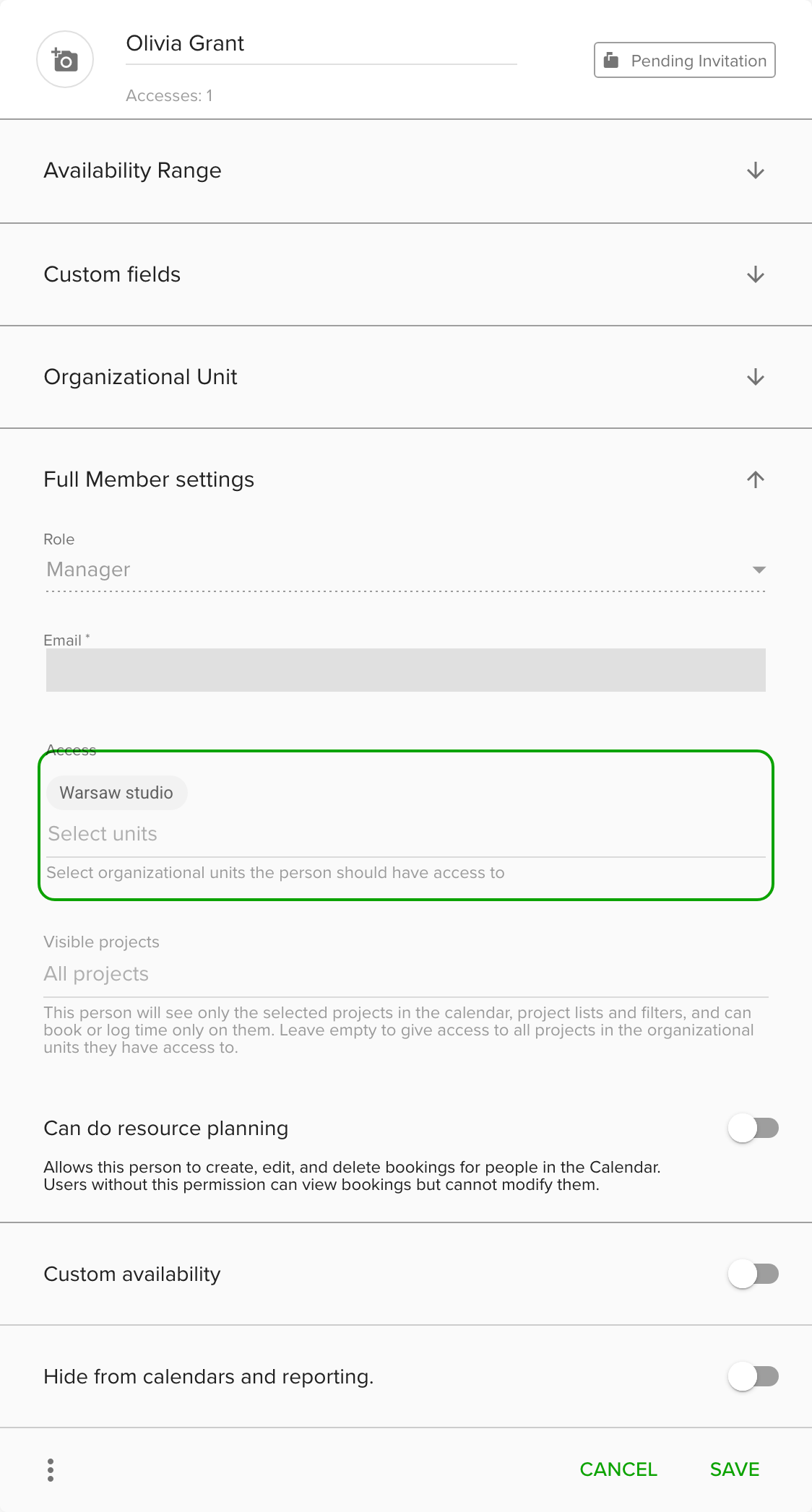
- Go to Settings and open People.
- Click the person's card, or add a new person.
- Open Full Member settings.
- In Access, add the organizational units the person should see. Each unit appears as a chip. Remove a chip to take the access away.
- Click Save.
The person's own unit is always among their accesses. When you save, Teamdeck adds it if it is missing.
From then on the person sees only people, projects, bookings and time entries from the units they have access to. This applies to the People, Projects, Holidays and Vacations settings, calendar filters, reports, booking and time entry forms, and export.
Limit the projects a person sees
In Full Member settings, use Visible projects to narrow things down further.
- Open the person's Full Member settings.
- In Visible projects, pick the projects the person may see.
- Click Save.
The person then sees only those projects in the calendar, project lists and filters, and can book or log time only on them. Leave the field empty to give access to all projects in their units. People cannot change their own list.
Put a project in a unit
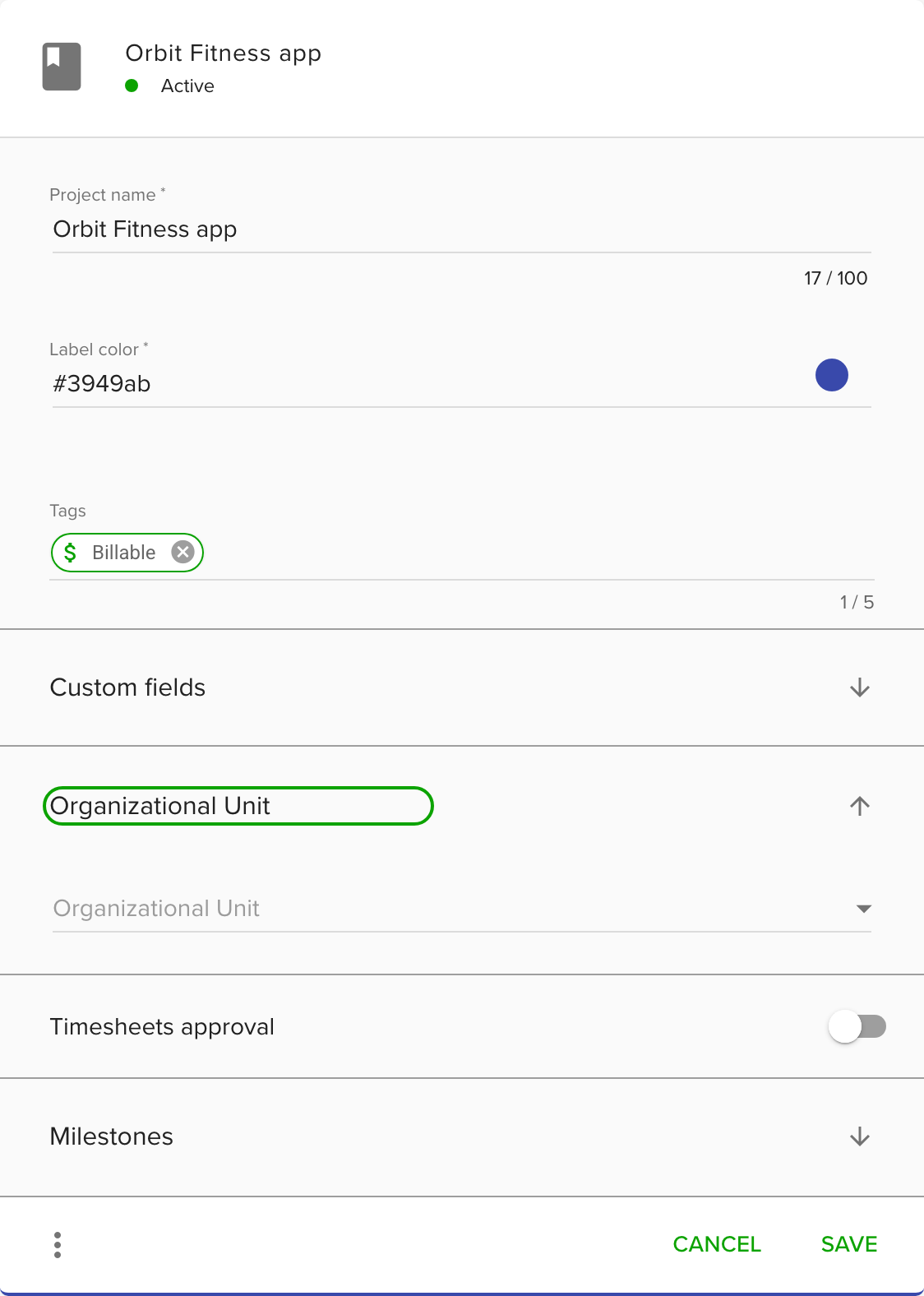
A project belongs to one organizational unit or to none. A project without a unit is visible to everyone.
- Go to Settings and open Projects.
- Click the project.
- Open Organizational Unit and pick a unit.
- Click Save.
You need access to the unit to assign a project to it.
Set calendar permissions
People with the Regular role see only their own schedule by default. Two switches in Full Member settings change that for one person:
- Grant full Calendar viewing permissions lets a person with the Regular role see every person and project in the units they can access.
- Can do resource planning (Managers) lets the person create, edit and delete bookings. For the Regular role the switch reads Can edit own bookings and lets the person change only their own bookings. Without it, the calendar is view-only.
Set permissions for the whole organization
The Owner finds these switches in Settings under Organization, in Additional permissions:
- Grant Regular Full Members full Calendar viewing permissions applies the calendar permission to everyone with the Regular role.
- Lock archived projects for Regular Members stops people with the Regular role from changing timesheets of archived projects.
- Disable vacation approval process approves requested vacations automatically.
- Allow organization owners as vacation approvers lets Owners be picked as approvers regardless of their unit.
Tips
- When you create a new organizational unit, switch on Grant access to give everyone in the organization access to it right away.
- Check a person's view after you change access. Open the calendar or a report and confirm that only the intended units show.
Troubleshooting
- A person cannot see a colleague or project. Check the person's Access units and Visible projects, and the unit of the project.
- You cannot pick a unit in Access. Managers can pick only units they have access to. Ask an Owner to add it.
- A person with the Regular role sees only their own calendar. Turn on Grant full Calendar viewing permissions for them, or the organization-wide switch.