

People and roles in Teamdeck
Learn the difference between Full and Light Members and what the Owner, Manager and Regular roles can do.
On this page
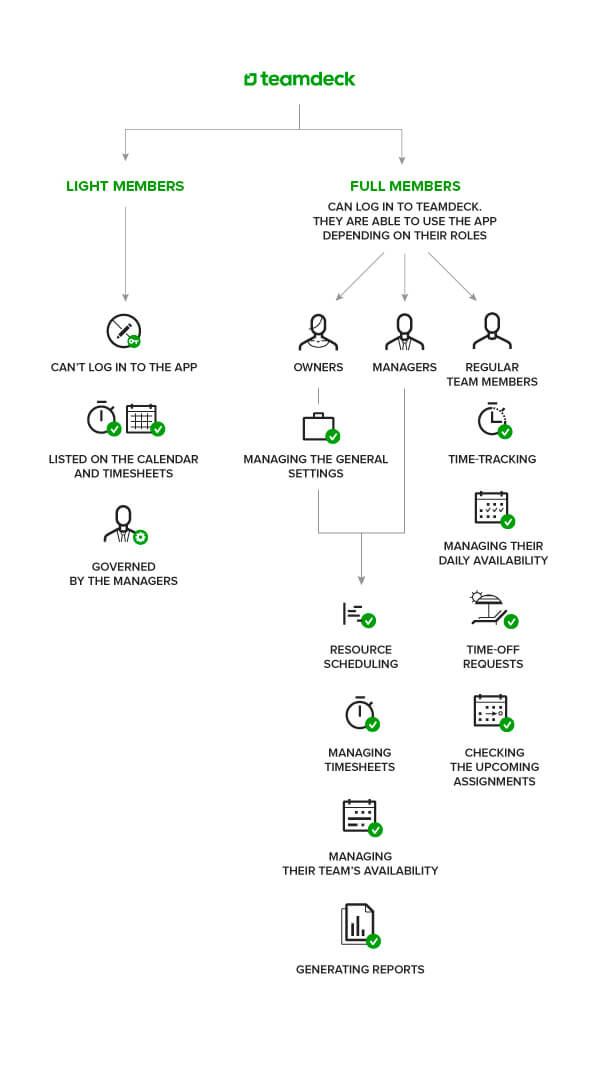
Everyone who appears in your calendar, timesheets or reports is a person in Teamdeck. A person is either a Light Member or a Full Member, and Full Members have one of three roles. This article explains what each can do so you can give people the right access.
Light Member and Full Member
- Light Member: listed in the calendar and timesheets, and can be booked. Has no login. Managers book them and log their time. This suits freelancers, or employees who do not need the app.
- Full Member: has a login and a role. Recommended for everyone who should see their own schedule or log their own time.
Roles
| Role | Who it is for | What it can do |
|---|---|---|
| Owner | Administrators, accounting, senior management | Everything, in all organizational units: billing, integrations, API keys, webhooks and general settings. |
| Manager | Project managers and team leads | Manage people, projects, bookings, tags and imports within their units. |
| Regular | People who are booked on projects | See their own data, manage their own vacations and availability, and use reports. They can edit bookings only when allowed (see below). |
The person who creates the workspace is its Owner. Every workspace must always have at least one Owner.
Fine-tune what a person can see and do
Open a Full Member in Settings > People and expand Full Member settings:
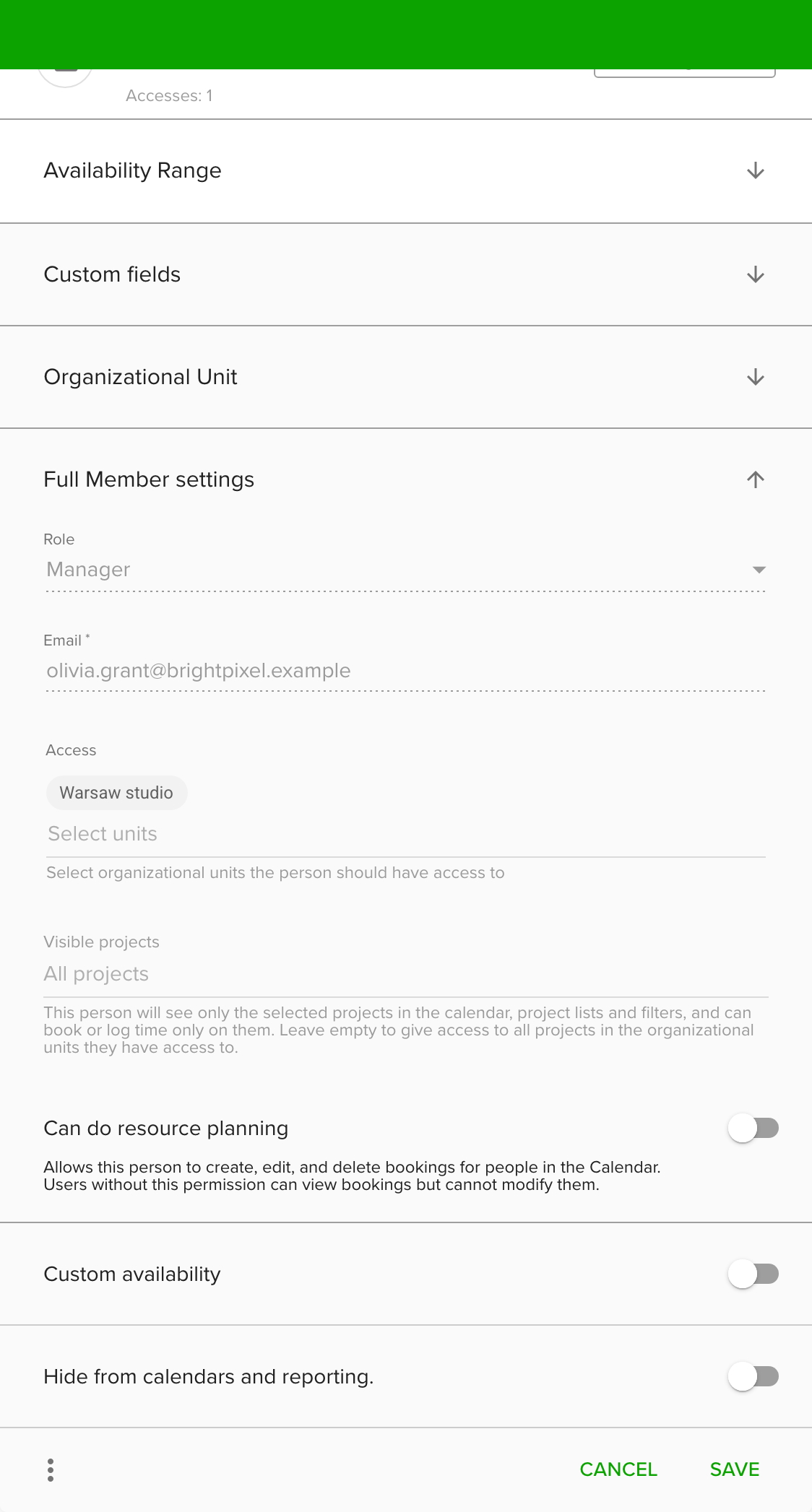
- Access: the organizational units whose people and projects they can see.
- Visible projects: limits them to a list of projects. Leave it empty to give access to all projects in their units.
- Can do resource planning (Managers): lets them create, edit and delete bookings. Without it the calendar is read-only for them.
- Can edit own bookings (people with the Regular role): lets them edit only their own bookings.
- Grant full Calendar viewing permissions (people with the Regular role): lets them see every person and project in their units. By default they see only their own schedule.
Change a person's role
- Go to Settings and open People.
- Click the person to open their form.
- Expand Full Member settings.
- Choose a new Role.
- Click Save.
Who can change what:
- Owners can set any role.
- Managers see only the roles up to their own. They cannot make anyone an Owner and cannot change another Manager to Regular.
- People with the Regular role cannot change roles.
Tips
- The Startup Plan includes up to 2 Full Members and no Light Members. See Startup Plan vs Business Plan.
- To make a Light Member a Full Member, or the other way round, see Upgrade and downgrade people.
Troubleshooting
- The Role field is locked. The role of the last Owner, of a person with a pending invitation and of a deactivated person cannot be changed. To change the last Owner, make someone else an Owner first.
- I cannot give someone the Owner role. Only an Owner can do that.