

Add, edit and remove time entries
Log the time your team spends on projects from the Calendar, then edit, split, duplicate or remove entries.
On this page
A time entry records the time a person worked on a project over one or more days. You add entries from the Calendar, and managers and owners can add time for anyone they can see.
Before you start
- Timesheets must be turned on for your organization.
- People with the Regular role can add, edit, split and delete only their own entries. Managers and owners can work with the entries of anyone they can see.
- If your organization requires tags, an entry without a tag cannot be saved. Set this under Settings > Advanced > Timesheet.
Add a time entry
- Open the Calendar and scroll to the person.
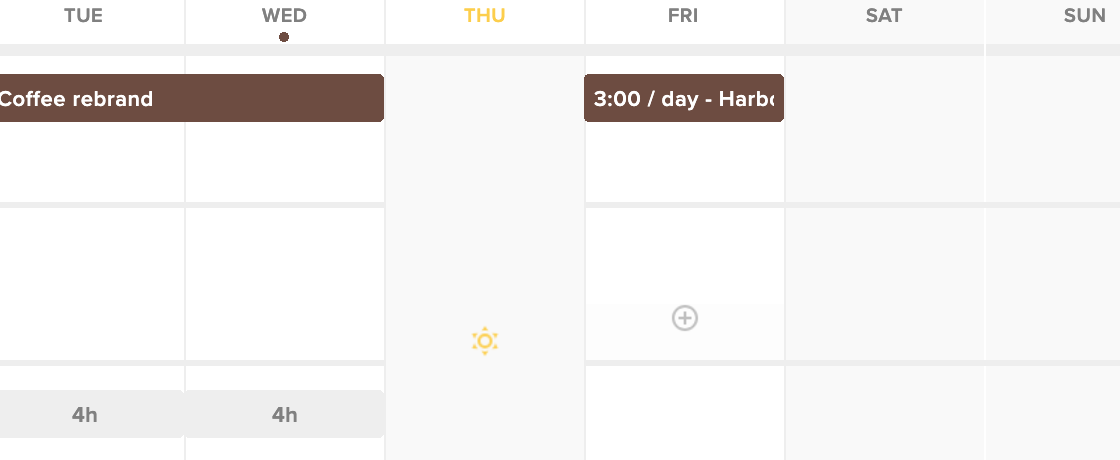
- In the timesheet row, hover over the first day. A plus icon appears.
- Click the plus icon and drag to the last day. For a single day, click and release.
- In the New time entry drawer, check the person and dates. Pick the project and enter the Time per day.
- Under Automatically skip, choose whether to skip weekends, vacations and bank holidays.
- Add tags and a description if you need them.
- Click Save.
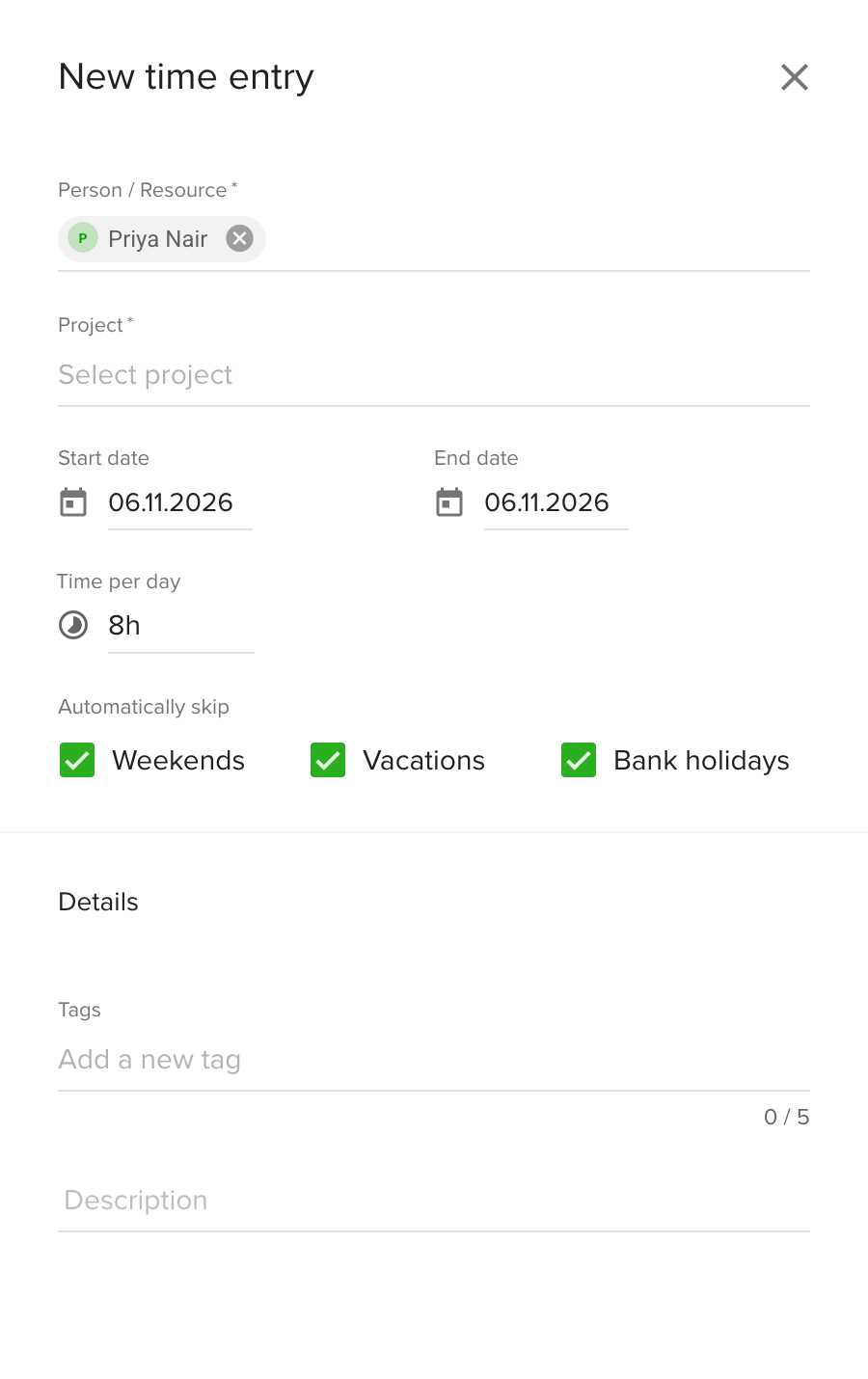
On a project that needs approval, the drawer tells you who will approve the entry, and the entry shows as Pending. See Timesheet approval.
You can also log a whole week at once from the Dashboard, see Fill in and edit timesheets from the Dashboard.
Change a time entry
Hover over an entry to see its actions:
- Delete (trash bin) removes the entry.
- Splitting Mode (scissors) splits an entry that covers several days into shorter ones.
- Duplicate copies the entry.
- View more (pencil) opens the Edit time entry drawer with all details. Clicking the entry opens it too.
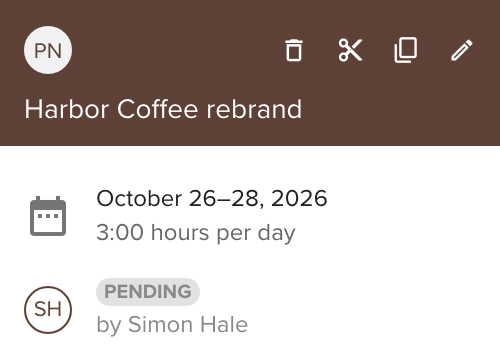
Edit the details in the drawer and click Save. When a person with the Regular role edits an entry on a project that needs approval, the approver gets an updated request.
Copy a booking into the timesheet
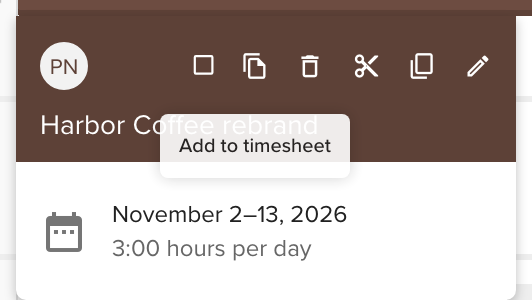
Hover over a booking and click Add to timesheet, the first action icon after the selection box in the booking card.
Import events from your calendar
The Calendar toolbar has two import buttons: Import time entries from Google Calendar and Import time entries from Outlook Calendar. See Google Calendar import and Microsoft Outlook Calendar import.

Remove a time entry
Hover over the entry and click the trash bin icon. Managers and owners can also remove one or many entries at once from Settings > Timesheets, after a confirmation.
Tips
- Track time on the go with the Teamdeck mobile app, see Teamdeck mobile.
- On the Dashboard table, tags are asked for only when your organization requires them.
Troubleshooting
- Please provide at least one tag. Your organization requires tags. Add one before saving. The Dashboard table shows this message under a day that has time but no tag.
- I can't edit an entry. Once an approver approves an entry on an approval project, people with the Regular role can no longer change it. Ask a manager or owner.
- I can't add time to an archived project. If your organization locks archived projects, people with the Regular role cannot add, edit or delete entries on them.