

Approve time entries
Require sign-off on a project's timesheets, so approved hours are locked and your reports stay reliable.
On this page
Timesheet approval lets a manager or owner accept or reject the time logged on a project. Once an entry is approved, the person who logged it can no longer change it.
Before you start
- You need the Manager or Owner role to turn approval on and to approve entries.
- Choose who approves. Only people with the Manager or Owner role are offered as approvers, and the approver must have access to the project.
Turn on approval for a project
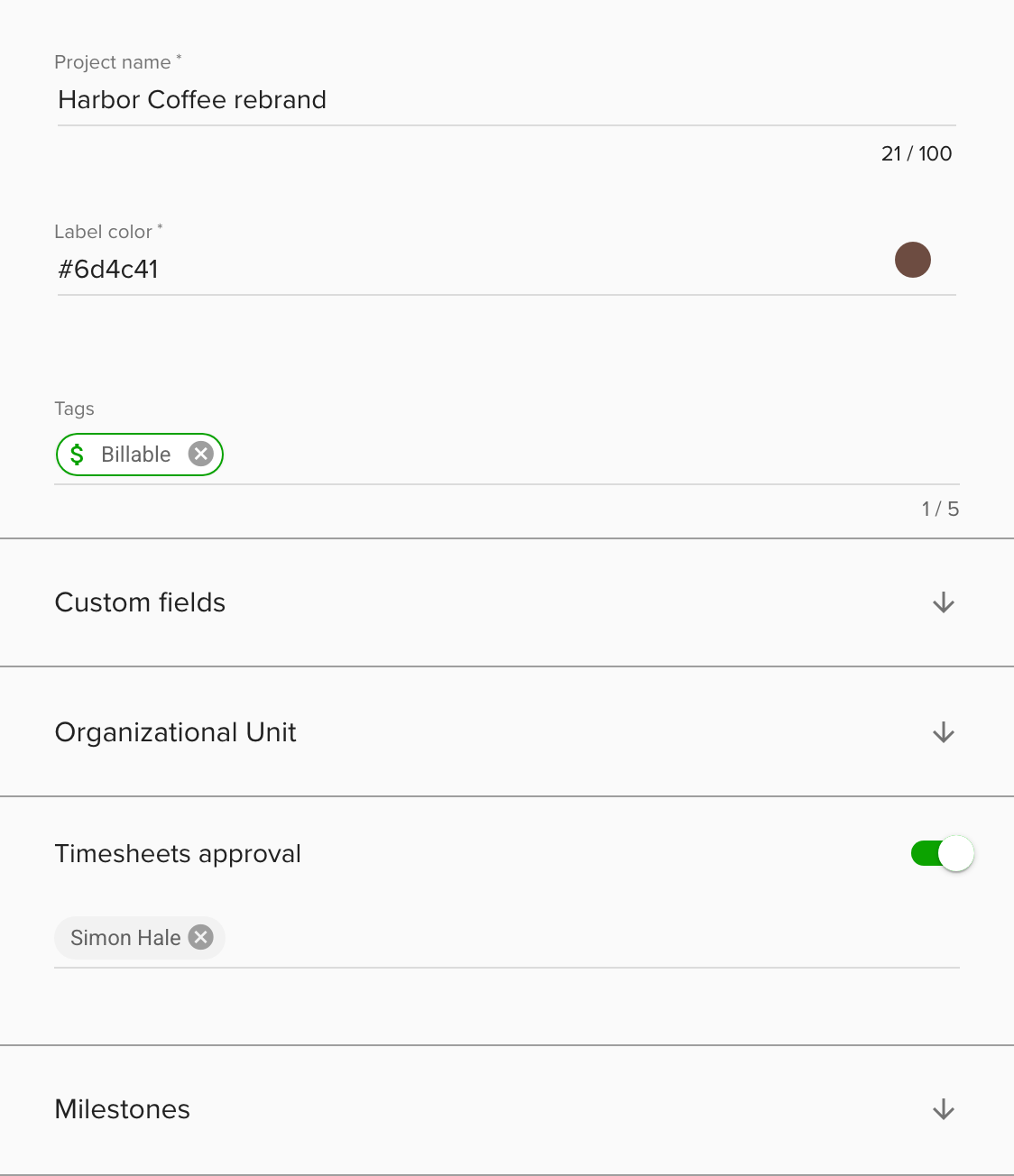
- Go to Settings and open Projects.
- Open the project, or create a new one with the + button.
- Switch on Timesheets approval.
- Choose the approver. This is required.
- Click Save.
From now on, every time entry on the project carries a status: Pending, Approved or Rejected. Switching approval off clears the approver.
Approve or reject time entries

- Go to Settings and open Timesheets.
- Set the date range. Pending and Approved entries are shown by default. Tick Rejected to include rejected entries.
- Group the list by People or Projects, and search by project or person.
- Switch on Show my projects to see only projects where you are the approver, or Show all timesheets to include projects without approval.
- Click the check icon on a row to approve it, or the x icon to reject it.
- To decide on several entries, tick them, or tick a whole group, and use the bulk actions.
The approver can also approve or reject from an entry's drawer in the Calendar.
An approved entry is locked for the person who logged it. A rejected entry can be fixed and sent again, which makes it Pending and sends a new request. A manager cannot change an entry that another manager approved. Owners can.
Notifications
When someone saves time on an approval project, the project's approver gets an in-app notification and can approve or reject from it. Emails are sent too when timesheet emails are switched on, see below. Entries created or changed by managers and owners do not send requests.
The person who logged the time is notified when the entry is approved or rejected. When you decide on several entries of one person at once, they get one notification.
Timesheet emails are off by default. An owner can switch on Timesheets email notification for the whole organization under Settings > Advanced > Notification, in Organization Notifications. Each person can override it for themselves in Your Notifications on the same screen: their own setting wins when they set it.

Statuses in the Calendar
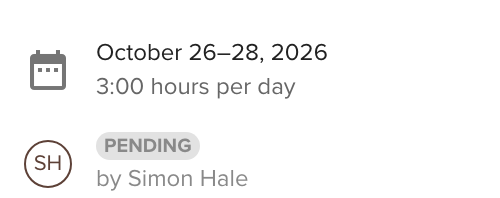
Time entries show one of three statuses in the Calendar: approved, pending or rejected.
Remove time entries in bulk
On Settings > Timesheets, tick several entries, or a whole group, and choose Remove from the bulk actions. A confirmation says the removal is permanent.

Reports
Reports offer extra timesheet metrics for approval: Approved Time, Rejected Time and Pending Time. Metrics such as Time, Average time and Working days include all submitted entries.
Tips
- Changing a project's approver affects only entries saved afterwards.
- Imported time entries with bookings on an approval project are saved as approved.
- Any manager or owner who can see an entry can approve it, not only the project's approver.
Troubleshooting
- I can't see Settings > Timesheets. Only managers and owners can open it.
- You don't have access to this time entry, so it can't be approved or rejected. Your selection includes an entry you cannot access. Remove it from the selection and try again.
- The approver is not in the list. Only managers and owners are offered. Change the person's role first if needed.
- No approval request arrived. Requests go to the project's approver only, and only when a person with the Regular role creates or edits the entry.