

Set up timesheet reminder emails
Remind your team to fill in their timesheets on a schedule you choose, daily, weekly or monthly.
On this page
Timesheet reminders nudge your team to log their time before reports and payroll depend on it. You pick how often and at what time, and Teamdeck sends the reminder by email and in the notification bell.
Before you start
- You need the Owner role. Only owners can change reminder settings.
- Reminders follow your organization's time zone and working days, and the bank holidays of each organizational unit.
Turn on timesheet reminders
-
Go to Settings and open Advanced.
-
Open the Notification tab.
-
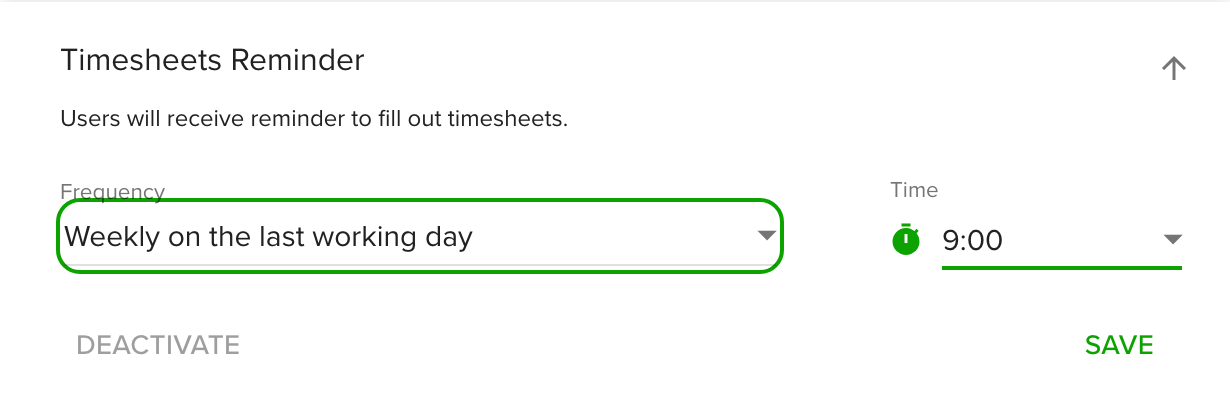
Under Organization Notifications, open Timesheets Reminder.
-
Choose a Frequency:
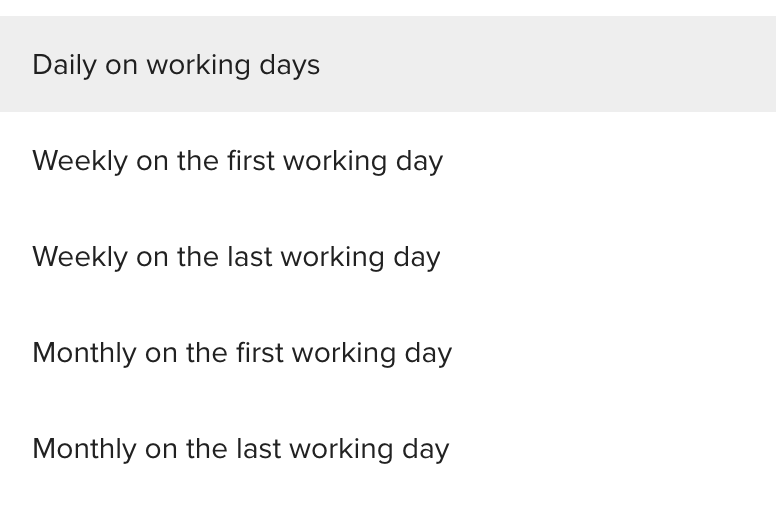
- Daily on working days
- Weekly on the first working day
- Weekly on the last working day
- Monthly on the first working day
- Monthly on the last working day
-
Choose the Time of day. Pick a full hour or a half hour, for example 9:00 or 9:30.
-
Click Save.
The block shows Active next to its title. To stop the reminders, open the block again and click Deactivate.
What your team receives
Each reminder asks people to complete their timesheet for the last day, week or month, depending on the frequency you chose. The email subject reads "[ACTION REQUIRED] Complete your timesheet for the last day" (or "last week", "last month") followed by your organization name. The same message appears in the notification bell.
Reminders go out whether or not a person has turned off the Timesheets email notification switch. Teamdeck does not check whether the timesheet is already filled in.
Tips
- Use Weekly on the last working day with a time late in the afternoon, so people log the week before they log off.
- Pair reminders with timesheet approval so approvers receive complete weeks.
- Skipped days follow bank holidays, so no reminders arrive on a unit's holiday.
Troubleshooting
- The Save button is greyed out. Both Frequency and Time must be set before you can save.
- I can't see Timesheets Reminder. The block is in Settings > Advanced > Notification and only owners can open it.
- No reminder arrived at the chosen time. Choose a time on the hour or half hour. Reminders are checked every 30 minutes, so a time such as 9:15 never triggers a reminder. Also check that the day is a working day and not a bank holiday for the person's unit.