

Plan your team's schedule with bookings
Add, edit, move and remove bookings on the Calendar to see who works on which project and when.
On this page
A booking plans a person on a project for a range of days with a number of hours per day. Bookings show as colored blocks on the Calendar, so you see at a glance who is busy and who has room.
Before you start
- Owners can add, edit and delete bookings for anyone.
- Managers can do the same when Can do resource planning is on in their profile. Without it, they see bookings but cannot change them.
- Regular members can change their own bookings only when an Owner has given them that permission.
Add a booking
- Open the Calendar and find the person.
- Hover the day the booking starts. A plus icon appears. Select it, or drag across the days the booking covers.
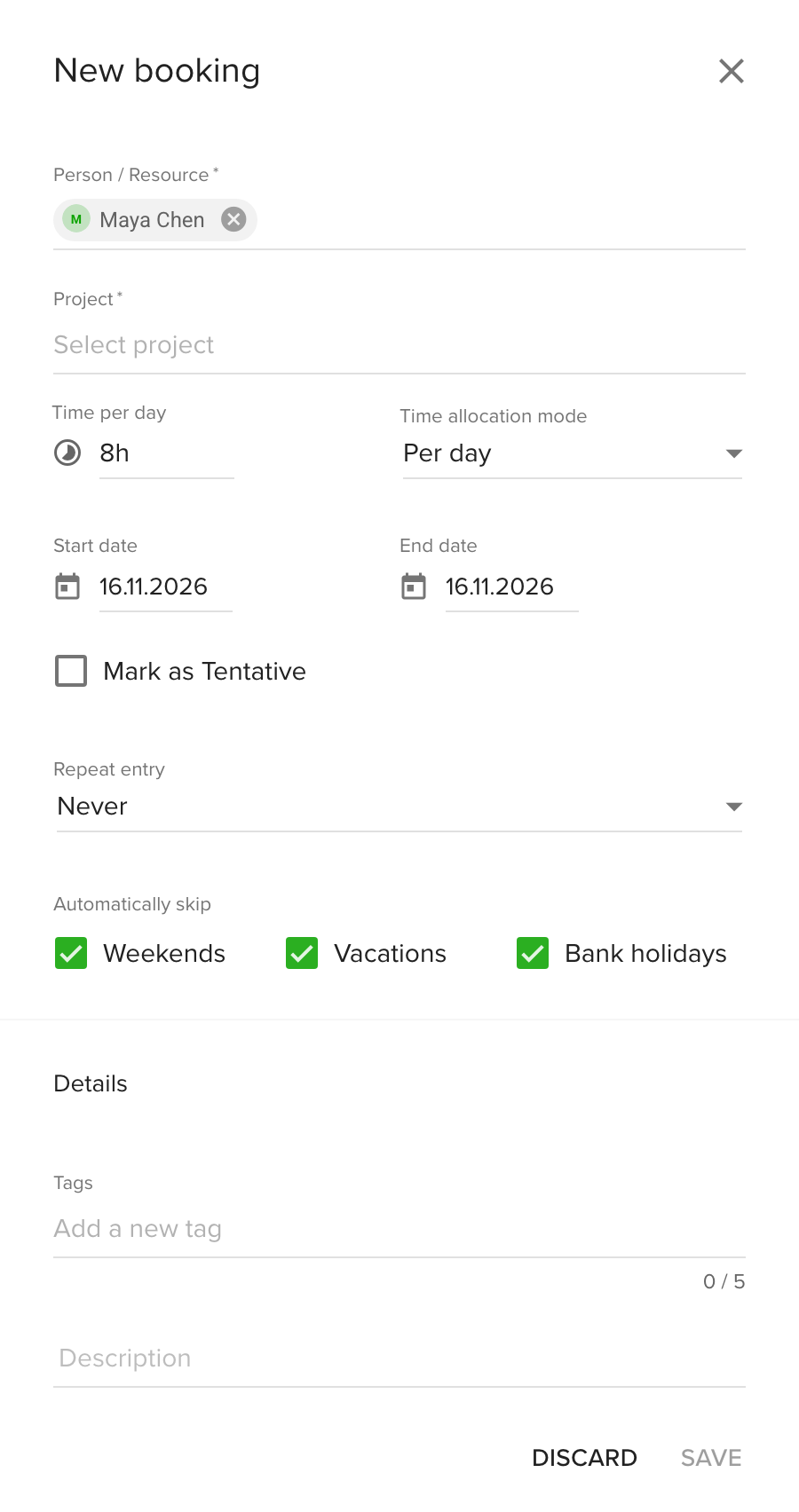
- In the form that opens, check Person / Resource. You can add several people.
- Choose a Project. You can choose several projects. Teamdeck creates one booking for each person and project pair.
- Set Time per day. The Time allocation mode lets you plan hours per day, a total number of hours spread over the dates, or a percentage of the working day.
- Check Start date and End date.
- Optional: tick Mark as Tentative for work that is not confirmed yet.
- Optional: under Automatically skip, untick Weekends, Vacations or Bank holidays if the booking should run on those days. All three are ticked by default.
- Optional: add Tags and a Description.
- Select Save.
The booking appears on the Calendar for the days you chose. If the booking is more than the person's remaining availability, Teamdeck lists the days that go over and asks whether to save anyway.
To repeat a booking, use Repeat entry. See Recurring bookings.
Add tags to a booking
Tags carry extra information such as "Design phase". Pick them in the Tags field of the form. The number of tags per booking is limited, up to 5. Owners and Managers set up the tags: see Add more information to your bookings and time entries.
Edit, move or remove a booking
- Hover a booking to see its details.
- Select the booking to open its form, change the person, project, hours or dates, then select Save.
- Drag a booking to move it to other dates, or drag its edge to change its length. In the People view, drag it onto another person's row to give it to that person.
- Use the scissors tool to split a booking in two, for example to fit another booking in between.
- Use the trash icon to delete it.
To change several bookings at once, hold Cmd (on a Mac) or Ctrl (on Windows) and select them. In Edit multiple bookings you can move them, change the assignee or the project, duplicate them or remove them all. Moves skip weekends, bank holidays and vacations when a booking is set to skip them.
Send email notifications about bookings
You can let people know by email when their bookings are added, changed or removed.

- Go to Settings and open Advanced.
- Open the Notification tab.
- Turn on Booking email notification.
This setting is off by default for new organizations and needs the Owner role. People get an email about their own bookings.
Tips
- Use Mark as Tentative for bookings you want to discuss, and filter them out with the Tentative Bookings filter.
- Check the B / A bar of a person before you add more work.
Troubleshooting
- I see bookings but cannot add one. You need the Owner role, or Can do resource planning on your profile.
- Selected date range is automatically skipped. All the days you picked are weekends, bank holidays or vacations. Untick the matching Automatically skip option or pick other days.
- I do not see the person I want in the form. Teamdeck only lists people you can access. Check the organizational units you have access to.