

Add tags to bookings, projects and time entries
Label bookings, projects and time entries with tags such as "Design phase" or "Billable", then set the rules for how many tags are allowed.
On this page
Tags add extra information to a booking, a project or a time entry, for example "Billable", "High priority" or "Design phase". You can use them as filters on the Calendar, in exports and in reports, and as a grouping in reports.
Custom fields are different: they belong to people and projects, not to bookings. See Add more information about people and projects.
Before you start
- You need the Owner or Manager role to create and edit tags.
- Everyone who can add bookings, projects or time entries can use the tags.
- Bookings, projects and time entries each have their own set of tags: booking tags, project tags and time entry tags.
Create and edit booking tags
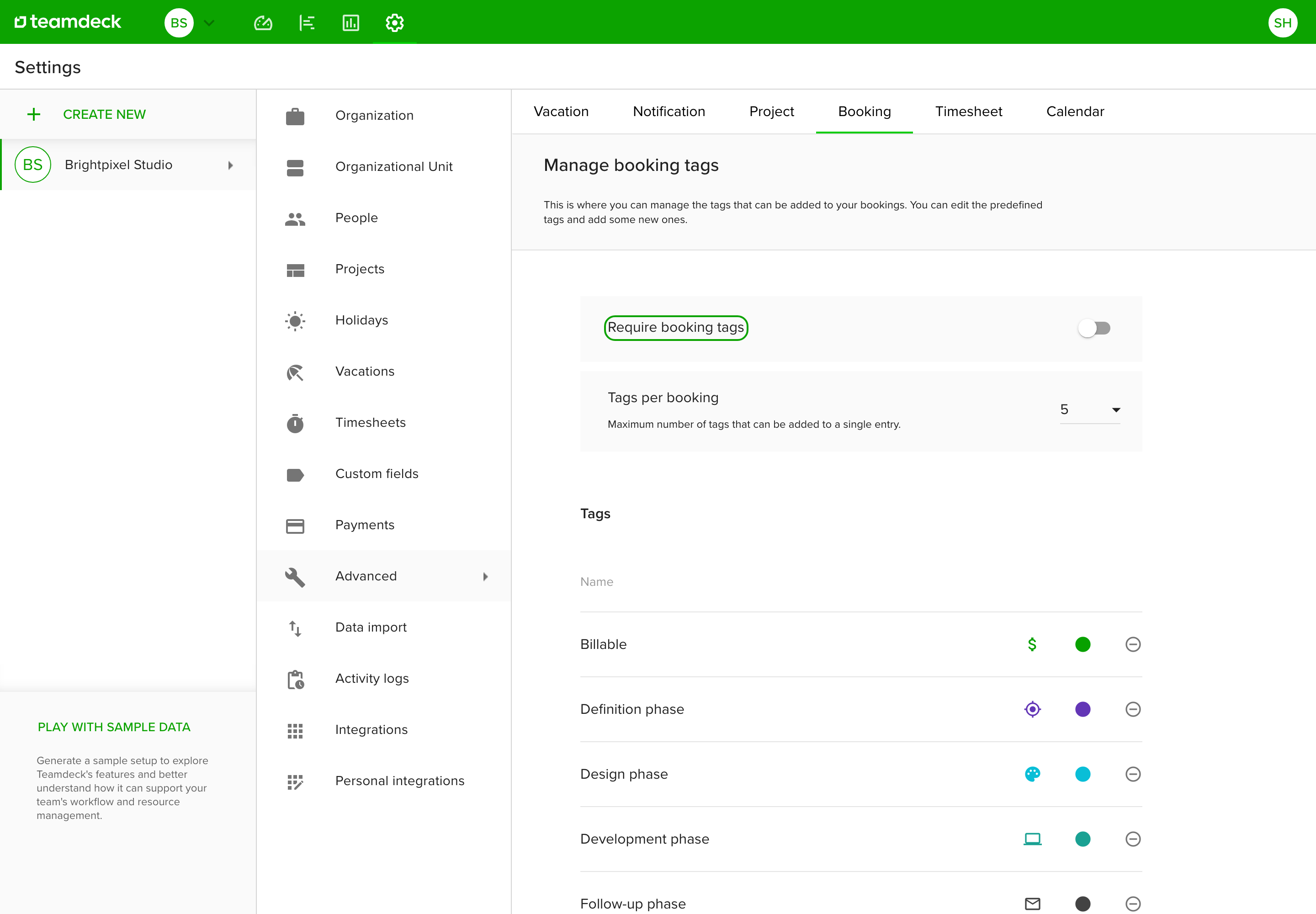
- Go to Settings and open Advanced.
- Open the Booking tab.
- To add a tag, type a name in the empty row at the end of the list, then choose an icon and a color.
- To change a tag, select it and edit the name, icon or color. Renames save automatically.
- To remove a tag, select the minus icon next to it.
A tag that is already used on bookings is not erased. It is hidden from the pickers and stays on the bookings that already have it.
For time entries, open the Timesheet tab instead. It works the same way.
Set the rules for tags
On the Booking tab, two settings sit above the list:
- Require booking tags: when on, every booking needs at least one tag.
- Tags per booking: the most tags one booking can have, from 1 to 5.
On the Timesheet tab, the matching settings are Require time entry tags and Tags per time entry.
Create project tags
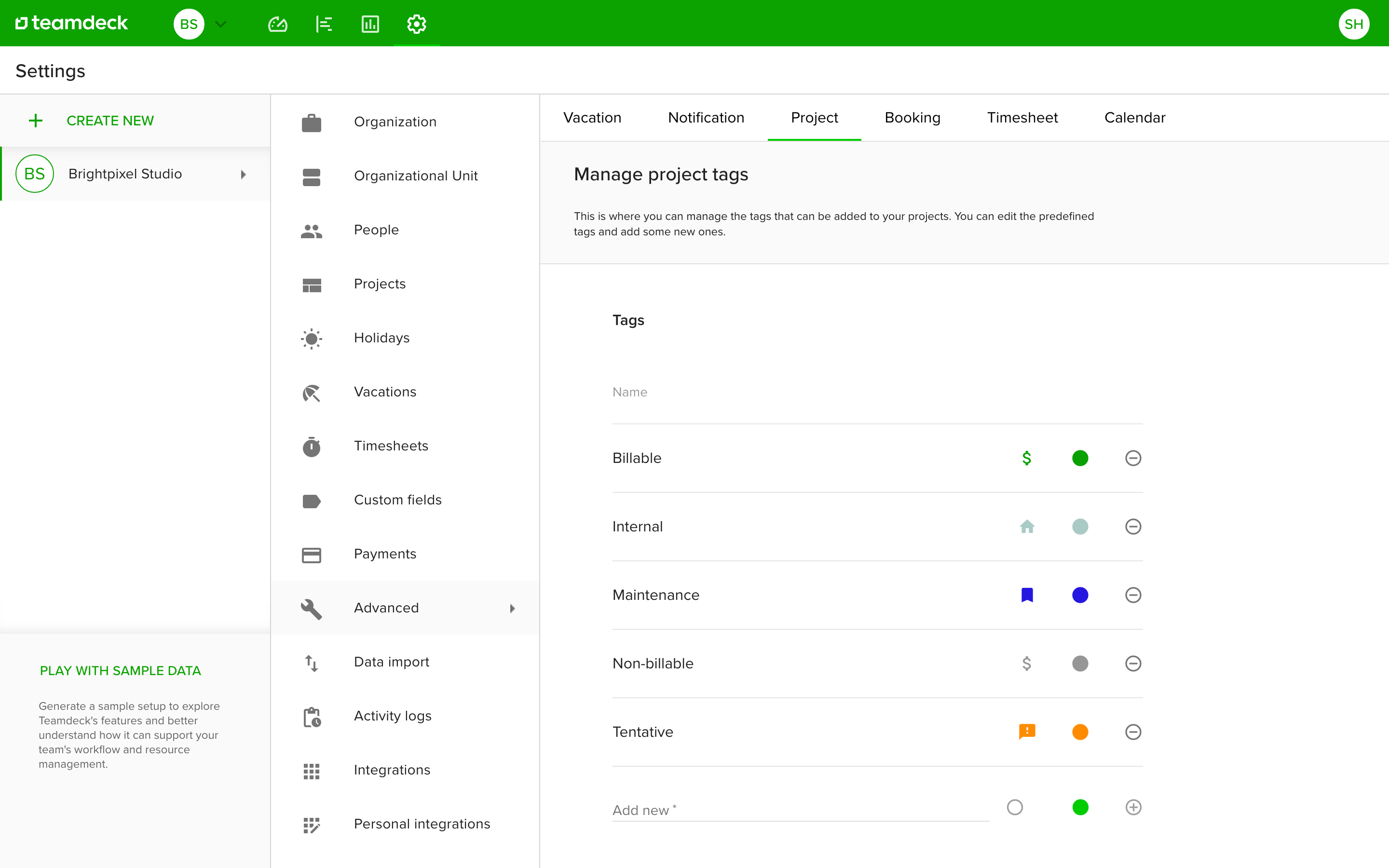
- Go to Settings and open Advanced.
- Open the Project tab.
- In the last row (Add new), type a name and save the tag.
Select a tag to rename it, pick a color and an icon, or remove it. The Project tab has the same two settings as the other tabs: Require project tags and Tags per project.
Add project tags in the project form, in Settings under Projects.
Add tags to a booking
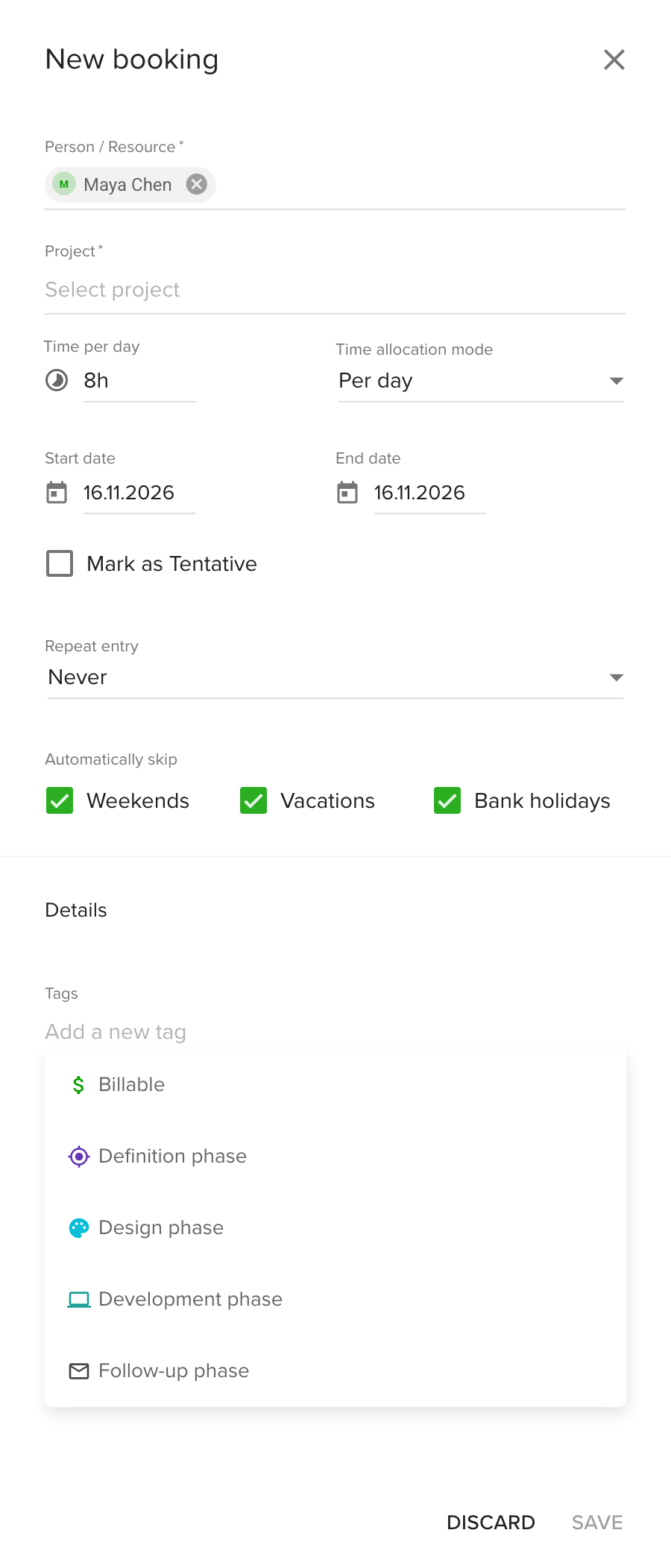
- Open the booking form, as described in Plan your team's schedule.
- Select the Tags field and pick a tag from the list.
- Repeat for more tags, up to the limit shown next to the field, such as 0 / 5.
- Select Save.
Tips
- Keep tag names short and agree on them as a team. "Design phase" works better than "Phase of design work".
- Use the Tags: Booking filter on the Calendar to see only the bookings with a given tag. See Filter the Calendar and save views.
- Group the projects of one client under a tag with the client name, then filter reports by it.
Troubleshooting
- I cannot save a booking without a tag. Require booking tags is on. Add at least one tag.
- I cannot add another tag. You reached the limit set in Tags per booking or Tags per project. Ask an Owner or Manager to raise it, up to 5.
- A time entry shows "Please provide at least one tag". Require time entry tags is on. Add a tag to each day that has time.
- The Booking tab is missing. Only Owners and Managers see the tag settings.
Frequently asked questions
Can I filter and group reports by tag?
Yes. Filter by tags in reports and exports, or use a tag as a metric or a grouping in a report, for example to see all the projects of one client in one row.
What happens to a tag I remove while it is in use?
It is archived. It disappears from the pickers, but the bookings, projects and time entries that already have it keep it.