

Add milestones to your projects
Mark key dates on a project, such as a review or a handoff, so you can plan bookings around them.
On this page
A milestone marks a key date or phase of a project, such as a moodboard review or a brand handoff. It shows on the Calendar, so you can book people with the upcoming dates in mind.
Milestones are labels on the timeline. They carry no hours and do not change availability or booked time.
Before you start
- You need the Owner or Manager role to add, edit or delete milestones.
- Regular members see the milestones of projects they can access but cannot change them.
Add a milestone on the Calendar
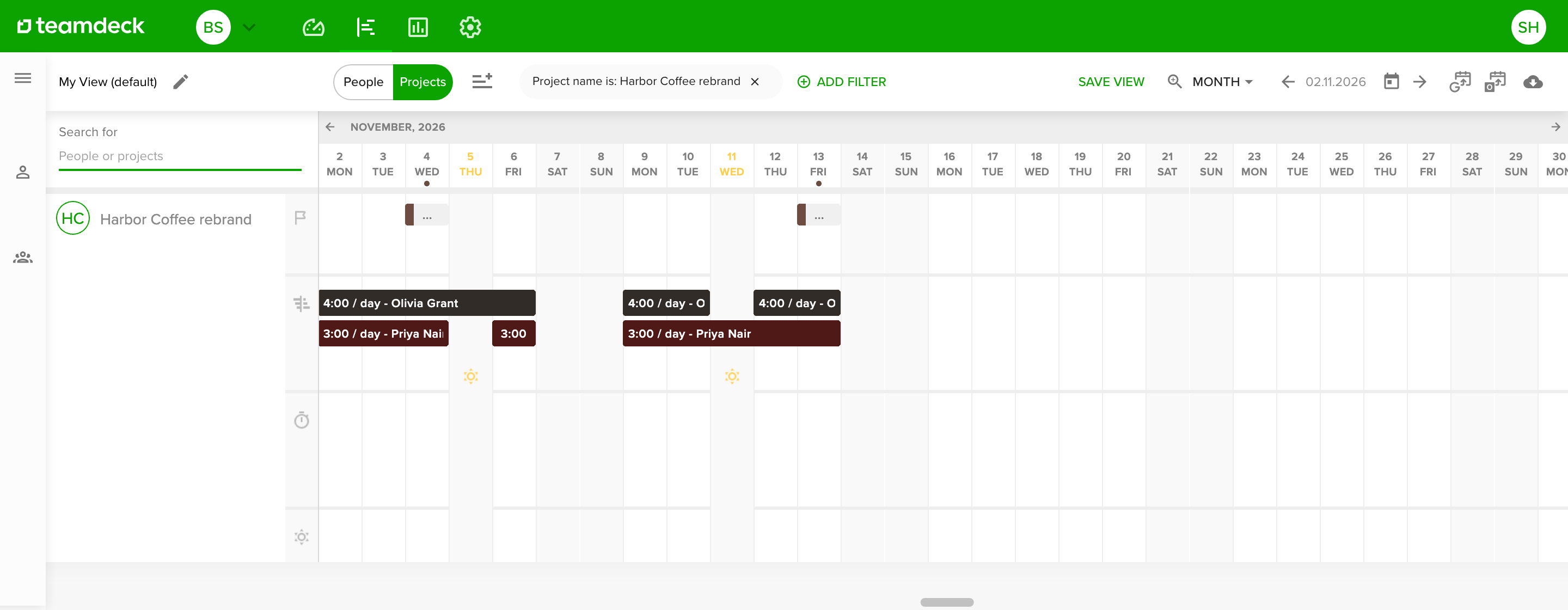
- Open the Calendar and select Projects next to the filter bar.
- Find the project. The first row of the project, with the flag icon, is its milestones row.
- Hover the day the milestone starts and select the plus icon.
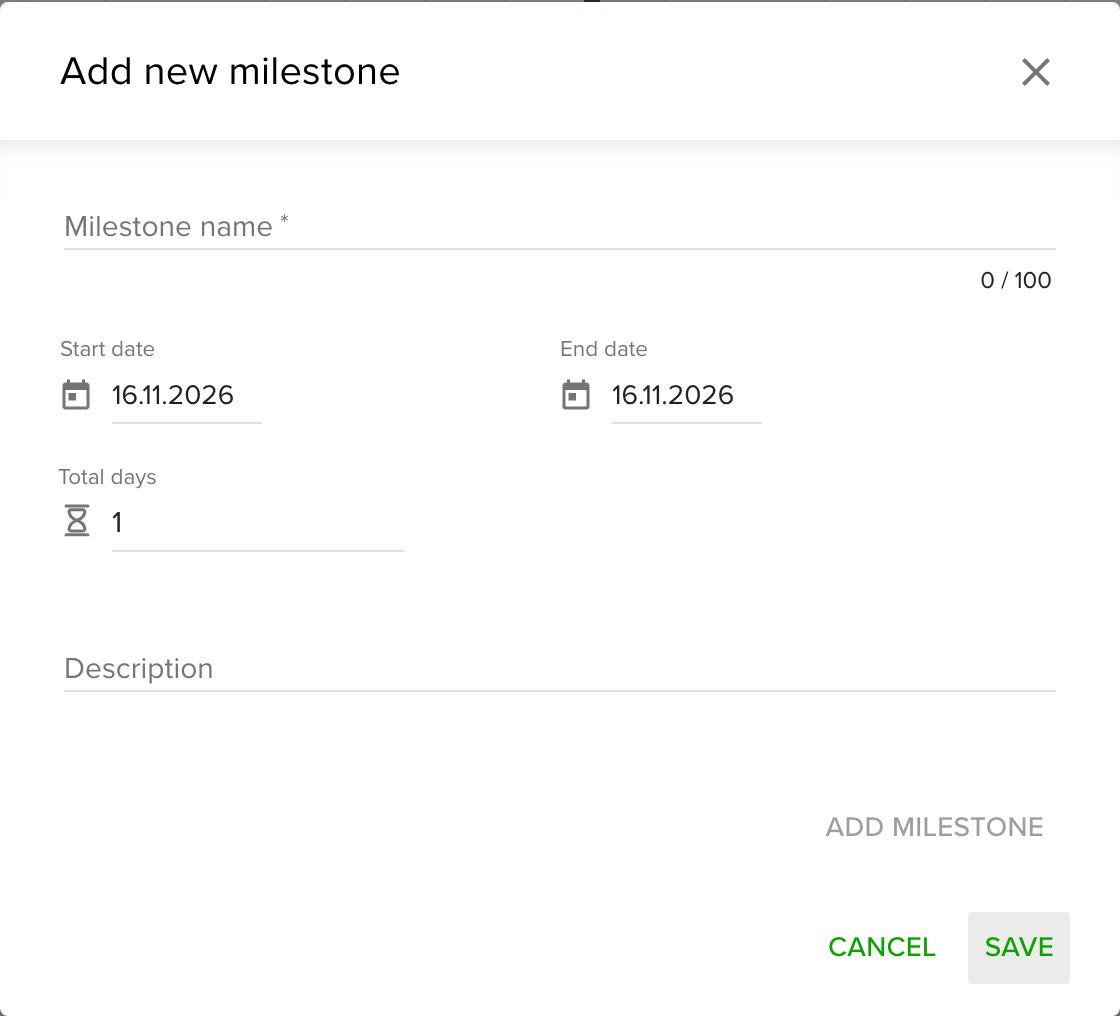
- In Add new milestone, type a Milestone name.
- Set Start date and End date, or type the number of days in Total days. The end date follows the number of days.
- Optional: add a Description.
- Select Save.
The milestone appears as a bar in the project color in the milestones row. In the date header of the Calendar, a small dot marks each day with a milestone.
Add a milestone in the project settings
You can add milestones while you create a project, or to a project that already exists.
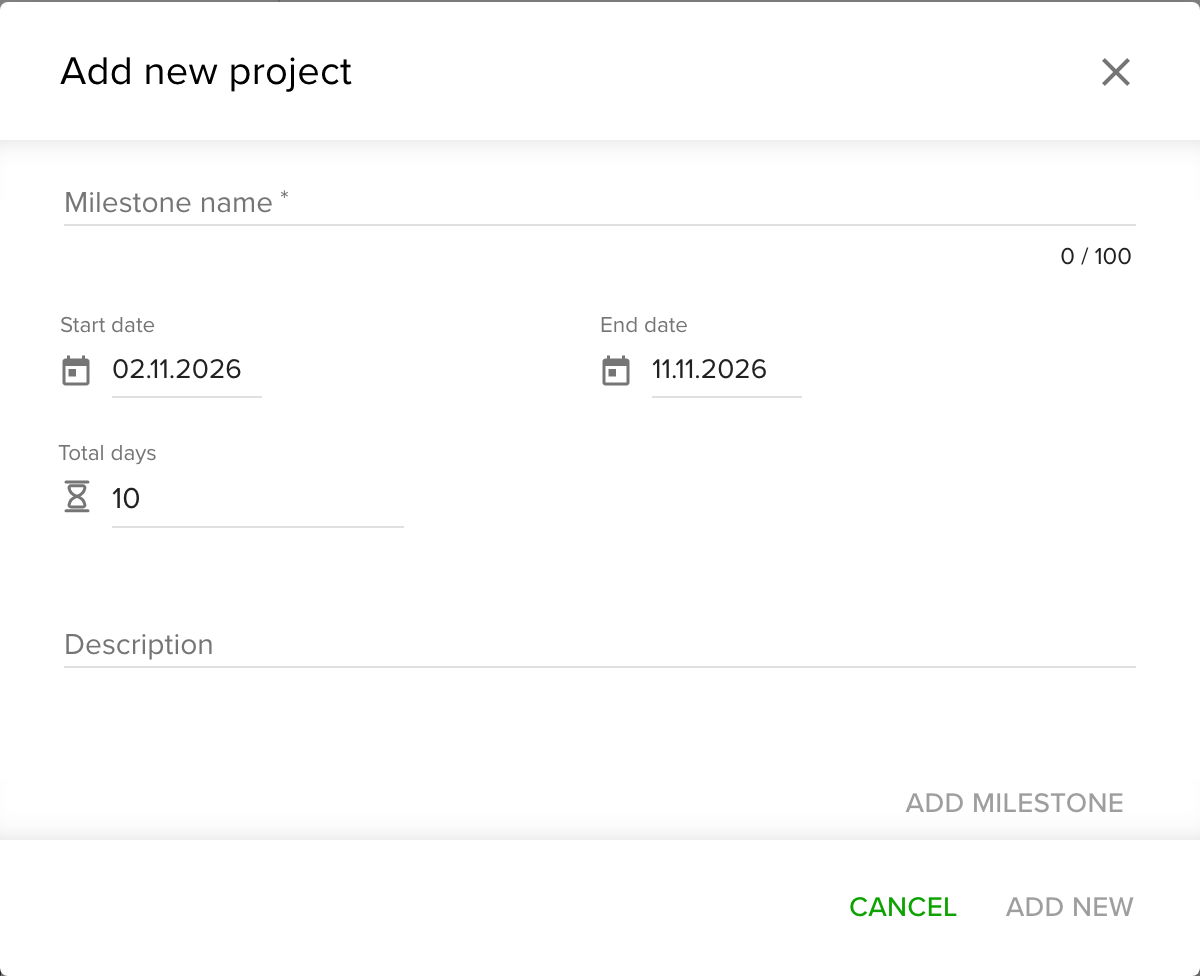
- Go to Settings and open Projects.
- Open a project, or select the green plus icon and Create project.
- Open the Milestones section.
- Fill in Milestone name, the dates or Total days, and an optional Description.
- Select Add Milestone.
- If you are creating a new project, finish with Add new.
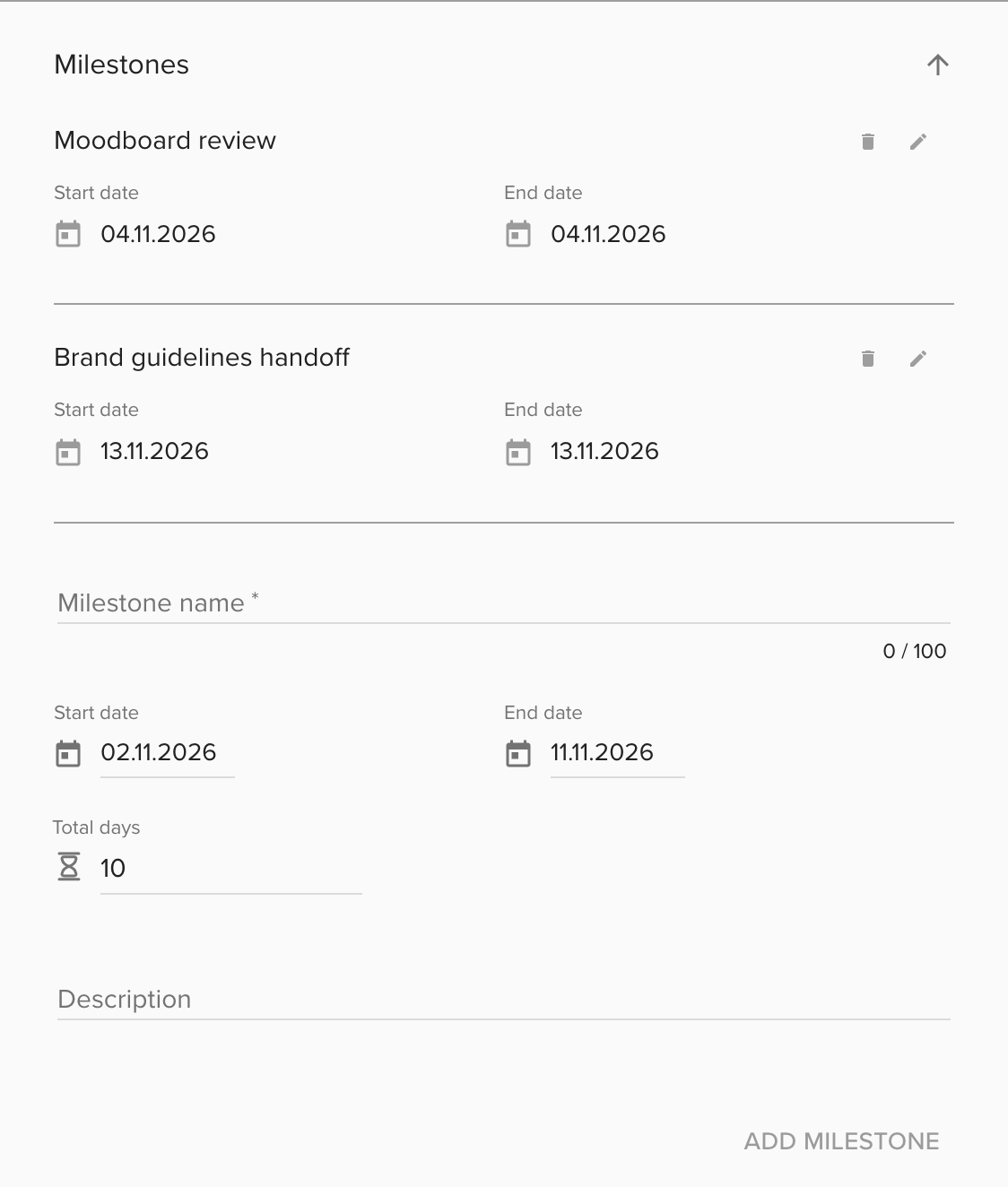
A project can have several milestones. They show up on the Calendar as soon as you save.
See a milestone's details
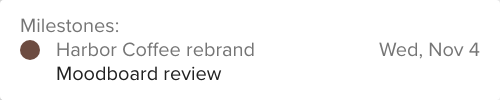
Hover a milestone bar in the project view, or hover a dotted day in the date header. A tooltip lists the project, the milestone name and its dates.
Edit or delete a milestone
- Open the project in Settings > Projects and go to Milestones, or select the milestone on the Calendar.
- Select the pencil icon to edit it, or the trash icon to delete it.
Tips
- Name milestones after the outcome, for example "Brand guidelines handoff".
- To export milestones for a period, use the export icon on the Calendar. See Export Calendar data to CSV.
Troubleshooting
- I do not see milestones on the Calendar. Milestones show in the project view, not in the people view. Select Projects. If the project view is empty, an Owner may have turned milestones off in Settings > Organization.
- I cannot add a milestone. Only Owners and Managers can. Ask an Owner for access.
- A milestone disappeared after I deleted a project. Deleting a project also deletes its bookings, time entries and milestones.