

Export Calendar data to CSV
Download bookings, timesheets or milestones from the Calendar as a CSV file for a period you choose.
On this page
Export what you see on the Calendar to a CSV file, to share it with finance, check it in a spreadsheet or archive a period. You can export bookings, timesheets (time entries) and project milestones.
Before you start
- You need the Owner or Manager role. Regular members do not see the export icon.
- The Calendar filters you set before you export narrow the file. Clear them to export everyone.
- The menu lists only the data types your organization uses. An Owner turns bookings, timesheets and milestones on or off in the organization settings.
Export bookings, timesheets or milestones
- Open the Calendar and set the filters you want, if any.
- Select the cloud icon at the top right.
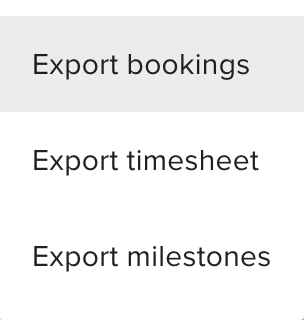
- Choose Export bookings, Export timesheet or Export milestones.
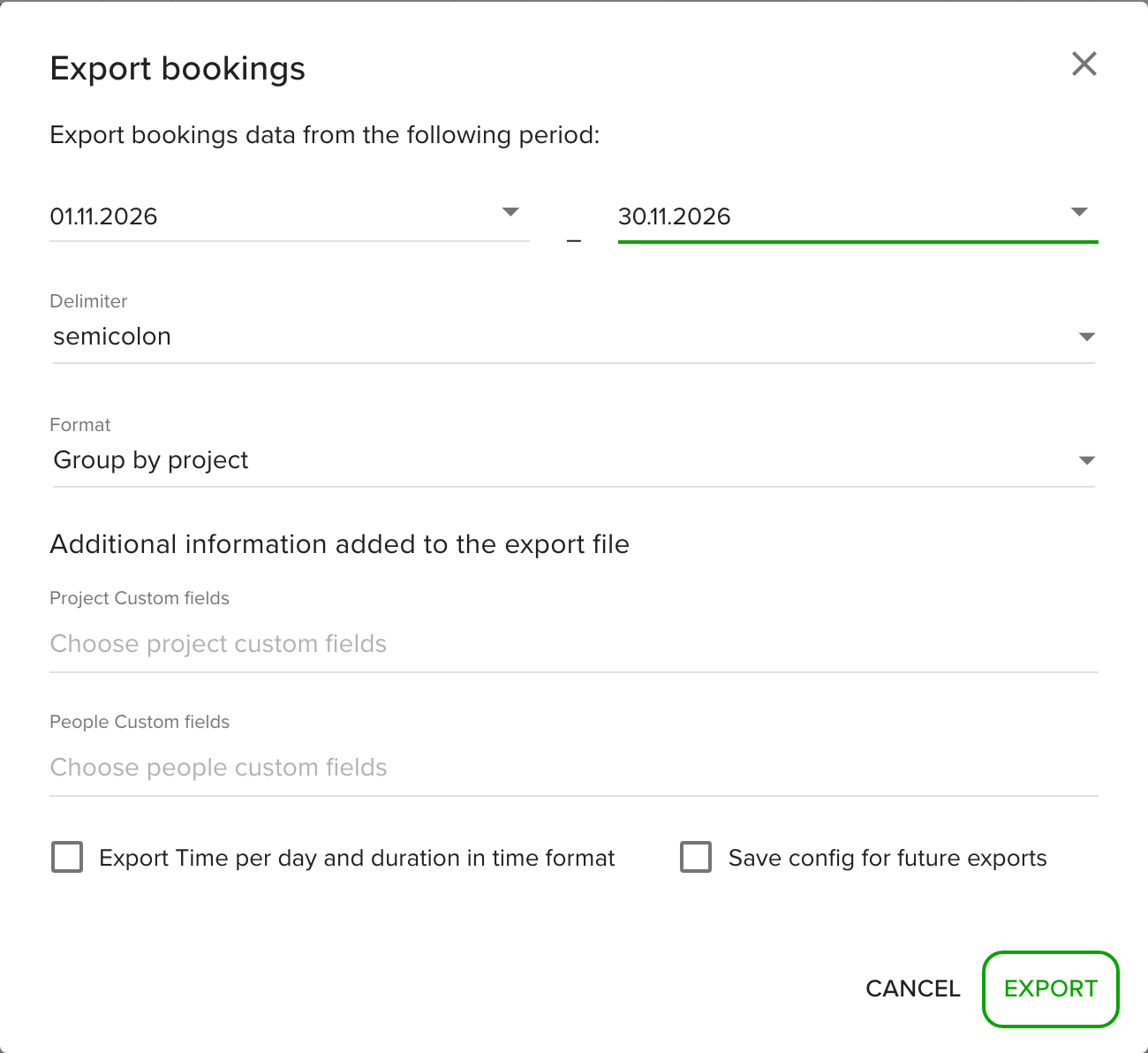
- Pick the start and end date. The period starts on the first day of the current month and ends today.
- Choose a Delimiter: comma, semicolon (the default), tab or space.
- For bookings and timesheets, choose a Format:
- Group by project (the default) groups the rows by project and unlocks the extra options below.
- No grouping gives one row per person and entry.
- Optional: add custom fields under Additional information added to the export file.
- Select Export.
The file opens in a new browser tab and downloads as a CSV. Its name has the export type, your organization name and the period.
Add custom fields and time format
These options appear when the format is Group by project:
- Project Custom fields: add project fields, such as a project code, as columns.
- People Custom fields: add fields of the people, such as department. Available for bookings and timesheets.
- Export Time per day and duration in time format: write hours and minutes instead of decimal hours.
- Save config for future exports: keep your custom fields and the time format as the defaults for the next export.
Export milestones
Milestone exports have no Format option and no People Custom fields. You can add Project Custom fields only.
Tips
- Use Group by project when you need custom fields or the time format.
- Use No grouping for a quick list per person.
- Turn on Save config for future exports if you send the same report every month.
Troubleshooting
- I do not see the export icon. Only Owners and Managers can export. Ask an Owner to change your role.
- There is no Additional information section. Set Format to Group by project.
- Custom fields are missing. Create them first in Settings > Custom fields. People custom fields are not available for milestone exports.
- The file has fewer people than I expected. The export follows your Calendar filters and the projects and units you can access. Clear the filters and export again.