

Create recurring bookings
Repeat a booking every day, week or month, or on a custom pattern, and change one occurrence or the whole series.
On this page
A recurring booking repeats the same booking on a schedule, so you do not enter it again every week. Use it for a weekly slot on an internal project, a regular training day, or a monthly check.
Before you start
- You need the permission to add bookings: the Owner role, or the Manager role with Can do resource planning on your profile.
- Read Plan your team's schedule first if you have not added a booking before.
Repeat a booking
- Open the booking form: hover a day in a person's row on the Calendar and select the plus icon.
- Fill in the person, project, time per day and dates.
- Open Repeat entry and choose how often the booking repeats.
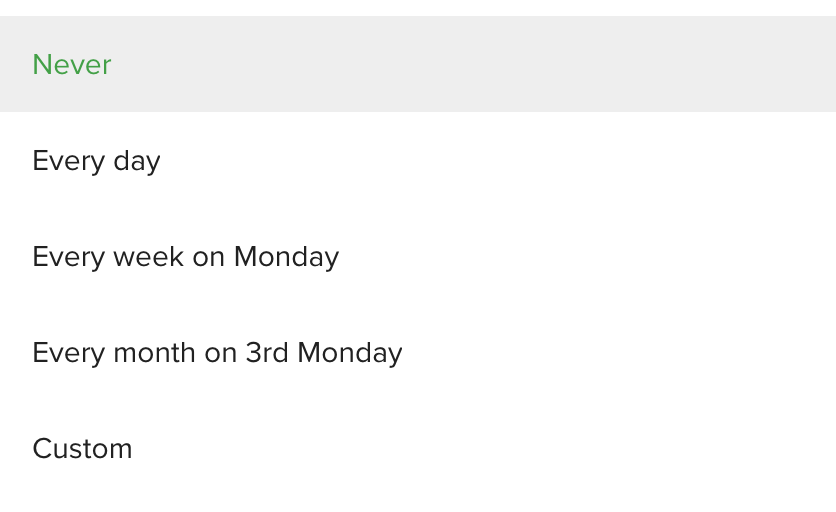
- Under Stop repeating after, choose a date, or a number of entries (at least 2).
- Check Automatically skip and select Save.
The booking shows on every day of the series. The booking tooltip tells you how it repeats and when the series ends, for example Ends after 4 entries or Ends on December 14, 2026.
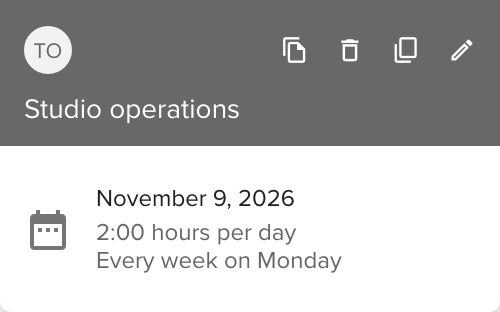
The presets depend on the length of the booking. Every day is offered for a one-day booking, Every week on a day for a booking shorter than a week, and Every month on a weekday for a booking shorter than a month.
Set a custom pattern
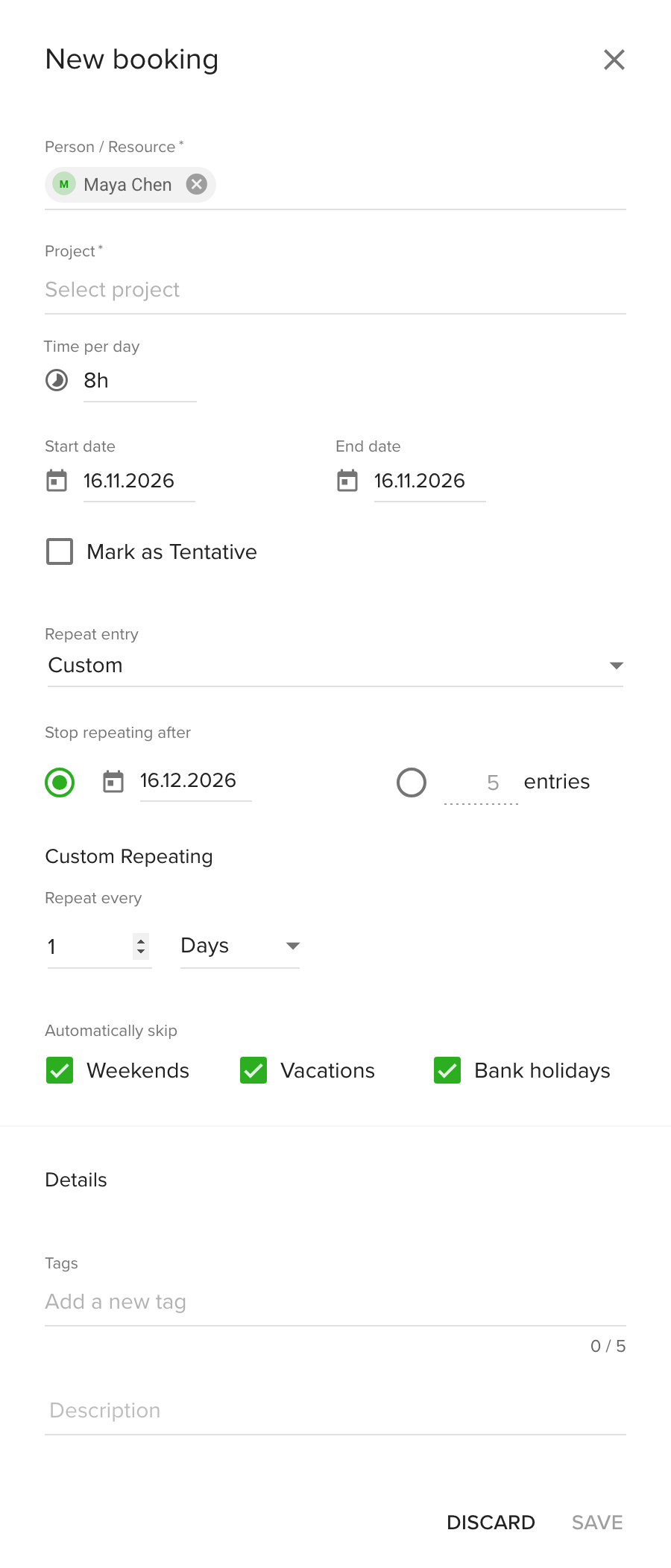
- In Repeat entry, choose Custom.
- In Repeat every, enter a number and choose Days, Weeks or Months.
- For weeks, choose the weekdays. For months, choose the same day of the month or the same weekday, such as the third Monday.
- Set Stop repeating after.
- Select Save.
Weekends, holidays and vacations
Recurring bookings follow the Automatically skip options of the form. With Weekends, Vacations and Bank holidays ticked, occurrences on those days are left out.
Edit or delete a recurring booking
- Select a booking of the series on the Calendar. The form opens on the right.
- Change what you need, or delete the booking.
- Choose how far the change goes:
- This booking: only the occurrence you opened.
- All future bookings: this occurrence and the ones after it. Earlier occurrences stay as they are.
- All bookings: the whole series, past and future.
- Confirm with Save.
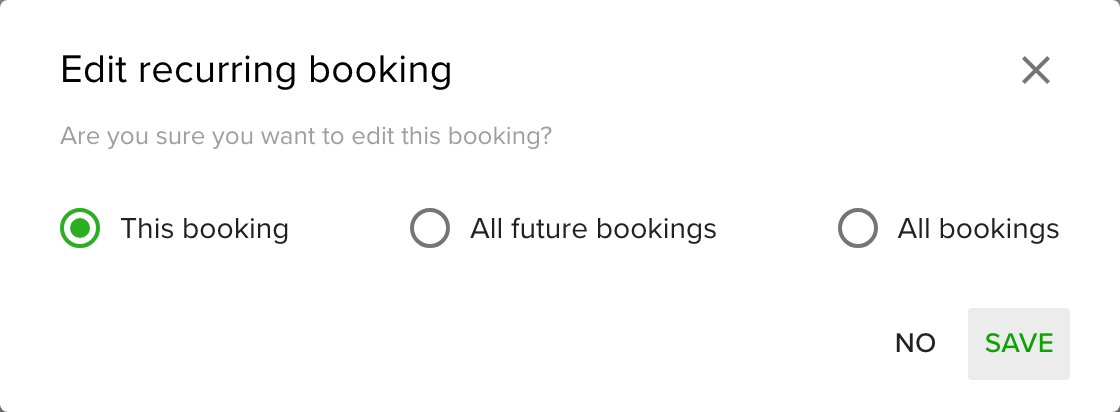
After you change a single occurrence, Teamdeck warns you that this occurrence no longer follows changes made to the original rule.
Tips
- Keep each occurrence shorter than the repeat period. A booking that lasts a week cannot repeat every week.
- Prefer All future bookings over All bookings when something changes mid-series, so history stays correct.
Troubleshooting
- I cannot save the series. Choose an end date or a number of entries in Stop repeating after.
- The form shows an overlap error. The occurrences overlap each other. Shorten the booking or choose a longer period.
- I cannot choose a later end date. A series can run for up to 3 years from the booking.
- The preset I want is not in the list. Presets depend on the booking length. Choose Custom.