

Add custom fields to people and projects
Store extra details such as job title or client name on people and projects, and use them to filter your calendar and reports.
On this page
Custom fields let you store details that Teamdeck does not have built in, for example a job title on a person or a client name on a project. You can then filter by them, so finding "a senior frontend developer who is free next week" takes seconds.
Before you start
- You need the Owner role to open Custom fields in Settings.
- Decide whether the field is for people or for projects. A field belongs to one of them.
Typical fields:
- For people: department, job title, seniority.
- For projects: client name, budget type.
Create a custom field
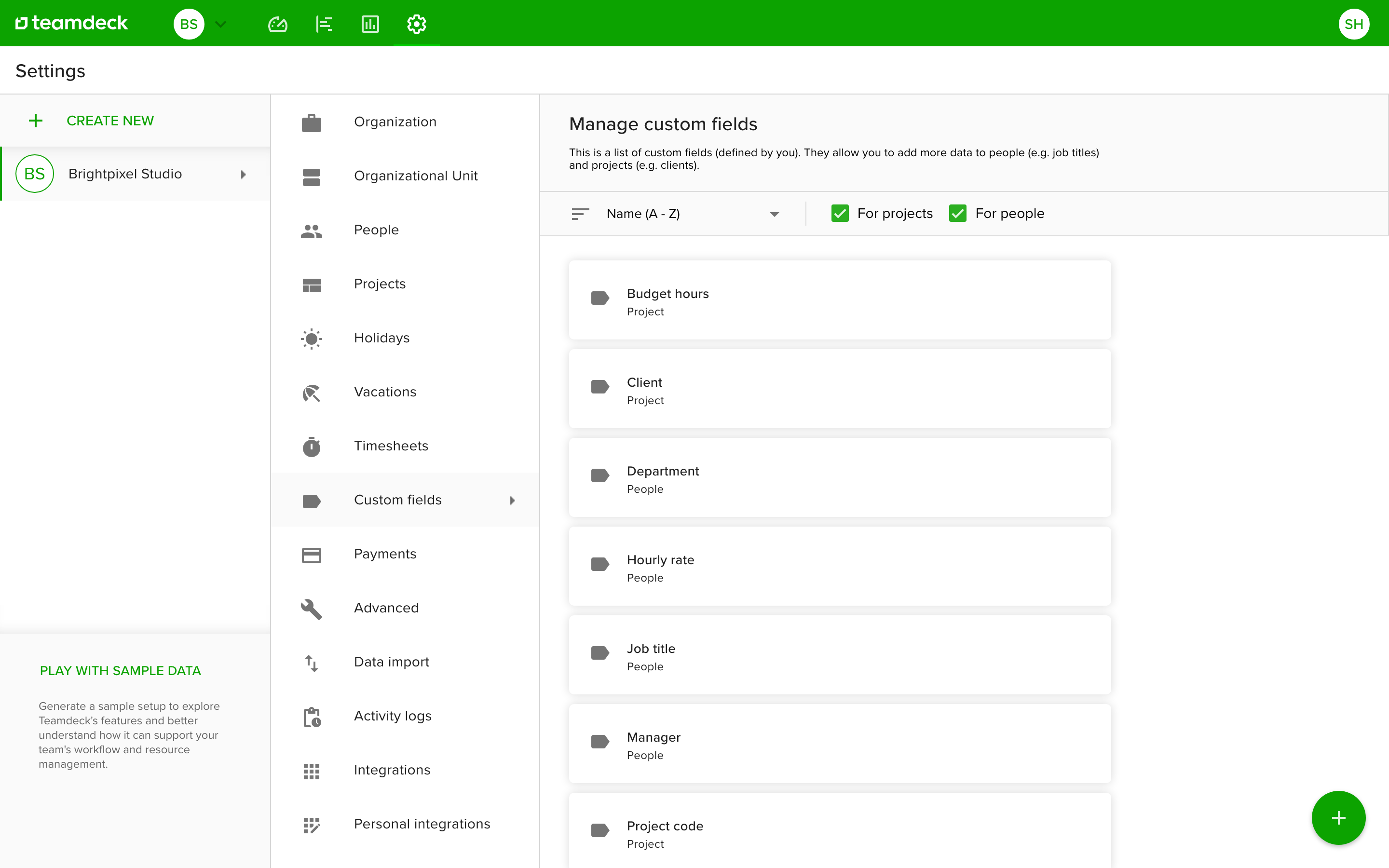
- Go to Settings and open Custom fields.
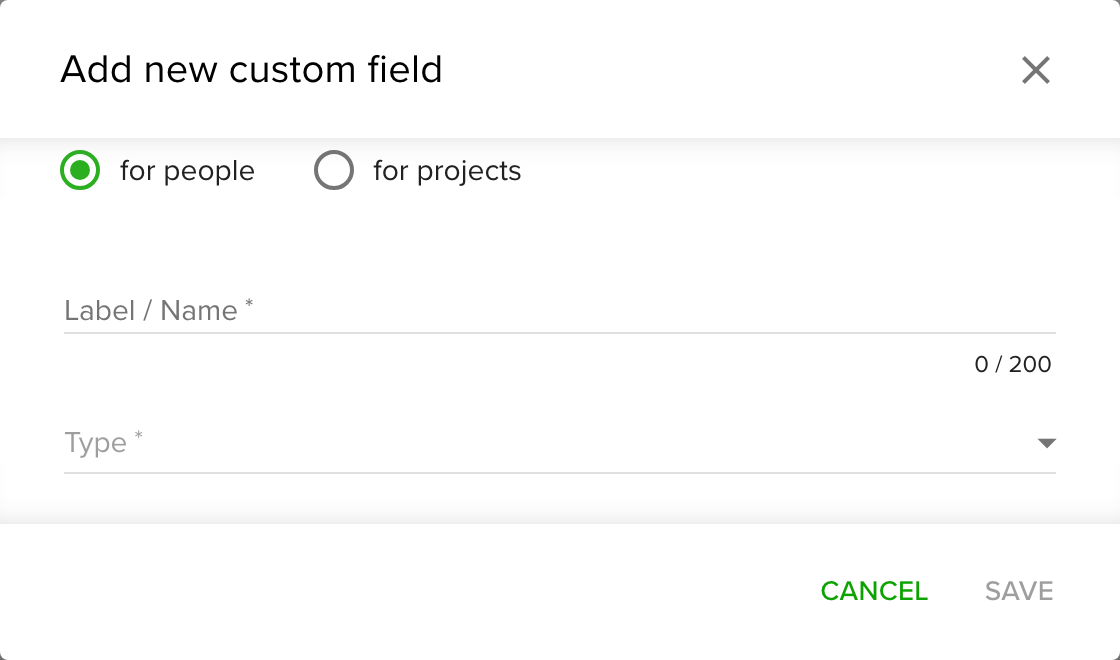
- Click the green + button and choose the option to add a new field.
- Choose for people or for projects.
- Enter a Label / Name.
- Pick a Type:
- Text: free text. You can set a default value.
- List: pick from options that you define and can edit later. You can allow multiple selections.
- Number: a numeric value. You can set a default value.
- Person: points to a person in your workspace, for example "Account owner". You cannot change a field to or from this type later.
- Optional: for a Text, Number or List field, switch on Required so that every person or project must have it filled in when it is saved.
- Click Save.
New people and projects start with the default values you set. Options you flag as default on a list are preselected.
Start from a template
You do not have to create common fields from scratch. The other button under the green + button imports ready-made fields: Department, Employment status, Job title, Seniority, Skills and Technologies. Choose one for people or for projects.
Fill in the values
- Open a person in Settings and People, or a project in Settings and Projects.
- Expand Custom fields.
- Enter or pick the values and save.
Edit or remove a field
- To edit a field, open it in the list. You can rename it and change its options. You cannot change the type of an existing field.
- To remove a field, open it and remove it. Confirm when asked. All values entered in the field are deleted with it.
- If you move a field from people to projects (or back), its existing values are cleared.
- If you remove an option from a list field, the values that used that option are deleted too.
Filter by custom fields
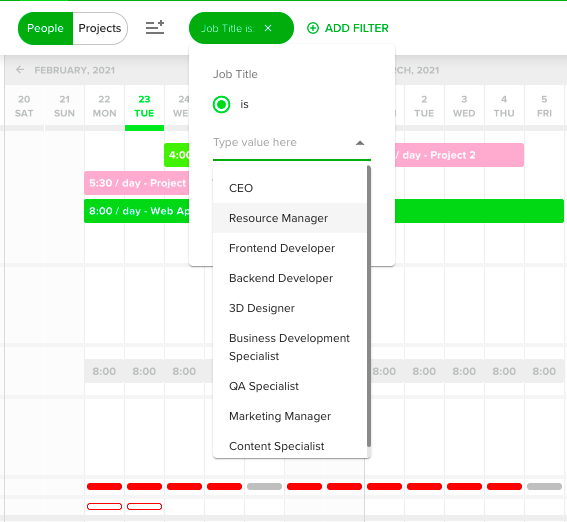
Custom fields work as filters in the calendar, in reports, in search and in exports. Use several at once to narrow the result.
Tips
- Use a Person field for relations such as "Manager". Reports and filters always show the person's current name. If the person is removed, the reference is cleared and does not come back when you restore them.
- Changes to field values are recorded in the activity log.
Troubleshooting
- I cannot find Custom fields in Settings. Only people with the Owner role see it.
- I cannot change the type of a field. The type is fixed after creation. Create a new field and remove the old one.