

Import Google Calendar events as time entries
Turn your Google Calendar meetings into time entries in a few clicks, with projects and tags matched for you.
On this page
Import your Google Calendar events into your timesheet to log meeting time without retyping it. You start the import yourself each time. It is a one-off pull, not a continuous sync.
Before you start
- Timesheets must be turned on for your organization. The import button is hidden without them.
- You import only your own calendar, for your own timesheet.
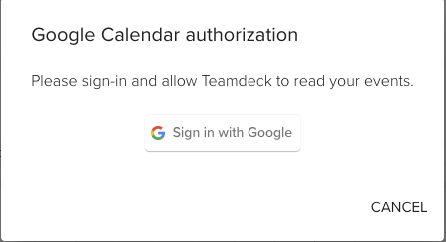
- The first time, you allow Teamdeck to read your Google Calendar events in a pop-up window.
Import events
-
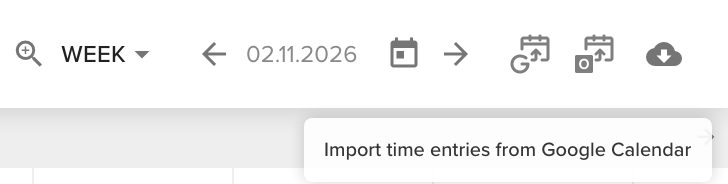
Open the Calendar and click Import time entries from Google Calendar in the top right corner.
-
Allow Teamdeck to read events from your Google Calendar.
-
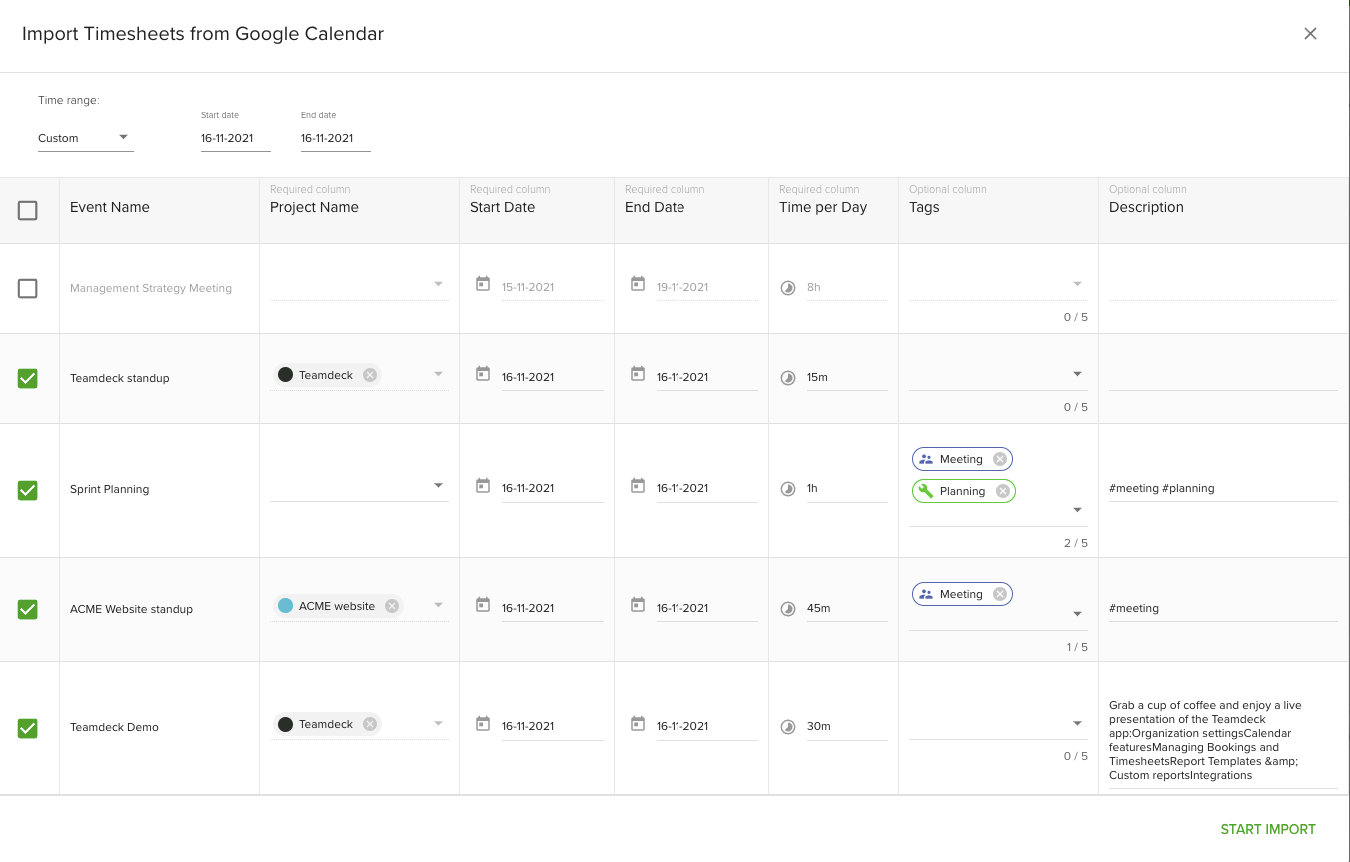
Pick the date range at the top of the table: today, this week, last week or a custom range. Changing the range after you edited rows asks for confirmation, because the table reloads.
-
Untick the events you do not want to import.
-
Check each row. Choose the Project for every event. Project, start date, end date and time per day are required for each ticked row.
-
Click Start import.
A progress bar runs and a confirmation appears. The new time entries show in your timesheet. Rows with errors stay in the table so you can correct them and retry.
How events are matched
- Project. Teamdeck picks the project whose name appears in the event title or description, ignoring case and spaces. If nothing matches, the project stays empty.
- Tags. Add a hashtag to the title or description, such as
#meeting, to apply the time entry tag with that name. Create tags under Settings > Advanced > Timesheet. The#meetingtag is added when it exists. - Time. The time per day is the event's length. All-day and multi-day events use your organization's working hours per day. A title that starts with
2:00 / daysets the time per day to that value. - Description. The event title becomes the time entry description.
- Skipped events. Working location and out-of-office events are skipped. So are events you were invited to but have not accepted.
Tips
- Write the project name in the event title, so the project is filled in for you.
- The table shows up to 200 rows. Import a shorter range if you hit the limit.
- Imported entries include weekend, holiday and vacation days.
Troubleshooting
- The import button is missing. Timesheets are turned off for your organization. Ask an owner to switch them on.
- Teamdeck asks me to authorize again. Your Google session expired or the access was revoked. Allow access again in the pop-up.
- The Start import button is disabled. A ticked row has an error. Fill in the missing project, dates or time, or untick the row.