

Export reports and data (FAQ)
Export report tables and calendar data to CSV, including one person's timesheets for a project.
On this page
Quick answers about getting data out of Teamdeck as CSV files. Managers and Owners can export.
How can I export data from Teamdeck?
Build a report with the data you need and export its table. Open the three-dot menu of the table, click Export, choose your options and click Export. See Create, save and share reports to build the report.
What can I choose in the export?
The delimiter, which rows go into the file, how groups are laid out and how time is written.
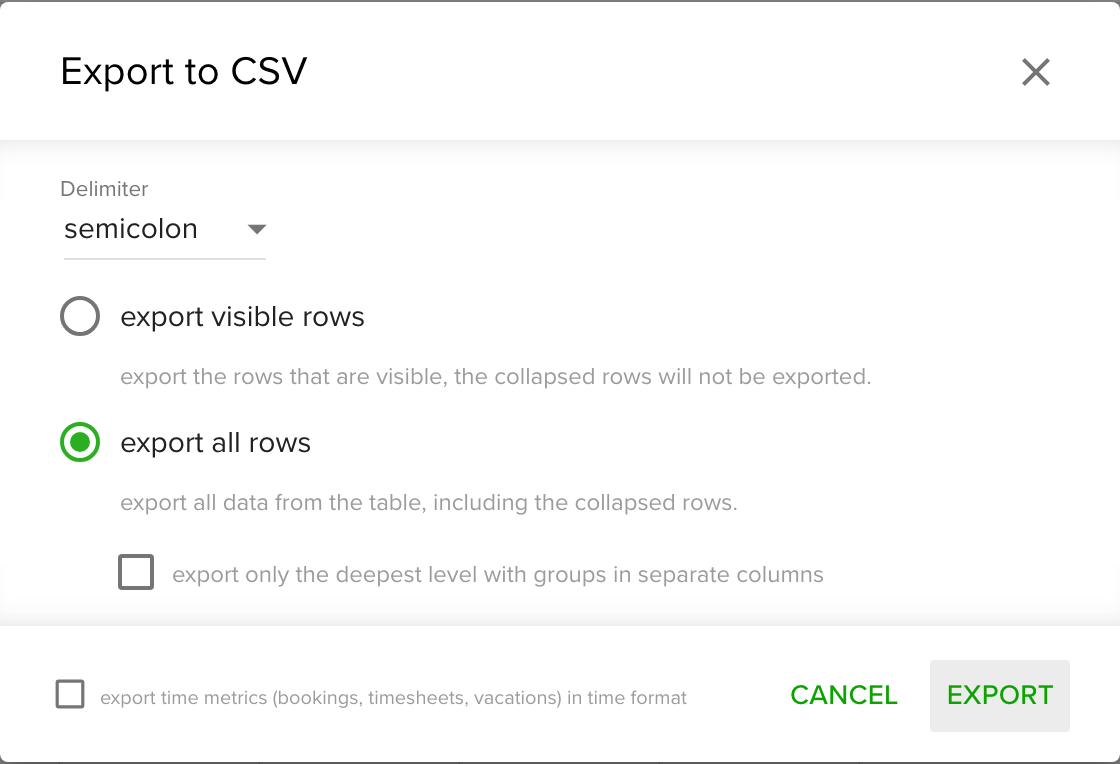
- Delimiter: comma, semicolon (the default), tab or space.
- Export visible rows exports only the rows you can see. Collapsed rows are left out.
- Export all rows exports every row, including collapsed ones. Tick Export only the deepest level with groups in separate columns to get one flat row per entry with a column for each group level. This works best for most spreadsheets.
- Export time metrics (bookings, timesheets, vacations) in time format writes hours and minutes instead of decimal numbers.
Is it possible to export the calendar data?
Yes. On the calendar, click the cloud icon (Export CSV) and choose Export bookings, Export timesheet or Export milestones. Pick the period, delimiter and format, then click Export. Filters set on the calendar narrow the file. See Calendar export.
Can I download the timesheets of each team member for a particular project?
Yes. Filter the Projects & Team overview report by that person and export its table:
- Open Reports, click +, choose the Projects & Team overview template and click Create from template.
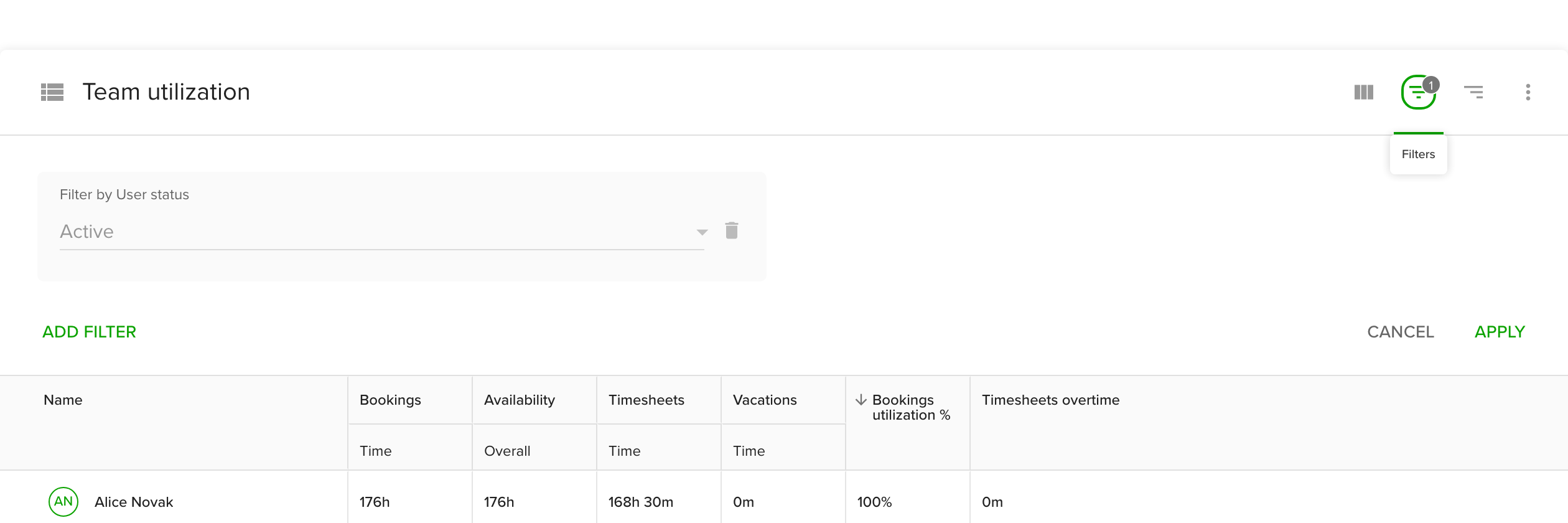
- Add a filter by person name on the first table (projects) or the second table (people) to limit the rows.
- Optionally change the grouping and use the metrics menu to add or remove the columns you want in the file.
- Open the three-dot menu of the table and click Export.
For more, see Customize your reports.