

Create, save and share reports
Build a report from bookings and timesheets, start from a template, and share it with colleagues or by public link.
On this page
Reports turn your bookings, timesheets, availability and time off into tables and charts. Start from a ready-made template or build your own, then share the result with colleagues or send a link.
Before you start
- Reports are not tied to a plan, but your organization needs an active subscription. Without one, reports are unavailable and people are told to contact the Owner.
- Managers and Owners can create, edit and share reports. People with the Regular role see only their own data in reports and see no templates.
- Only the person who created a report can delete it.
Create a report
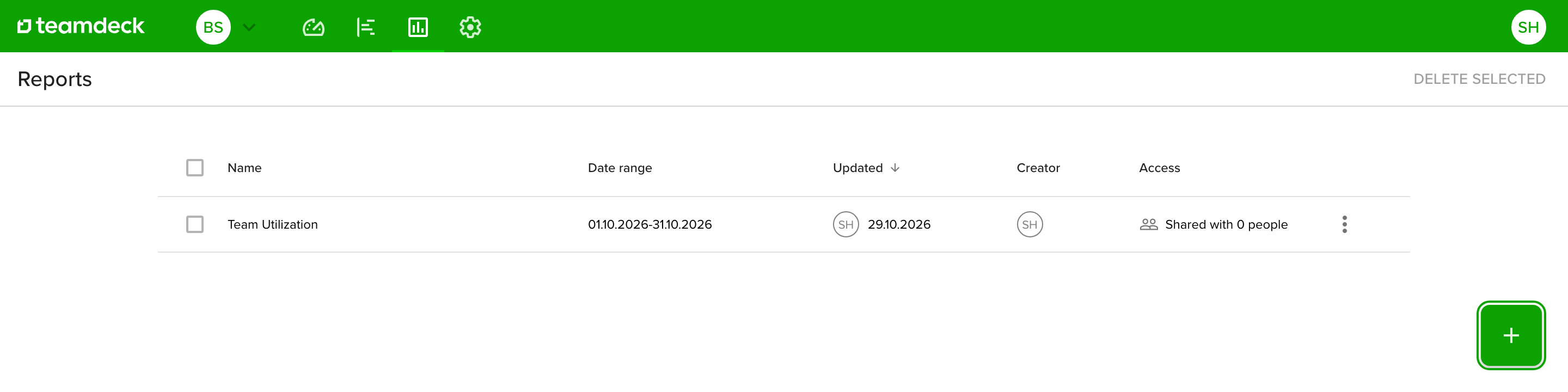
- Open Reports in the top menu. You see the reports you created or that were shared with you.
- Click the green + button in the lower right corner.
- In Create new report, choose one of these:
- A template, then Create from template. Search by name if the list is long.
- Create custom to start with an empty report.
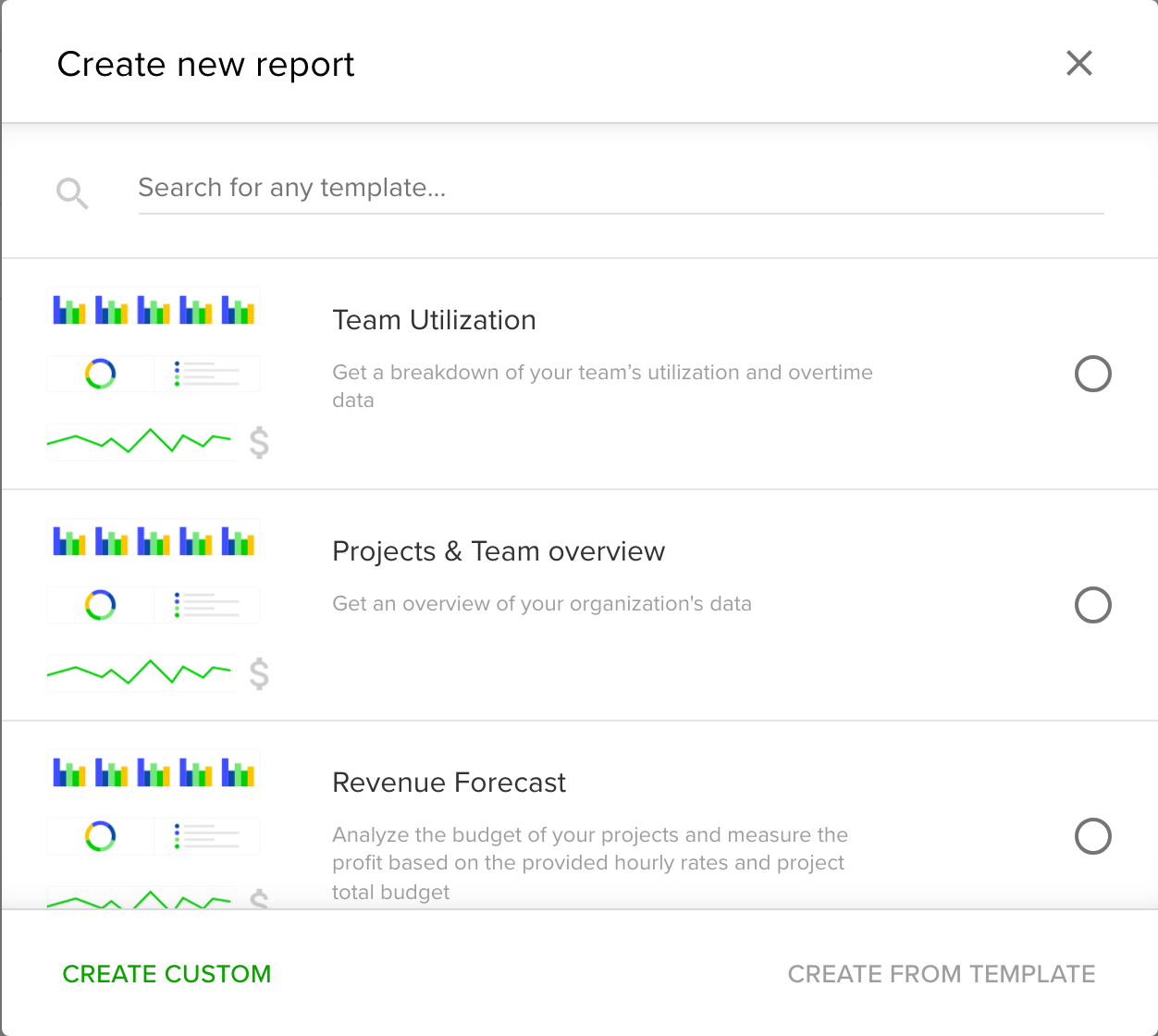
Templates create a private report that you can change freely. They include Team Utilization, Projects & Team overview, Revenue Forecast, Payroll and Time off.
Set the name and date range

- Type the report name in the large field on the left.
- Open the date range on the right and pick Today, This week, This month, This year, Yesterday, Last week, Last month, Last year or Custom date range.
- Click Save in the top bar to keep your changes.
The top bar also has Remove to delete the report and Share to control who sees it.
Add tables and charts
- In an empty report, click Add table or Add graph. In a report that already has content, click the + button in the lower right corner and pick a type.
- Choose a table, bar chart, pie chart, line chart, timeline or org tree.
- Set what the table or chart shows. See Customize your reports for metrics, filters, grouping and chart settings.
You can add several sections to one report. Use Move up and Move down in a section's menu to reorder them.
Share a report
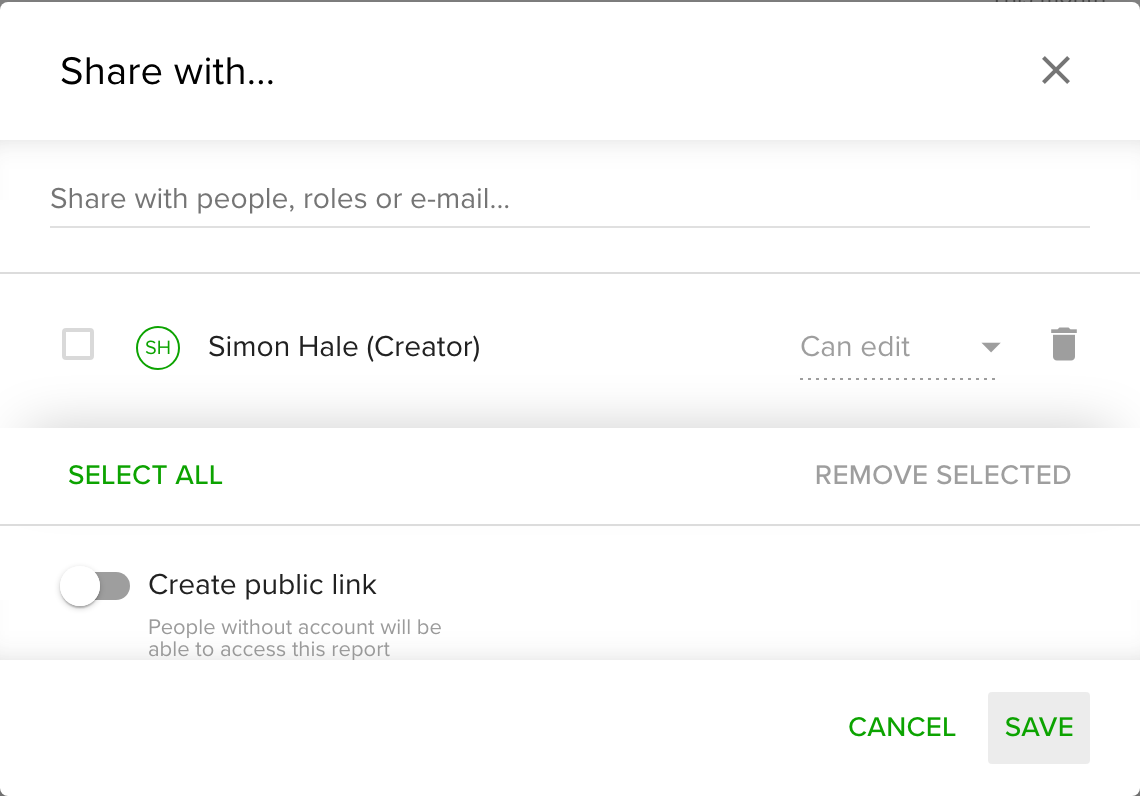
- Click Share in the top bar of the report.
- Type a name, role or email in Share with people, roles or e-mail... and pick the person.
- Set what they can do:
- Can view lets them see the report.
- Can view & change dates lets them also change the date range.
- Can edit lets them change the whole report. Only Managers and Owners can give this access.
- Click Save. New recipients get an email.
To share with people outside your organization, turn on Create public link. Anyone with the link can open the report, with no Teamdeck account needed. You can protect the link with a password of at least 6 characters. Turning the link off removes the password.
Tips
- Start from the Team Utilization template to see overtime and utilization per person right away.
- Share with Can view & change dates when you want a manager to check other periods without changing your setup.
- A public link works well for clients. Add a password when the numbers are sensitive.
Troubleshooting
- I cannot find a template. People with the Regular role do not see templates. Ask a Manager or Owner.
- I cannot delete a report. Only its creator can delete it.
- Reports are unavailable. The organization has no active subscription. Contact the Owner.