

Evaluate team utilization
See how booked your team is this week and who has free time in the next two weeks.
On this page
The Team utilization card on the dashboard shows how much of your team's available time is booked this week, and who is free in the upcoming weeks. Use it to spot overbooked and underbooked people before you plan new work.
Before you start
- You need the Owner or Manager role. People with the Regular role do not see this card.
- Bookings must be switched on for your organization.
Check team utilization
- Click Dashboard in the top menu.
- Scroll to Team utilization. Click the card header to expand or collapse it.
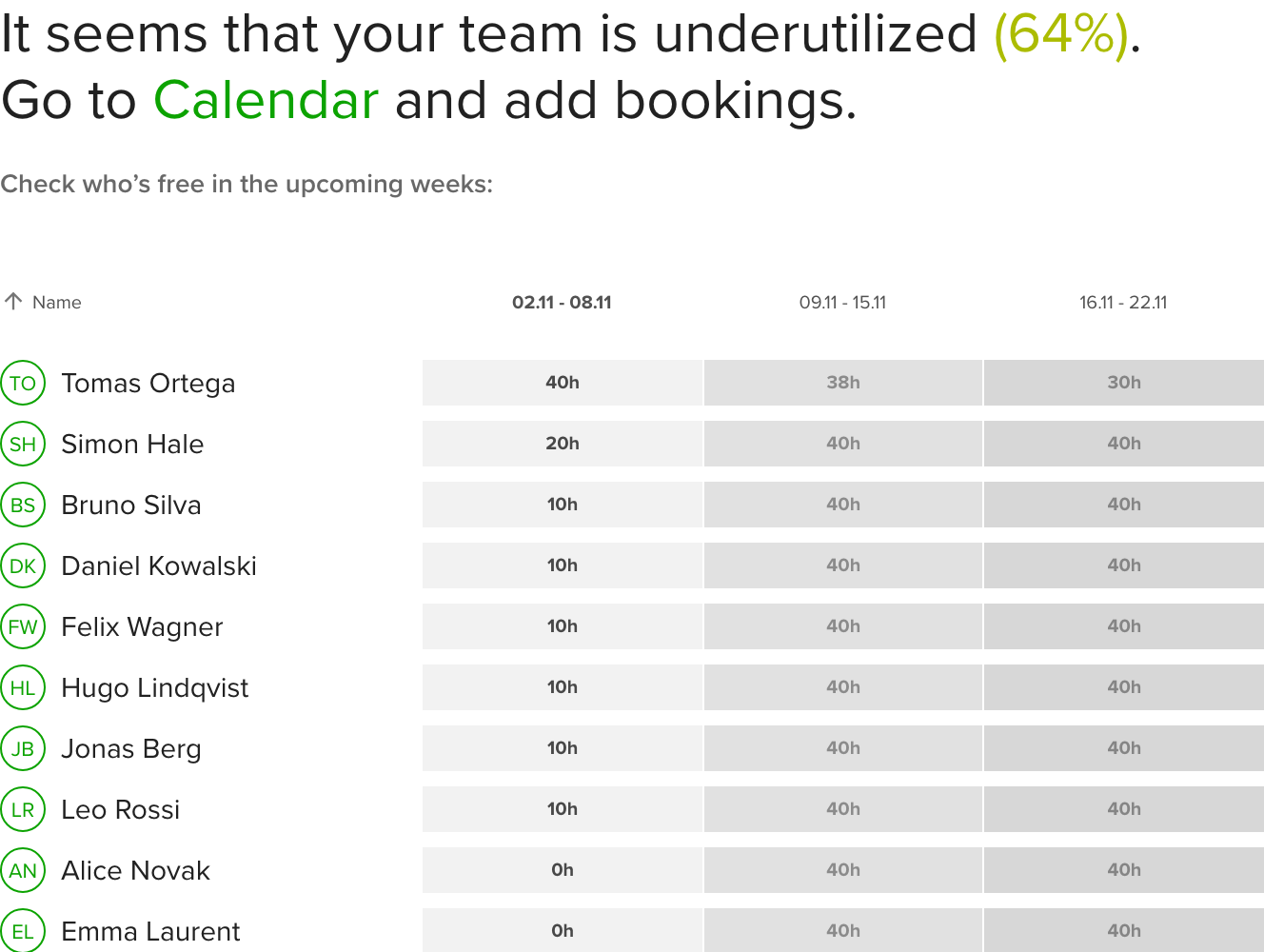
- Read the ring and the message. The percentage is booked time divided by available time for the current week. Time off and bank holidays reduce available time.
- Check the table under Check who's free in the upcoming weeks. It lists free hours per person for the current week and the next two. A person booked beyond their availability shows as overtime.
- Click a column header to sort by name or by any of the three weeks.
The message tells you where you stand:
- Above 100%: your team is overutilized.
- Below 90%: your team is underutilized, with a link to the calendar to add bookings.
- 90 to 100%: your team is well utilized.
Only people with unused capacity in at least one of the three weeks appear in the table.
Go deeper with a report
For utilization per person over any period, create a report from the Team Utilization template. It shows booked, available and tracked time, vacations, utilization and overtime for each person. See Create, save and share reports.
Tips
- Open the card at the start of each week to see who can take on more work.
- Use the report template when you need a month or a quarter instead of the next three weeks.
Troubleshooting
- I do not see the Team utilization card. Check that you have the Manager or Owner role and that bookings are on for your organization.
- Someone is missing from the table. The table lists only active, visible people in organizational units you can access, and only those with free capacity.