

Review changes with activity logs
See who changed what and when in your workspace, open the full history of an item and export logs to CSV.
On this page
Activity logs are an audit trail of changes in your workspace: who created, updated or removed a booking, time entry, vacation, project and more, when they did it and from which IP address. Use them to find out when something changed and to keep a record for audits.
Before you start
- You need the Owner or Manager role. People with the Regular role cannot open this page.
- Exporting logs is switched off in a sample organization.
Browse activity logs
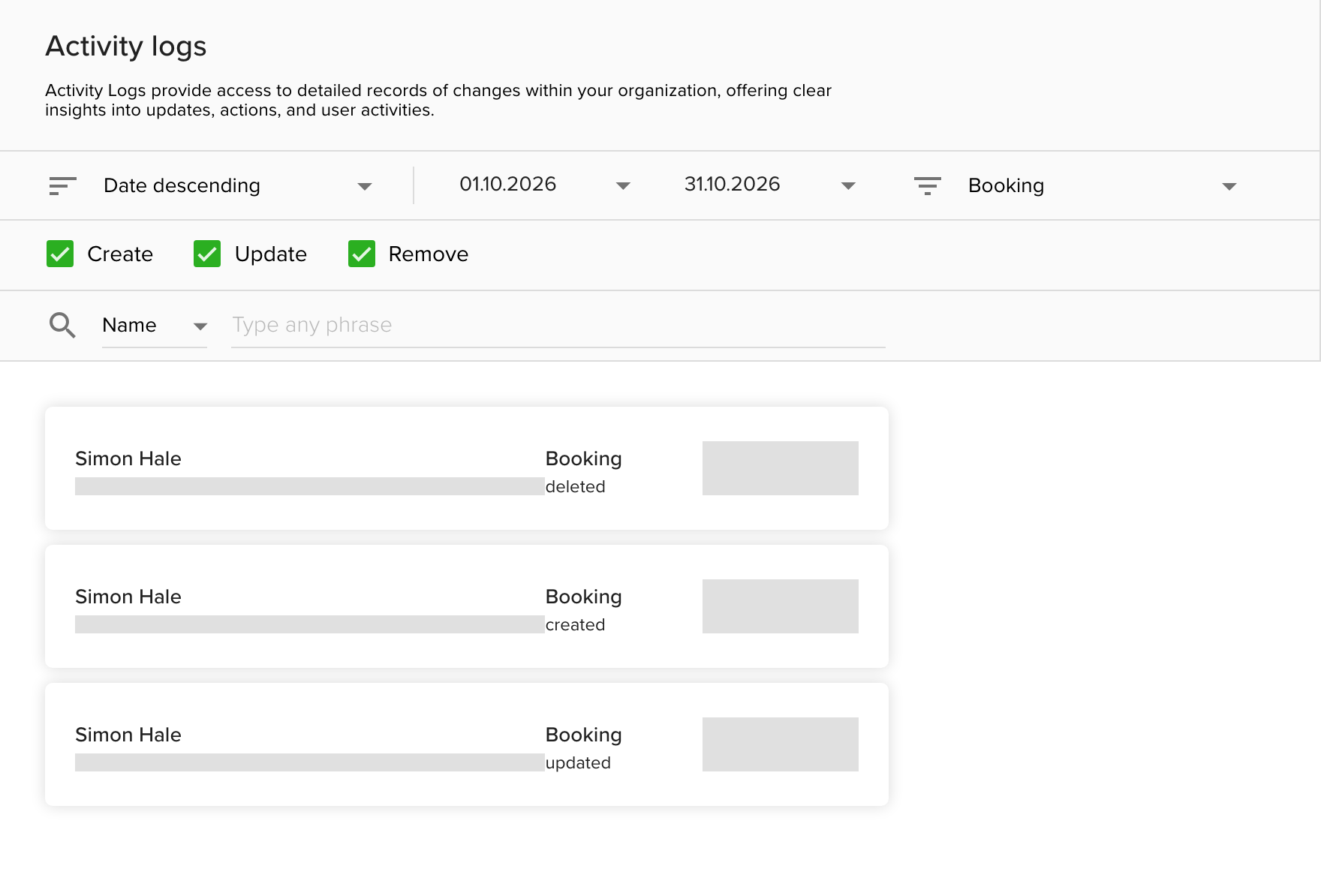
- Go to Settings and open Activity logs.
- Pick the type of item in the type filter, for example Booking, Vacation, Time entry, Project or User.
- Set the date range. It can span up to 31 days and starts on the current month.
- Choose the order (Date descending or ascending) and tick the actions to show: Create, Update, Remove.
- Optional: search by the name or email of the person who made the change.
Each entry shows who made the change and their role, their email and IP address, the type and kind of change, and the date and time.
See what changed in an entry
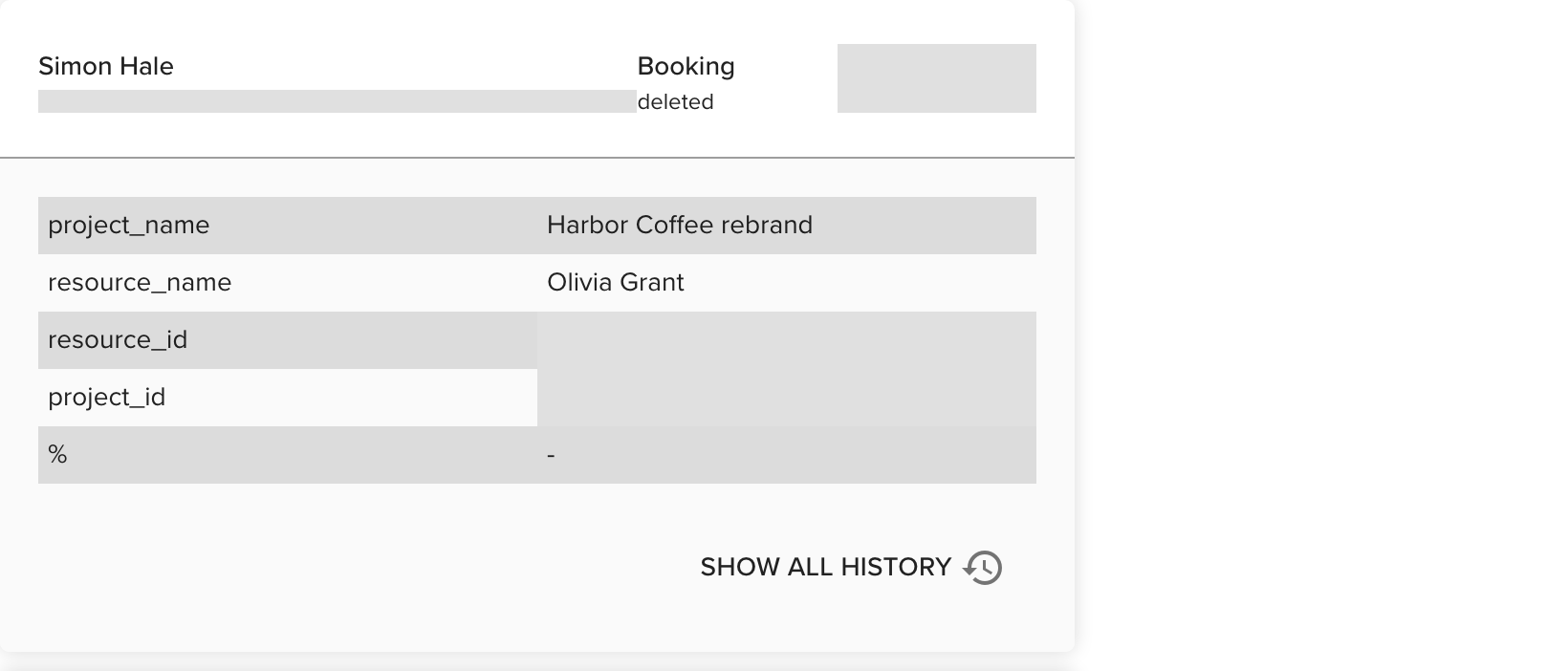
- Click an entry to expand it.
- Read the list of fields. When a value was changed, the previous value is crossed out and the new value sits next to it.
Open the full history of an item
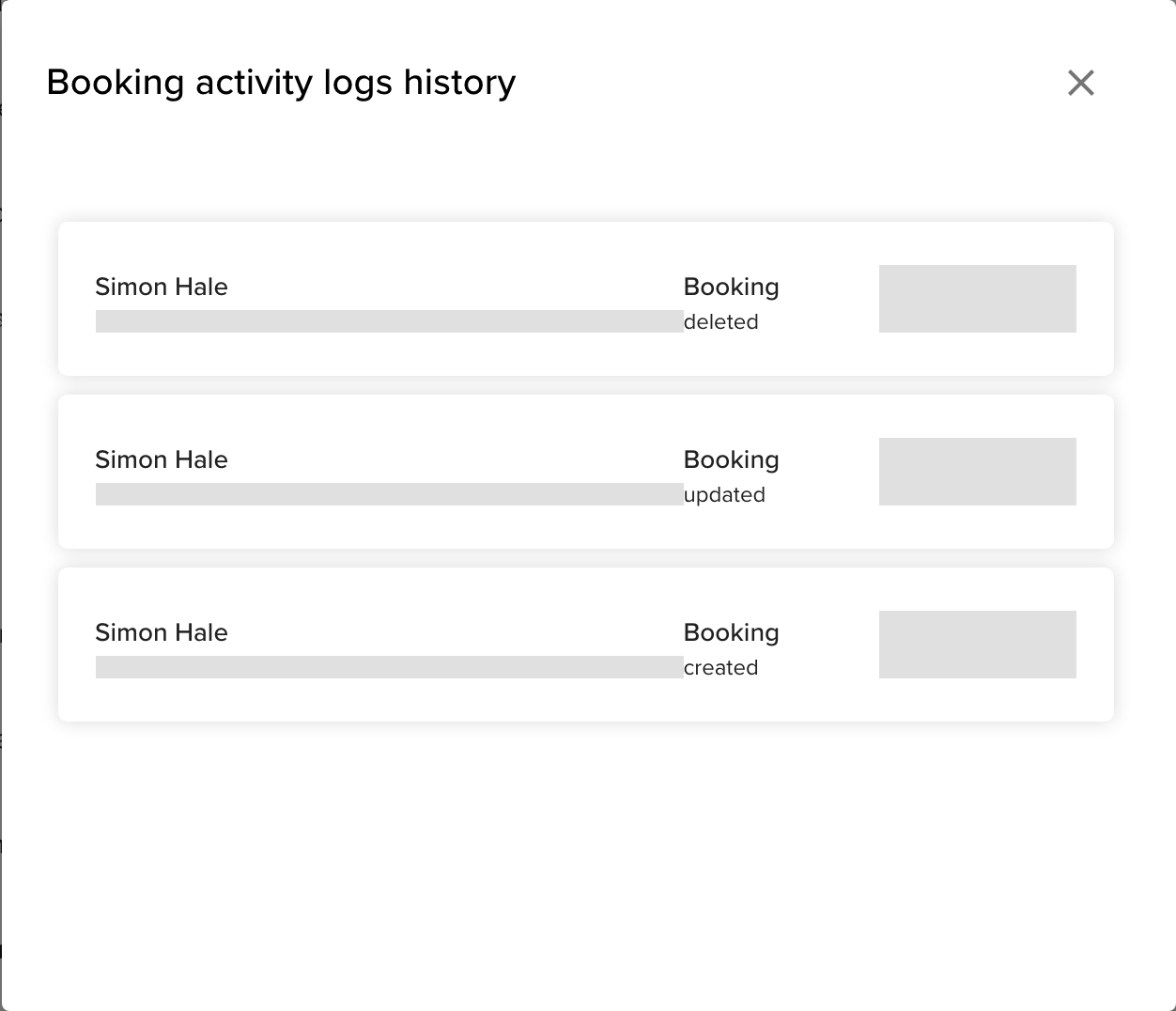
- Expand an entry.
- Click Show all history.
A window lists every change logged for that item, from creation to the latest update.
Export activity logs to CSV
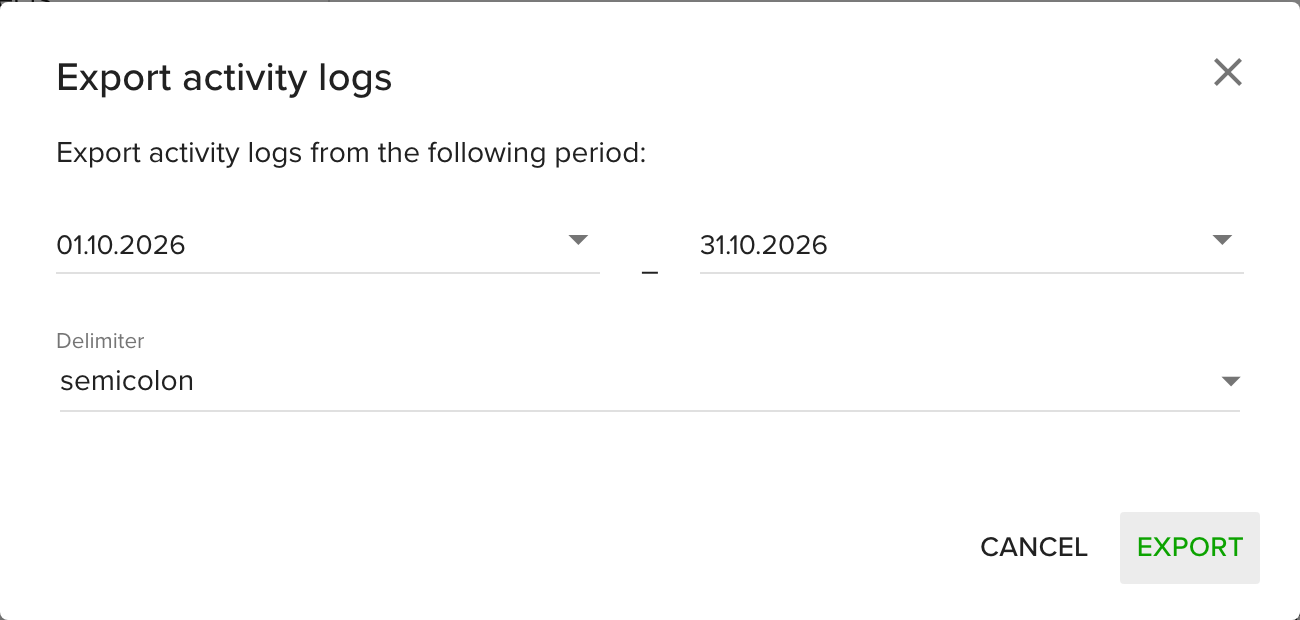
- Click the green cloud button in the bottom-right corner of the page.
- Pick the date range. An export can cover up to 366 days.
- Choose a Delimiter. The default is semicolon.
- Click Export.
You get a notification and an email with the download link when the file is ready. The link works for 24 hours and only for you. If you are signed out, it asks you to sign in first and then starts the download. After 24 hours, export the logs again. Open the CSV in Excel, Google Sheets or a BI tool.
Tips
- The User type lists sign-ins, with the method (email, Google or Microsoft) and whether they succeeded.
- To trace one person's changes, search by their name or email.
- Bookings, timesheets, vacations and availability also show their own history from the item itself.
Troubleshooting
- Your selected date range exceeds the maximum 31-day limit. Shorten the range on the page. For a longer period, use the export, which accepts up to 366 days.
- No results. Widen the date range, tick all three actions or pick another type.
- The export button is greyed out. Sample organizations cannot export logs.
- This export is no longer available. The download link is older than 24 hours. Export the logs again.
- You are not authorized to see this page after opening a download link. Only the person who ran the export can download it. Run the export yourself.