

Set up SCIM user provisioning
Create, update and deactivate people in Teamdeck automatically from your identity provider, such as Microsoft Entra ID or Okta.
On this page
SCIM lets your identity provider (IdP) manage people in Teamdeck. When someone is assigned to Teamdeck in the IdP, they are created in your workspace. When their details change or they are deactivated, Teamdeck follows. This saves you from adding and removing people by hand.
Before you start
- You need the Owner role.
- You need an identity provider that supports SCIM 2.0, for example Microsoft Entra ID or Okta, and admin access to it.
- Provisioned people count against your plan's seats. A new Full Member or Light Member needs a free seat.
Turn on SCIM
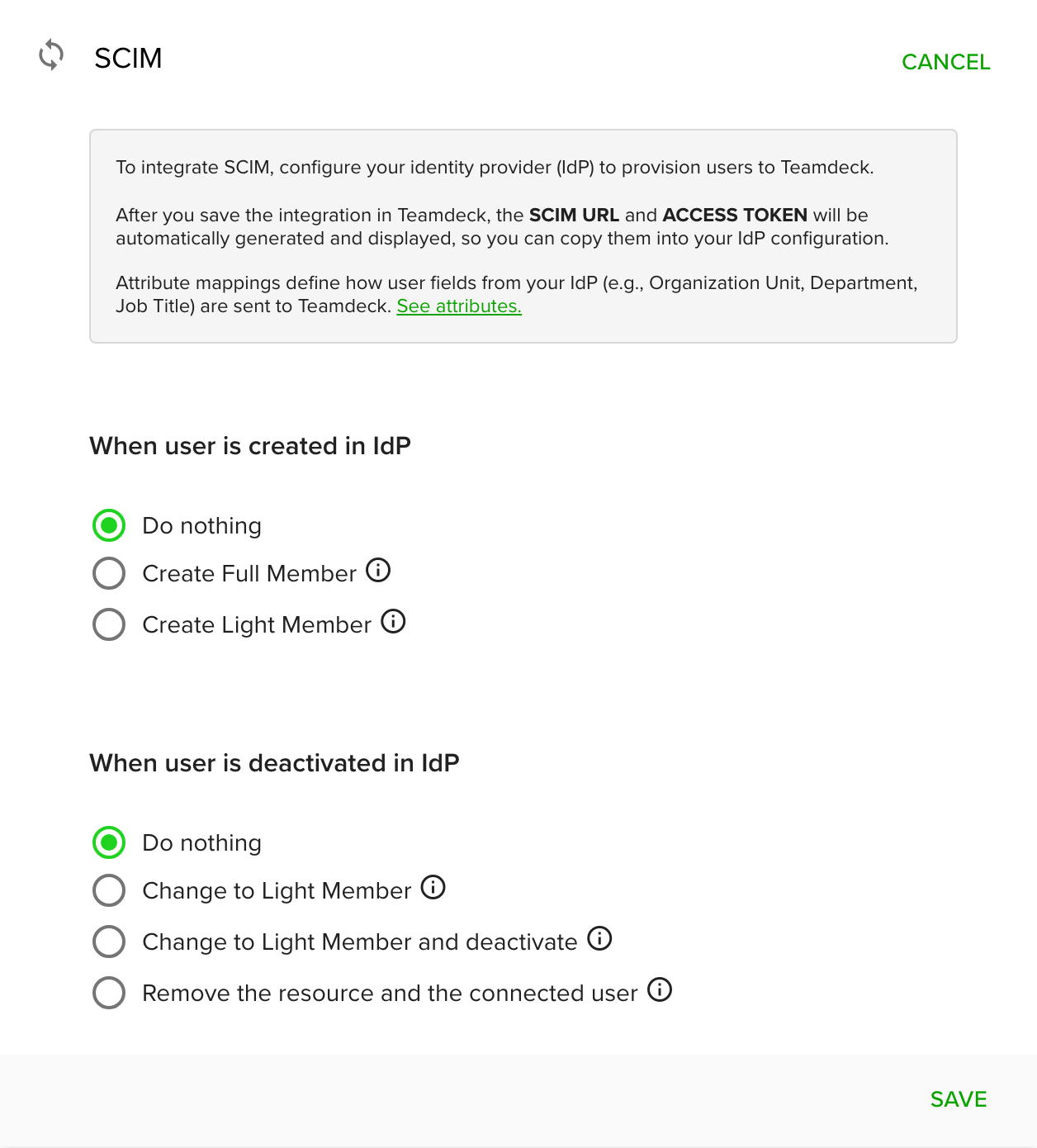
- Go to Settings and open Integrations.
- Open the SCIM card.
- Under When user is created in IdP, choose what Teamdeck does:
- Do nothing: no one is created automatically.
- Create Full Member: the person is created as a Full Member, listed on the calendar and invited to the workspace.
- Create Light Member: the person is created as a Light Member and listed on the calendar.
- Under When user is deactivated in IdP, choose what Teamdeck does:
- Do nothing: the person stays as they are.
- Change to Light Member: the person becomes a Light Member and stays visible on the calendar.
- Change to Light Member and deactivate: the person becomes a Light Member and is hidden from the calendar.
- Remove the resource and the connected user: the person is removed from the workspace and their data is permanently deleted.
- Click Save.
Copy the SCIM URL and access token
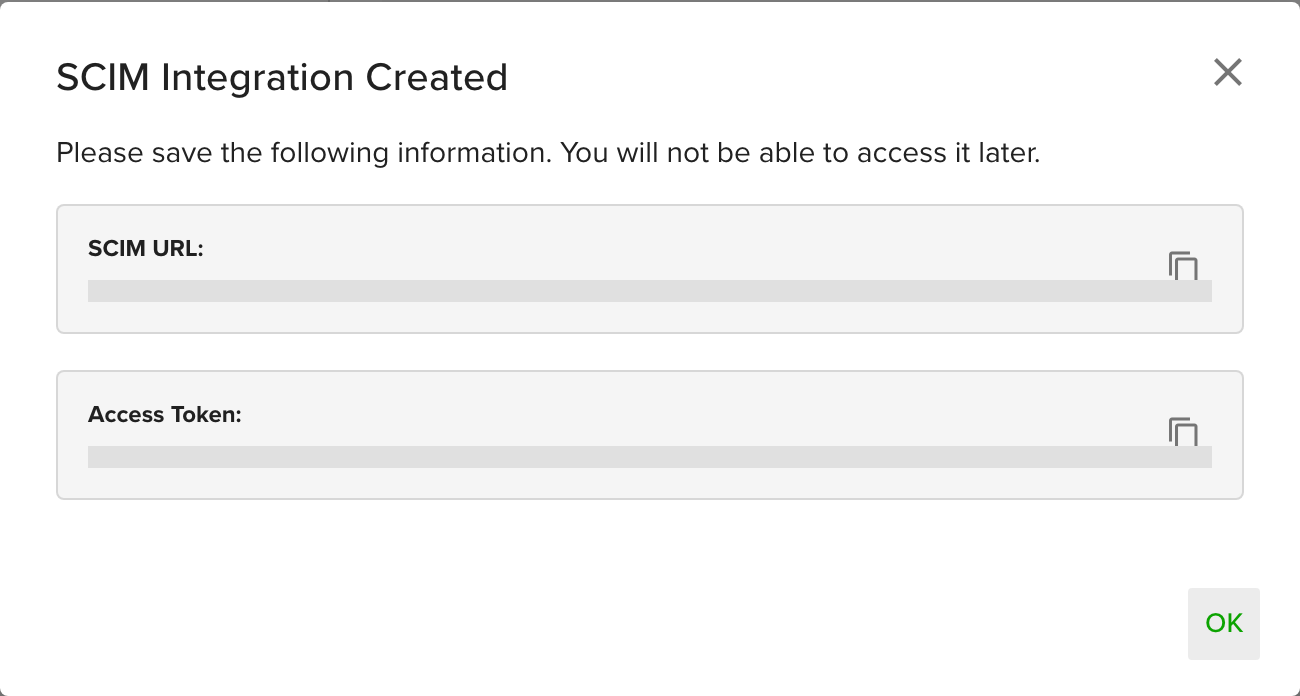
After you save for the first time, Teamdeck shows the SCIM URL and the Access Token.
- Click the copy button next to each value.
- Paste the URL and the token into the SCIM settings of your IdP. The token is a bearer token.
- Click OK.
The token is shown only once. Store it in a safe place before you close the window.
Map organization units and custom fields
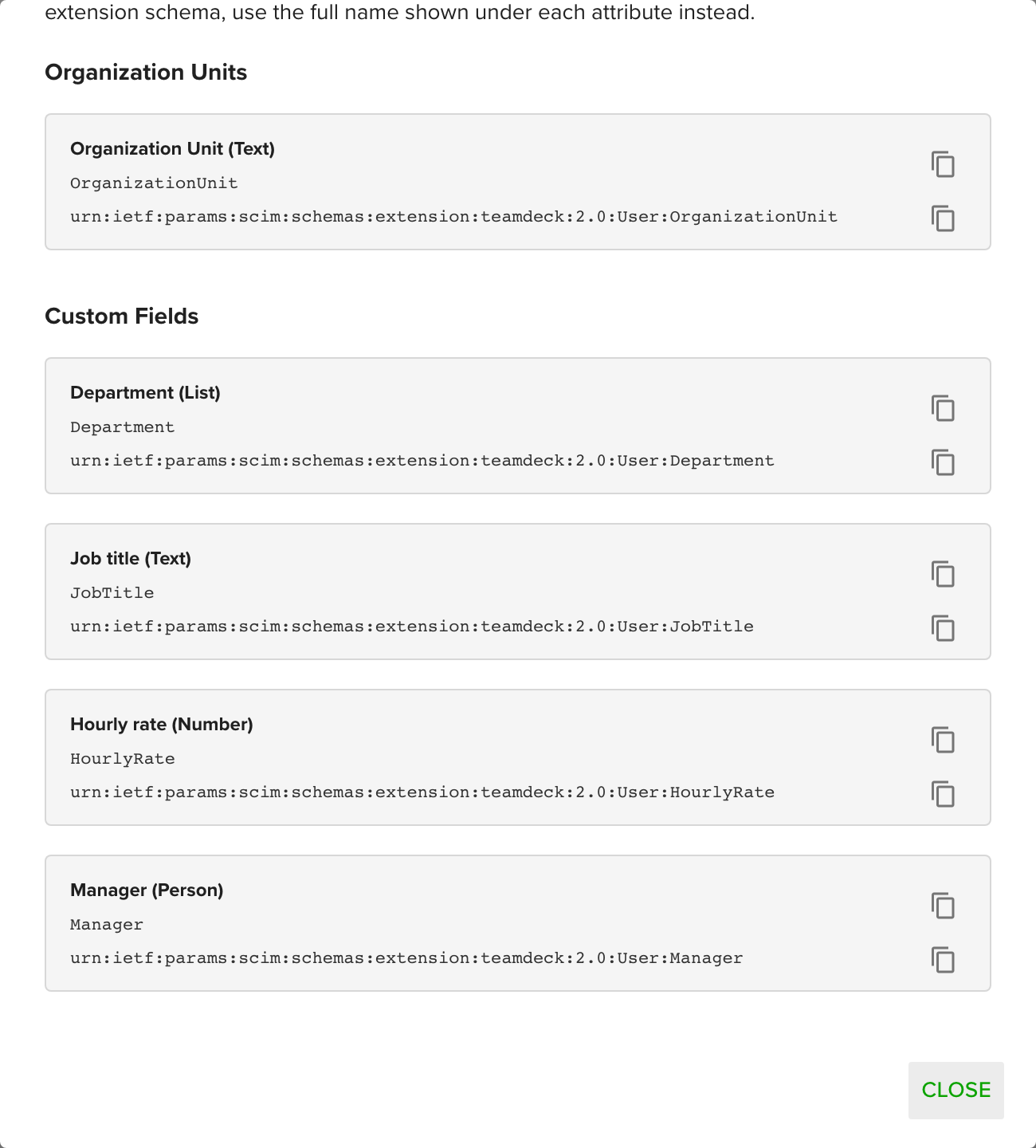
You can send an organization unit and custom field values from the IdP. Teamdeck needs the exact attribute names.
- Open the SCIM card and click See attributes..
- In your IdP, add target attributes under the
teamdecknamespace and use the names from the window as the attribute name. For example, a custom field called Job title isJobTitleand the unit isOrganizationUnit. - If your IdP only accepts attributes in a URN extension schema, use the longer name shown under each attribute.
Custom fields of type List, Text, Number and Person are listed. Other attributes, such as the job title or department that your IdP sends by default, are ignored unless you map them to a teamdeck attribute.
What syncs
- Synced: name, email, active state and avatar.
- Repeated sync is safe: restarting provisioning in the IdP updates the same people instead of creating duplicates.
- Errors use the standard SCIM format, so your IdP shows the reason to its admin.
Use SCIM with SSO
If you also use single sign-on, open the Single Sign-On (SSO) card and choose Require invitation to join the organization under SSO User Provisioning. This avoids conflicts between SCIM and automatic creation at first SSO login. Full Members created by SCIM receive an invitation, and when they sign in with SSO they join the workspace through it.
Troubleshooting
- The access token is gone. The token is shown once. Remove the integration with Remove integration, then save it again to get a new SCIM URL and token, and update your IdP.
- A person was not created. Check that When user is created in IdP is not set to Do nothing, that a seat is free, and that your IdP sends the person's email and name.
- A custom field is not filled. Check the name in See attributes. and make sure the IdP attribute is mapped to the
teamdecknamespace, not to a standard attribute.