

Add or update your payment method
Enter your billing details and credit card, or change them later, in the Payments settings.
On this page
Add the card and billing details for your Teamdeck subscription, and update them whenever your card or invoice details change. The details you enter appear on your invoices.
Before you start
- You need the Owner role. Only Owners see billing settings.
- Have your invoice details ready: name or company, address and the email that should receive invoices.
- Have your credit card at hand.
Add or update your payment method
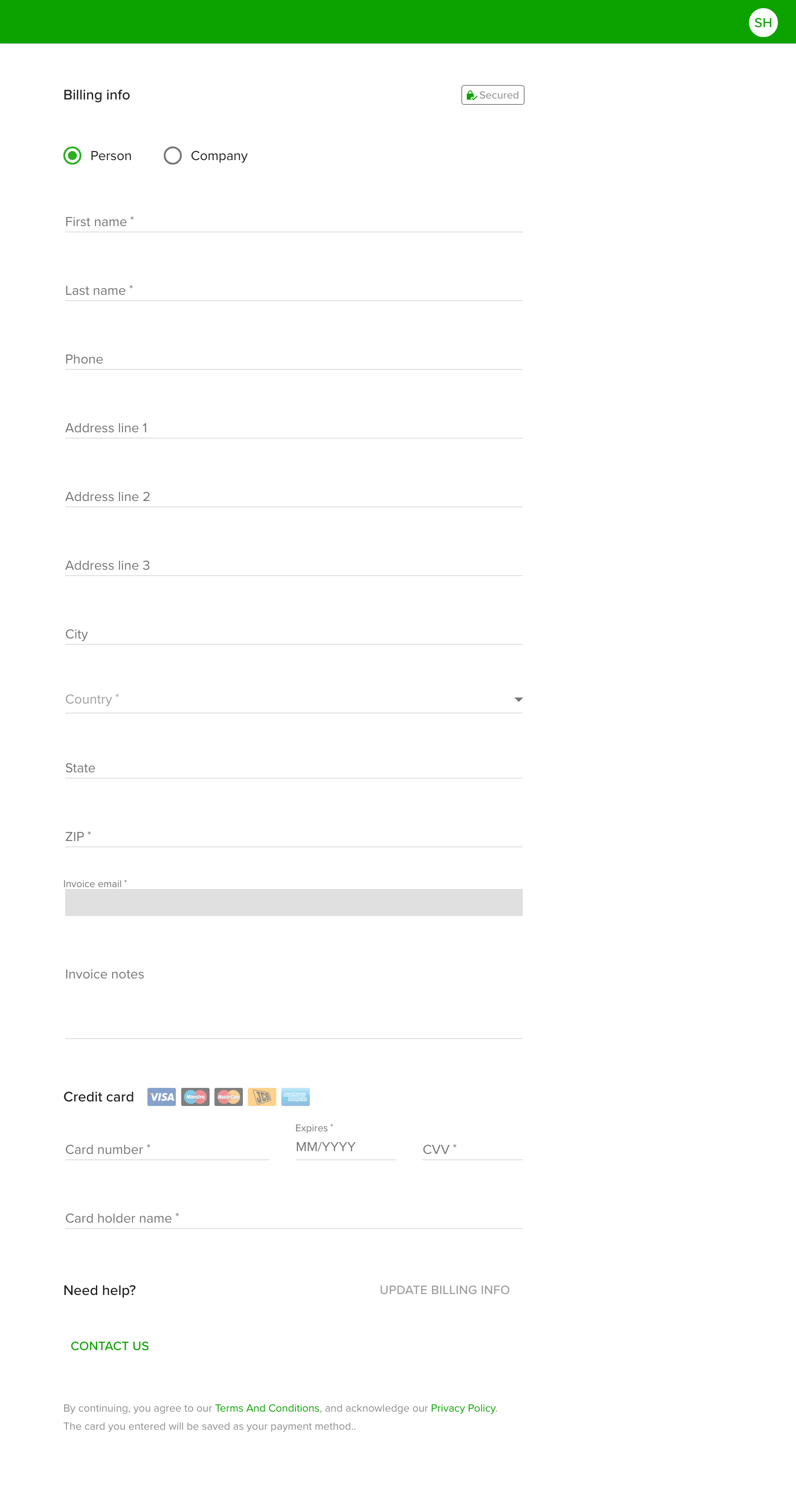
- Go to Settings and open Payments.
- Open the Payment Method tab. Use the My Plan tab first if you want to check which plan the organization is on.
- Under Billing info, choose Person or Company and fill in the form. Fields marked with * are required. Whatever you enter here appears on your invoice.
- Under Credit card, enter the Card number, Expires date, CVV and Card holder name.
- Click Update billing info.
You can open the Payment Method tab again at any time to change your details or card.
Tips
- The Invoices tab lists your past invoices.
- Prices are not listed here. Open the Pricing and FAQ tab to see the current ones.
Troubleshooting
- I do not see Payments in Settings. Only the Owner can open it. Ask the Owner to make the change, or to give you the Owner role.
- A message says a payment failed. Update your card on the Payment Method tab. If the problem remains, contact support through the chat or at contact@teamdeck.io.